E. Conversation Management
Knowledge Gaps
See the questions your assistant could not answer, get an email while the visitor is still there, and learn which knowledge to add next.
Updated 6 Nov 2026
Knowledge Gaps lists the questions your assistant could not answer, or answered only in part. Use it in two ways: step in while the visitor is still on the page, and learn which knowledge to add next.
How a gap is found
About a minute after each answer, an AI review re-reads the visitor's question and the assistant's full reply, and decides whether the question was answered:
- Not answered. The reply says it has no information, only points to a contact, guesses, or answers a different question.
- Partly answered. Only some of what was asked was delivered, the reply was less precise than asked, or it asked for details instead of answering.
A contact button on its own never counts as an answer.
The review never changes an answer, and visitors never wait for it: it runs after the reply has been delivered.
Two signals from the knowledge search behind each answer are listed as well:
- No matching source. Nothing in your knowledge matched the question.
- Sources too weak. Something matched, but nothing was strong enough to answer from.
Questions your Scope Guardrail refuses are listed as Refused on purpose. They are shown for visibility only; they are not gaps.
What it does not catch
- A confident but wrong answer. The review checks whether the question was answered, not whether the facts are right. It does not know your business.
- Greetings and small talk. Turns like "hi", "thanks" or "ok" are never recorded.
An entry can also mean the information is on your site but the assistant did not find it. Check the answer's details before adding a page you already have.
Where to find it
From the sidebar, open Knowledge Gaps. If you manage several domains, the page covers all of them, and you can narrow it to one.
Anyone with access to a domain can read its gaps. Changing a gap's status needs the Editor role or above. See Manage Team Collaboration.
The summary
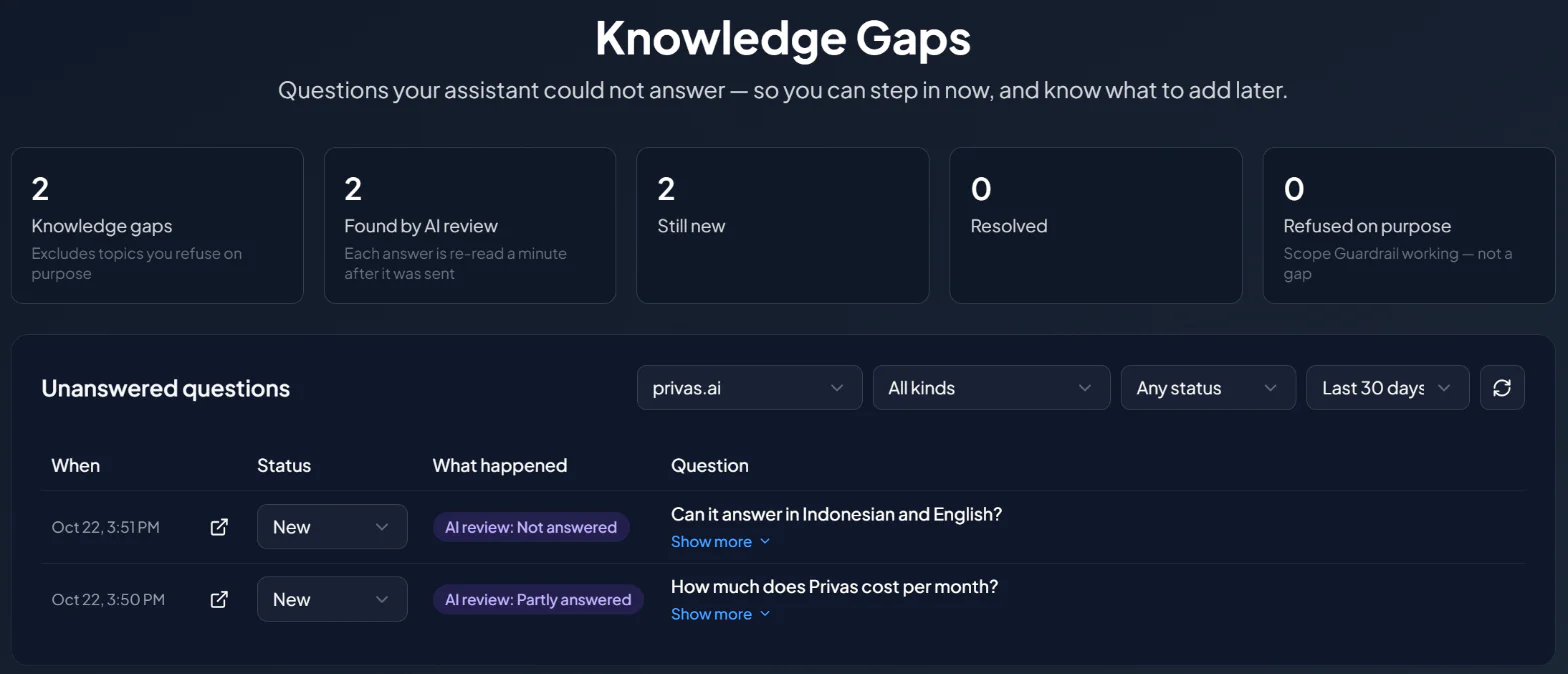
The figures at the top follow the domain and time window you choose:
- Knowledge gaps. Everything that needs attention. Topics you refuse on purpose are not included.
- Found by AI review. The gaps the AI review flagged.
- Still new. Gaps nobody has looked at yet.
- Resolved. Gaps you marked as resolved.
- Refused on purpose. Questions your Scope Guardrail blocked. This is the guardrail working, not a gap.
The Asked more than once card lists the questions that keep coming back, with how often each was asked. A question that returns is the clearest signal of what to add next.
The list
The Unanswered questions list shows one row per question, newest first.
| Column | What it shows |
|---|---|
| When | When the question was asked. Hover for the exact time. |
| Open | Opens the conversation at that answer, highlighted. |
| Domain | The domain that was asked. Hidden when you filter to one domain. |
| Status | Where you are with it. See Status. |
| What happened | Why it was listed. See the table below. |
| Question | The visitor's question, as they wrote it. |
Show more on a row reveals the full question, the start of what the assistant replied, and the AI review's one-line reason.
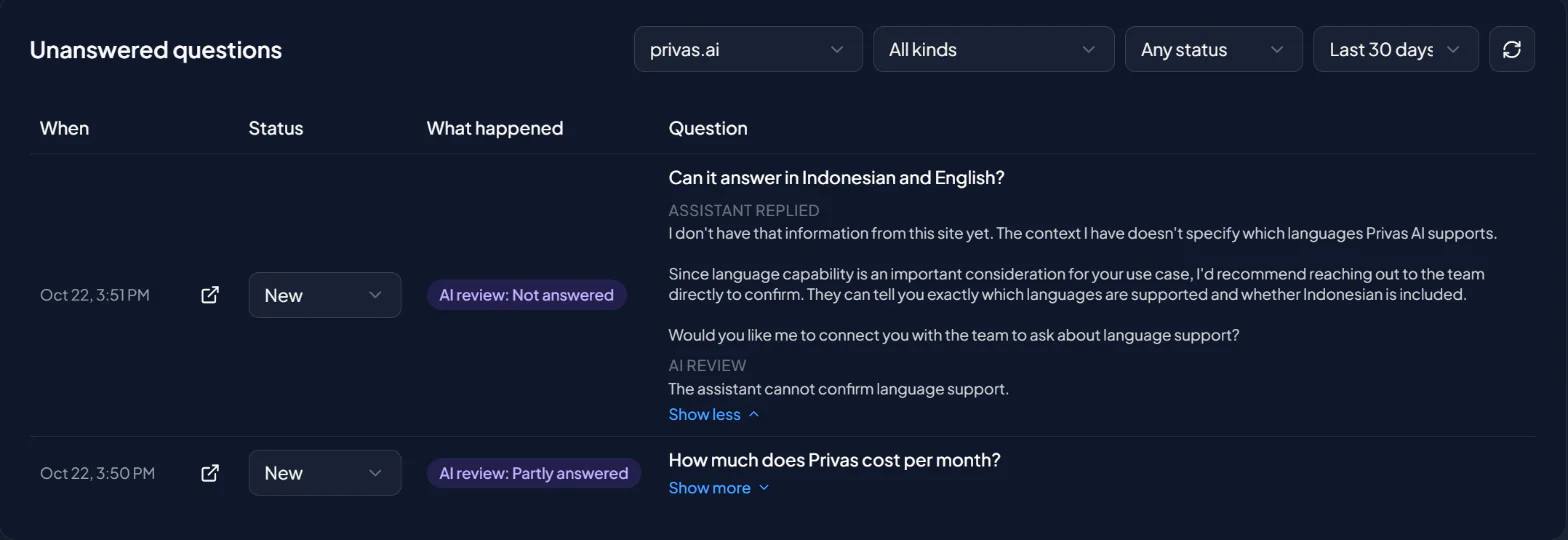
You can filter by domain, by kind, by status, and by window: the last 7, 30 or 90 days (30 by default). Show 10, 25 or 50 rows per page. Your filters and page are kept in the page address, so a reload, or a link you send a teammate, opens the same list.
What happened
| Label | What it means | What to do |
|---|---|---|
| AI review: Not answered | The reply did not answer the question. | Open the conversation. If the visitor is still there, take over. Then add or clarify the knowledge. |
| AI review: Partly answered | Part of the question was answered, or less precisely than asked. | Read the reply first. Many are fine answers to multi-part questions. |
| No matching source | Nothing in your knowledge matched. | A source is usually missing. |
| Sources too weak | Sources matched, but none was strong enough. | A source is usually thin. Add a clearer page. |
| Refused on purpose | Your Scope Guardrail blocked the topic. | Nothing, unless the topic should be allowed. |
Hover a label to read the AI review's reason. A row can carry a search signal and an AI review label at the same time. Older entries may also show Declined and redirected: the assistant had sources, declined anyway, and pointed the visitor to a contact channel.
Status
Every gap starts as New. Change it from the row:
- Reviewed. You have looked at it.
- Resolved. You fixed it, for example by adding the missing page.
- Ignored. Not worth acting on. An ignored question is also left out of your scheduled reports.
Resolved and Ignored record who made the change and when.
Get an email when the assistant cannot answer
To hear about a gap while the visitor is still on the page, turn on the email alert:
- Open your domain, then go to Settings > Conversation > Unanswered Questions.
- Turn on Email me when the assistant cannot answer.
- Optionally, turn on Also email me when it only partly answers. Expect more email, some of it about replies that needed no fixing.
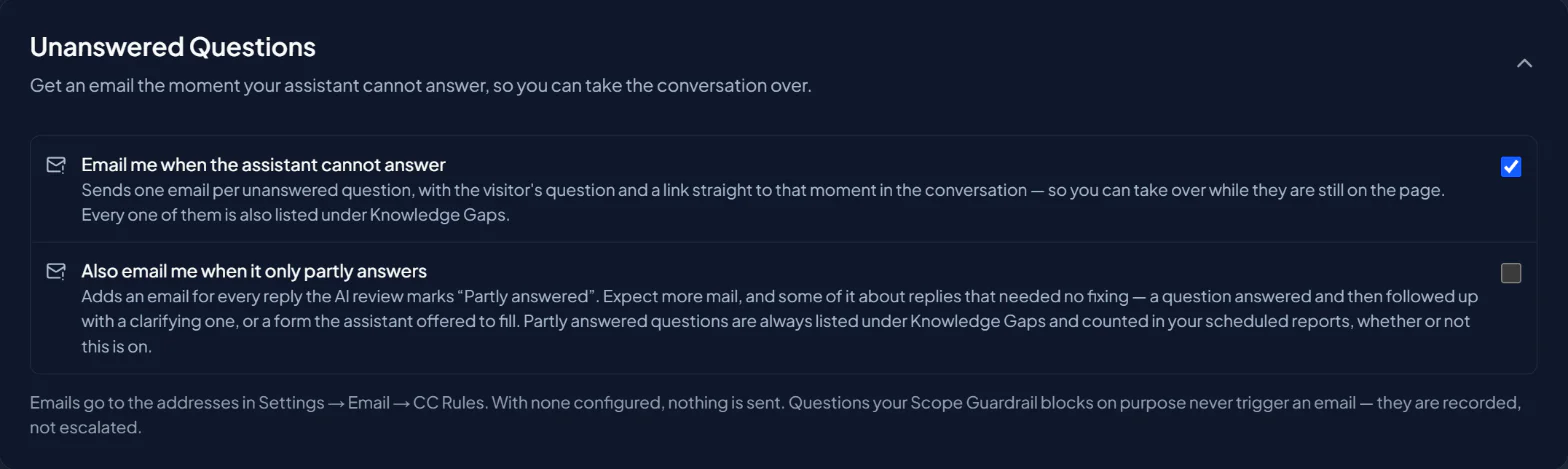
Both switches are off for a new domain. Only the owner or a domain admin can change them.
Emails go to the active addresses in Settings > Email > CC Rules, each address on its own email. With no CC Rule configured, nothing is sent. If you send email from your own server, these emails go through it too. See Monitoring Live Conversations & Email Alerts.
Each email covers one answer and arrives a minute or two after it, once the AI review has run. The subject reads "Your assistant could not answer", or "Your assistant only partly answered", followed by your domain. The email contains the visitor's question, what happened, the start of the assistant's reply, and a link that opens the conversation at that answer, where you can take over and reply yourself.
Questions your Scope Guardrail refuses are recorded, never emailed.
In your scheduled reports
Scheduled Reports include a Questions your assistant couldn't answer block: the questions it could not answer, most-asked first, a few recent partly answered examples, and a link to this page.
The block is on by default. To leave it out for a domain, turn off Include unanswered questions in Settings > Email > Report.
Closing a gap
- Open the conversation. If the visitor is still there, take over and answer them yourself.
- Check why it happened. The answer's details show which knowledge the assistant had in front of it. If the right page was there, the fix is clearer wording, not a new page. See Inspecting a Conversation.
- Fix the knowledge. Add the missing source or clarify the existing one. See Add Knowledge Sources.
- Confirm and mark it Resolved. Ask the same question on your share link, then set the status.
Next step
Continue to Usage Dashboard to follow activity over time.