
E. Conversation Management
Scheduled Reports
Email a summary of your dashboard numbers on a schedule, weekly or monthly, so your team sees how the assistant is performing without opening Privas.
Updated 6 Sep 2026
Scheduled Reports email a summary of your dashboard numbers to your team on a schedule. Instead of opening Privas to check activity, the people who need the numbers receive them in their inbox.
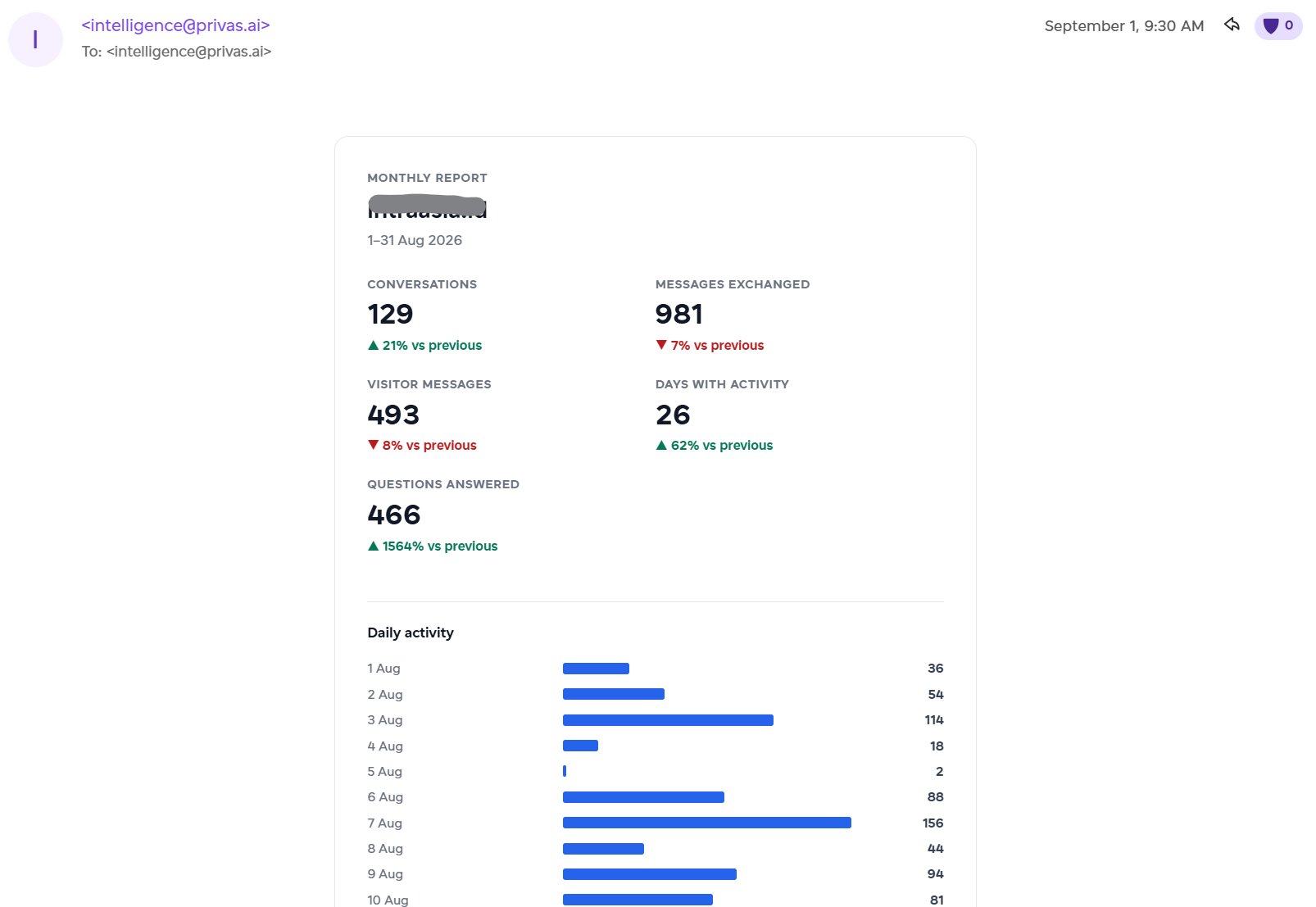
Where to configure it
Open your domain, then go to Domain Settings > Email > Report.
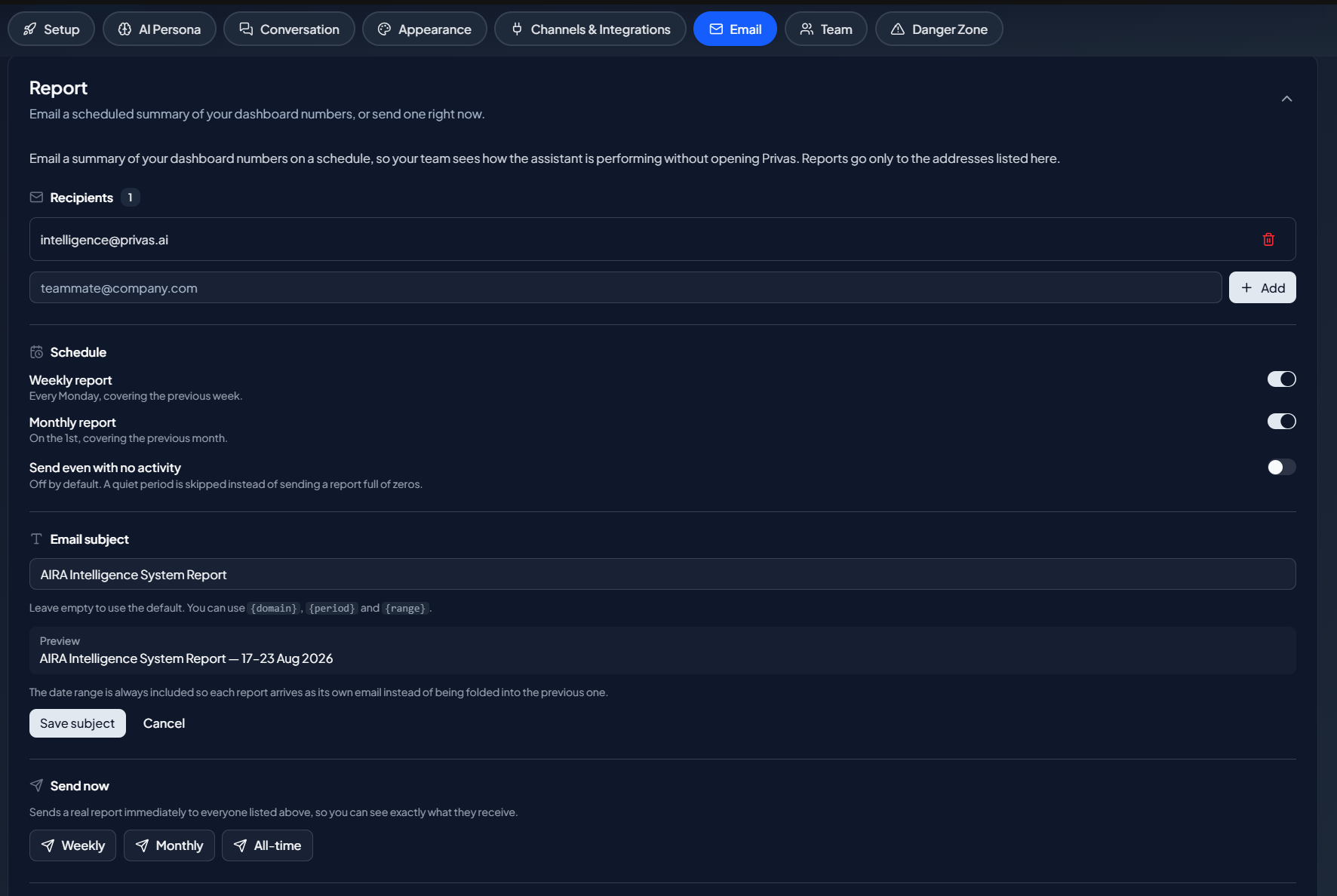
Recipients
Reports go only to the addresses you list here. Add at least one recipient before you can turn on a schedule. Add an address in the recipients field and click Add; remove one with the trash icon.
If you remove the last recipient, the schedules turn off with it, because a schedule with no recipient has nowhere to send.
Schedule
Two schedules can run, each an independent switch:
- Weekly report. Sent every Monday, covering the previous week.
- Monthly report. Sent on the 1st, covering the previous month.
Send even with no activity
Off by default. When a period had no activity, the report is skipped rather than sending a summary full of zeros. Turn this on only if you want a report every period regardless.
Email subject
Leave the subject empty to use the default, or write your own. You can use three placeholders:
{domain}your domain{period}the report type, such as "Weekly report"{range}the dates the report covers
A live preview shows how your subject will read. The date range is always included, even if your template leaves it out, so each report arrives as its own email instead of being folded into the previous one by your mail client.
Send now
To see exactly what recipients receive, send a report immediately. Choose the period:
- Weekly covers the previous full week.
- Monthly covers the previous full month.
- All-time covers everything since this assistant went live.
Before it sends, a confirmation lists every recipient, because this emails real people. Only a domain admin can send a report.
Recent reports
The Recent reports list shows the latest runs with their period, date range, and status:
- Sent to a number of recipients.
- Skipped when there was no activity, or no recipient configured.
- Failed if delivery did not complete.
A report you triggered with Send now is marked as manual.
Who can do what
- A viewer sees the settings but cannot change them.
- An editor can manage recipients, schedules, and the subject.
- A domain admin can also use Send now, the same bar as sending from your own mail server.
Next step
Reports summarize the same numbers you see in the Usage Dashboard and Funnel Analytics. To send email from your own server instead of the Privas AI default, see Monitoring Live Conversations & Email Alerts.