
E. Conversation Management
Email Follow Ups
When a visitor shares their email, Privas AI can send a follow-up summarizing the conversation, so a website chat can continue after they leave.
By aninditoUpdated 6 Sep 2026
When a visitor shares their email during a conversation, Privas AI can send a follow-up email that summarizes the discussion or adds helpful information. This turns a website chat into a longer engagement.
How it works
- A visitor talks with the representative.
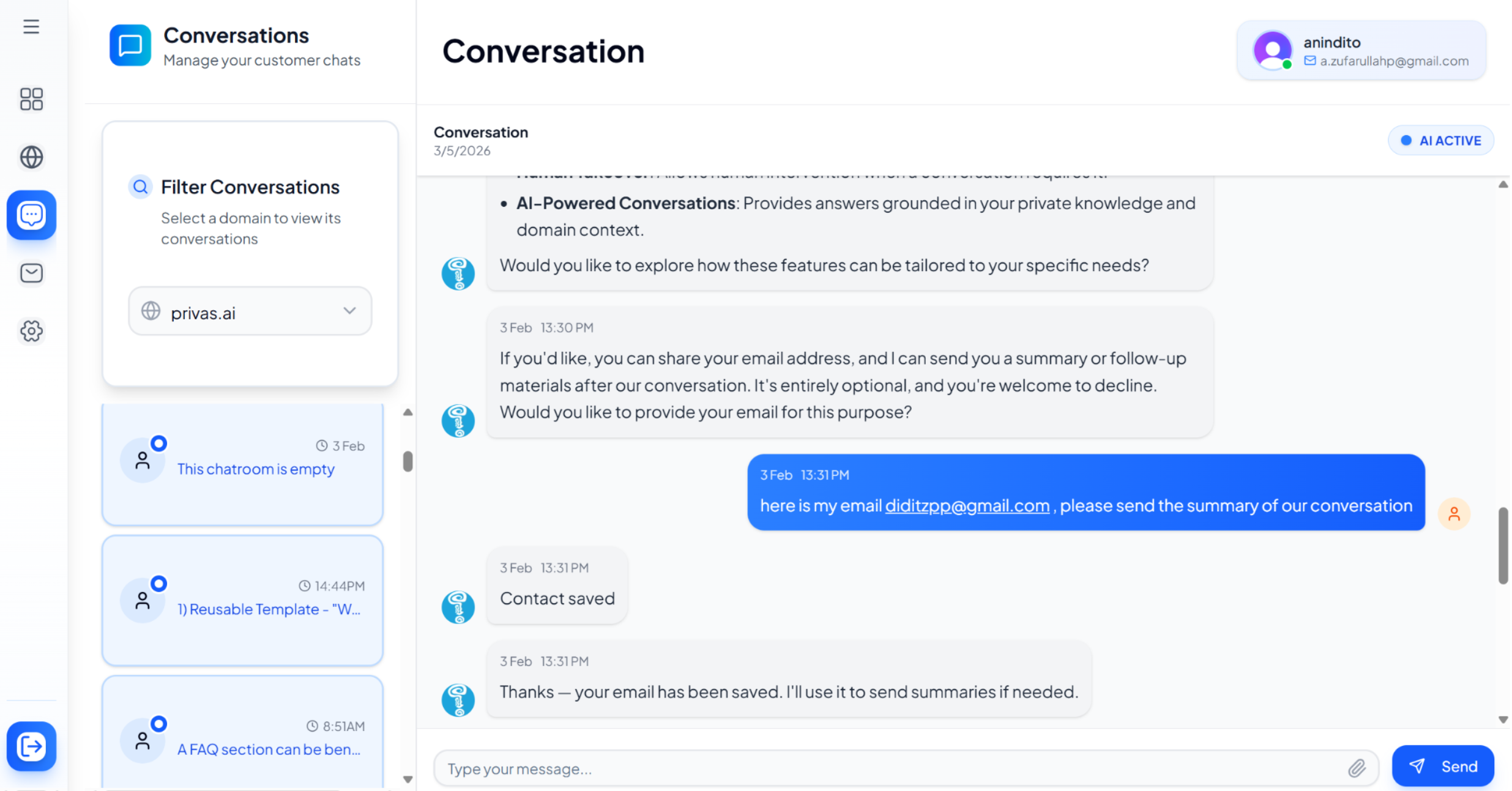
- The assistant may ask if they would like to share their email.
- If they do, the system stores it for the session.
- After the conversation, Privas AI generates a summary email and sends it.
- Optional CC recipients can receive a copy.
Example
During a conversation, the assistant may offer a follow-up email.
After the conversation, the visitor receives a summary generated by Privas AI.
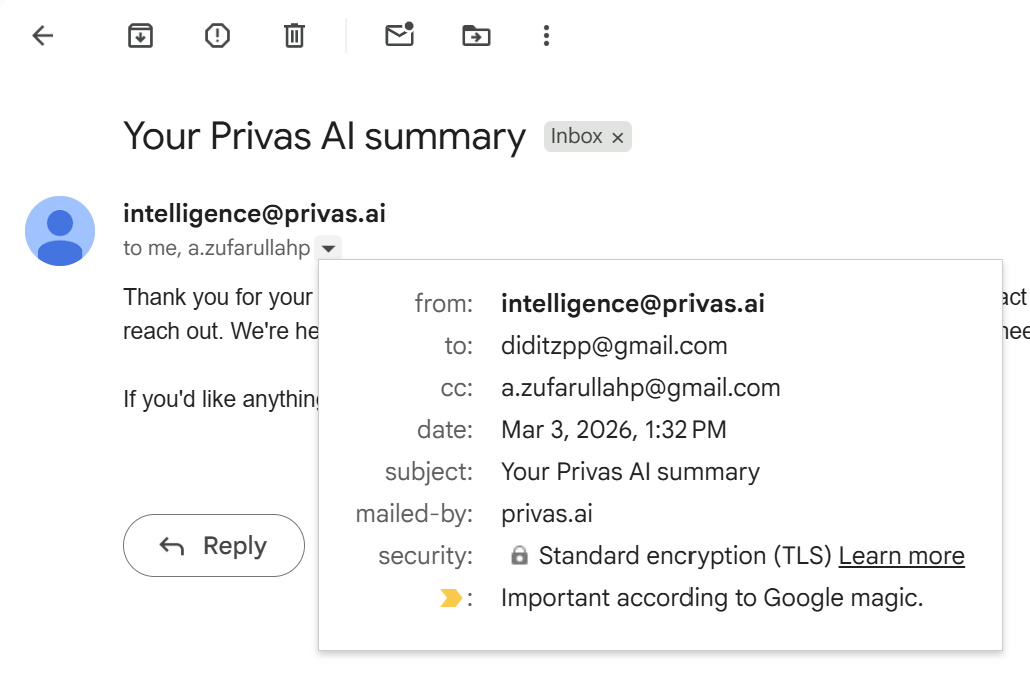
The summary typically includes a short recap of the conversation, relevant follow-up information, and the assistant's closing message. If configured, your team can receive a CC copy.
Configure it
Open your domain, then go to Settings > Email. Two things control follow-ups: CC Rules and Prompt Templates.
Step 1: CC recipients
CC Rules let your team receive copies of follow-up emails, useful for monitoring conversations or responding to leads.
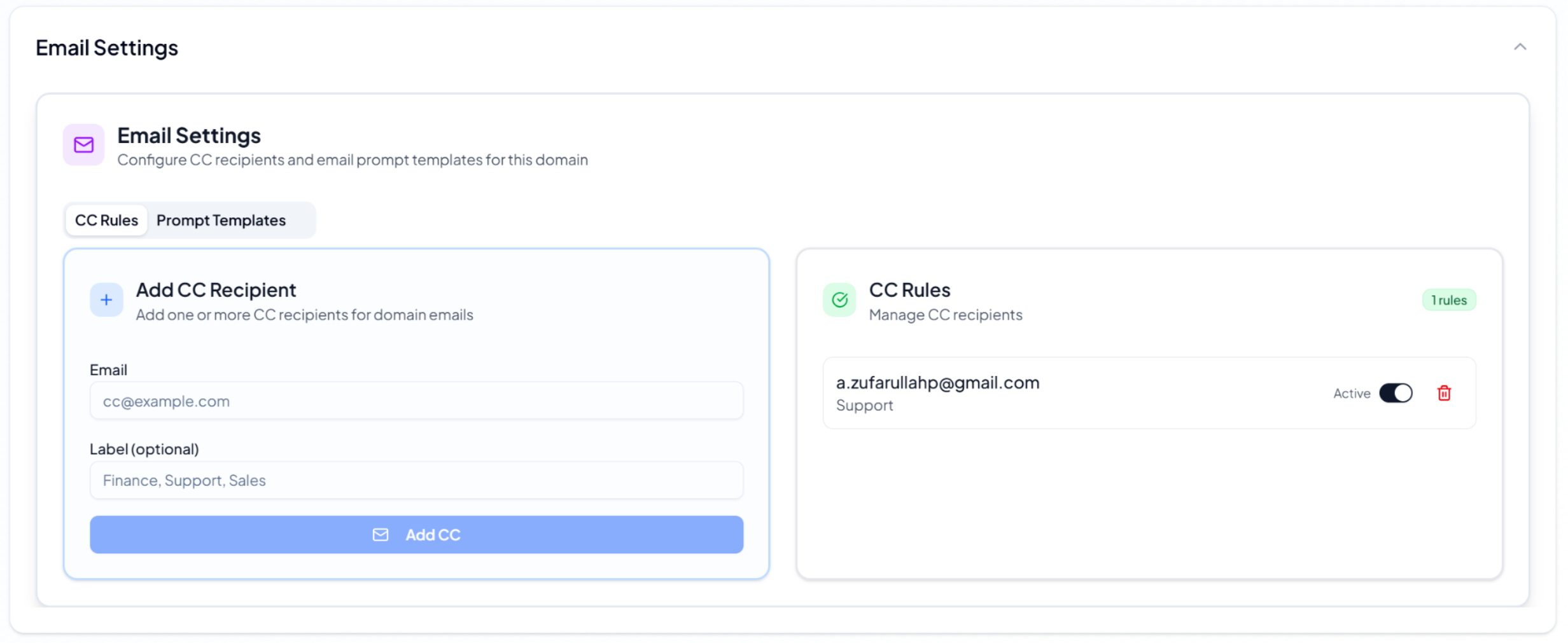
- Open Settings > Email.
- Select CC Rules.
- Enter the email address.
- Add an optional label (Support, Sales, Finance).
- Click Add CC.
You can enable or disable each recipient at any time.
Step 2: Email template
Prompt Templates control how the summary is written.
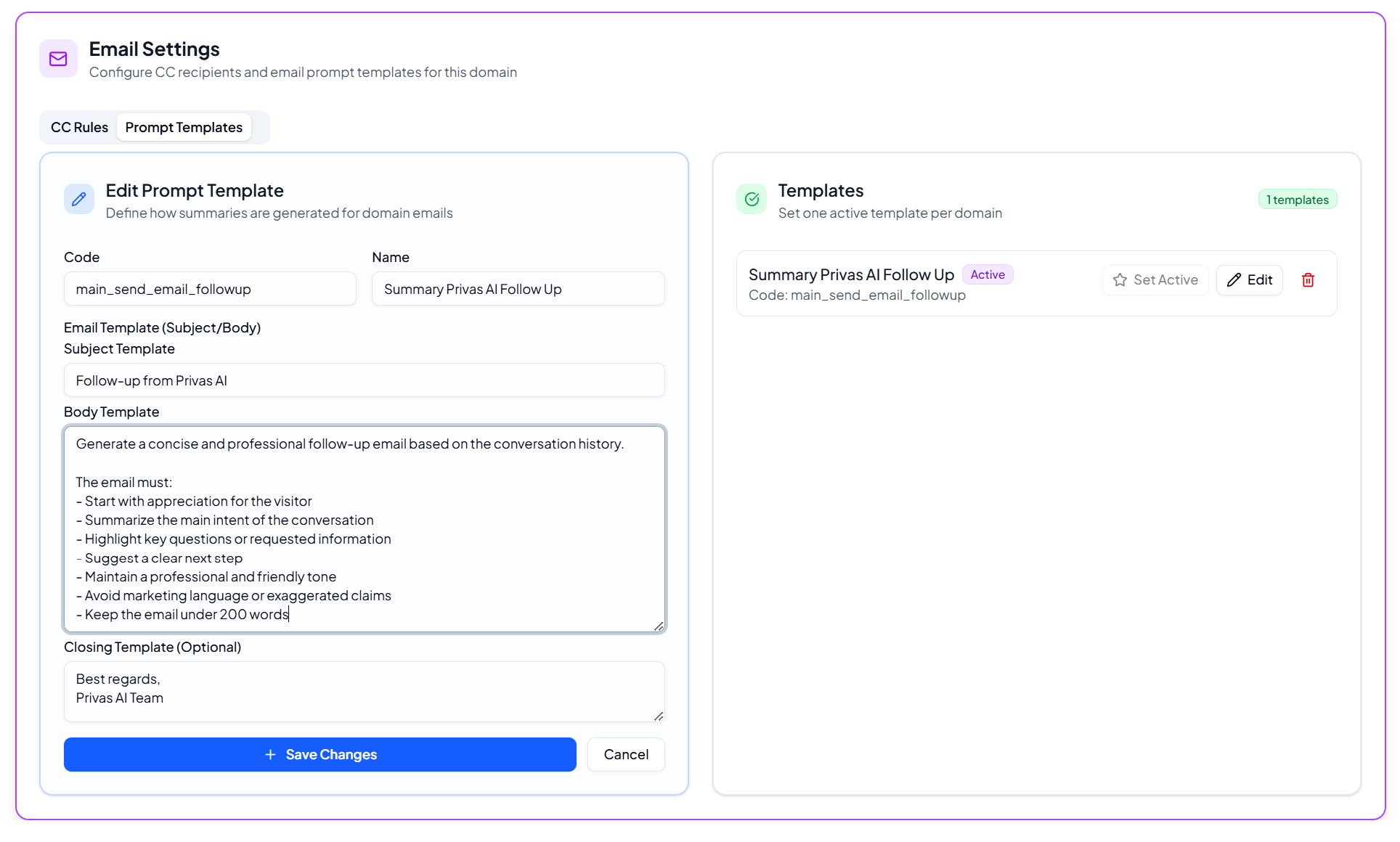
A template includes a subject template, an email body template, and an optional closing message. Only one template can be active per domain.
What the AI generates
For each follow-up, Privas AI uses the conversation history, the active template, and the domain context to write a clear, helpful summary.
Why this matters
Follow-ups extend the value of your representative beyond the website session: capture contact details, continue conversations, share summaries, and notify your team about important interactions.
Next step
Continue to Email Operations to review and manage every email the system sends.