E. Conversation Management
Email Operations
Email Operations allows you to monitor and manage all emails triggered by Privas AI and system activities.
By aninditoUpdated 6 Sep 2026
Email Operation includes emails generated by:
• AI follow-up summaries
• visitor email capture during conversations
• escalation notifications (bell requests)
• collaborator invitations
• manual emails sent by administrators
The Email Operations page acts as a centralized log where you can review and manage email activity across your domains.
What you can see in Email Operations
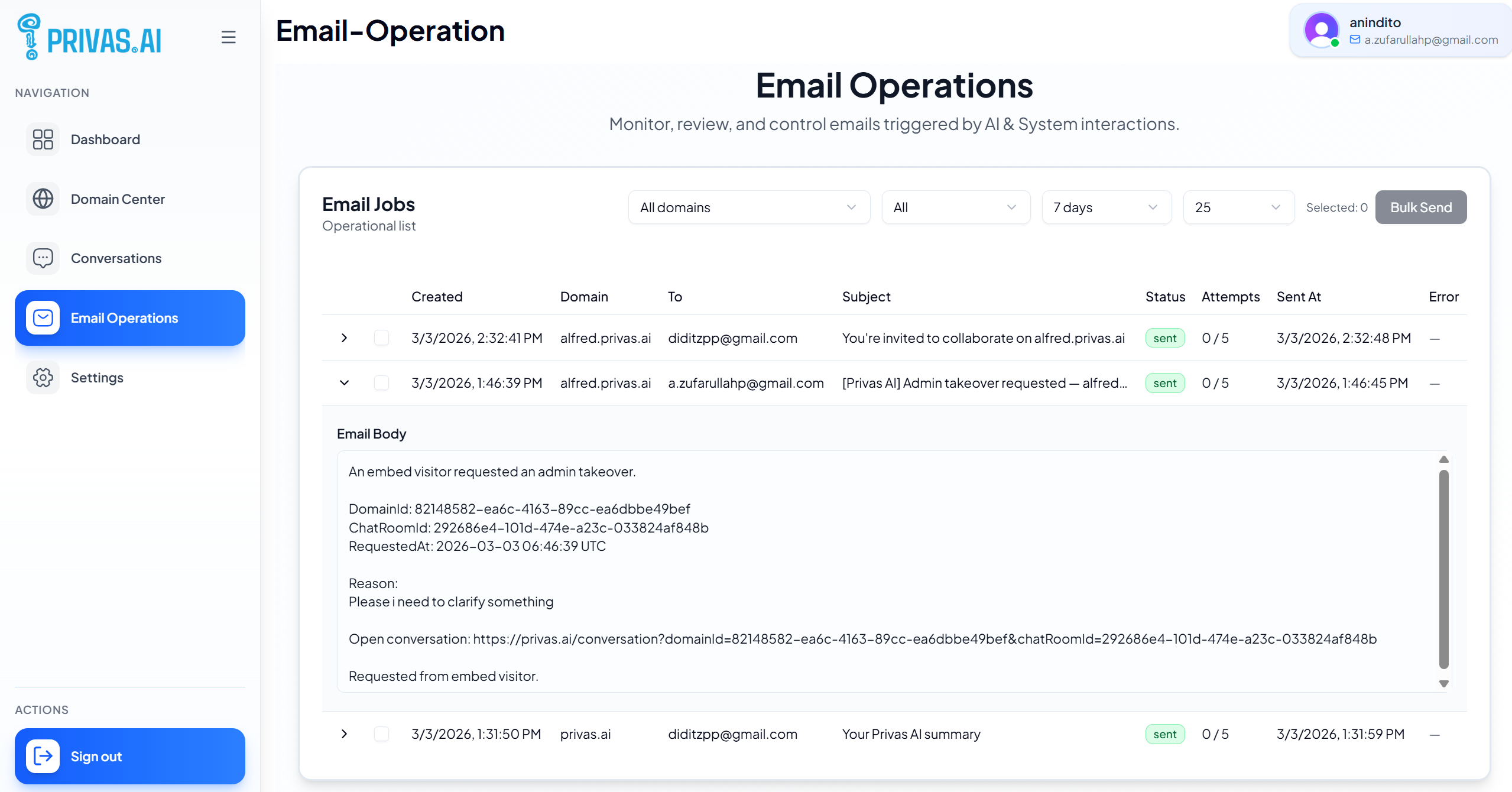
The Email Operations page displays a list of email jobs.
Each row represents an email that was generated by the system.
Typical information shown includes:
• Created – when the email job was created
• Domain – which domain triggered the email
• Recipient – who the email was sent to
• Subject – the email subject line
• Status – whether the email was sent successfully
• Attempts – number of send attempts
• Sent At – when the email was delivered
• Error – any delivery errors if they occur
You can expand a row to view the full email body.
Types of emails you may see
Several types of system emails may appear in the Email Operations list.
AI Follow-up Emails
These are generated when a visitor provides an email during a conversation.
The system sends a summary or follow-up message based on the configured email template.
Escalation Notifications
When a visitor requests human assistance using the bell escalation feature, the system can send a notification email to administrators.
This helps teams respond quickly to visitor requests.
Collaboration Invitations
When a domain owner invites another user to collaborate, the system sends an invitation email with a secure link.
This allows new collaborators to join the domain workspace.
Viewing email details
To inspect an email:
- Open Email Operations
- Locate the email job in the list
- Click the arrow on the left side of the row
The full email body will be displayed below the row.
This helps administrators verify what content was sent to recipients.
Sending bulk emails
Administrators can also send emails manually to multiple recipients using the Bulk Send feature.
This is useful when you want to send follow-ups or announcements to selected contacts.
Step-by-step: Send a bulk email
1. Filter by domain
At the top of the Email Operations page, choose the domain you want to target.
Bulk email requires a domain to be selected.
2. Select recipients
In the email list, check the boxes next to the rows that represent the recipients you want to include.
Once at least one row is selected, the Bulk Send button becomes available.
3. Click Bulk Send
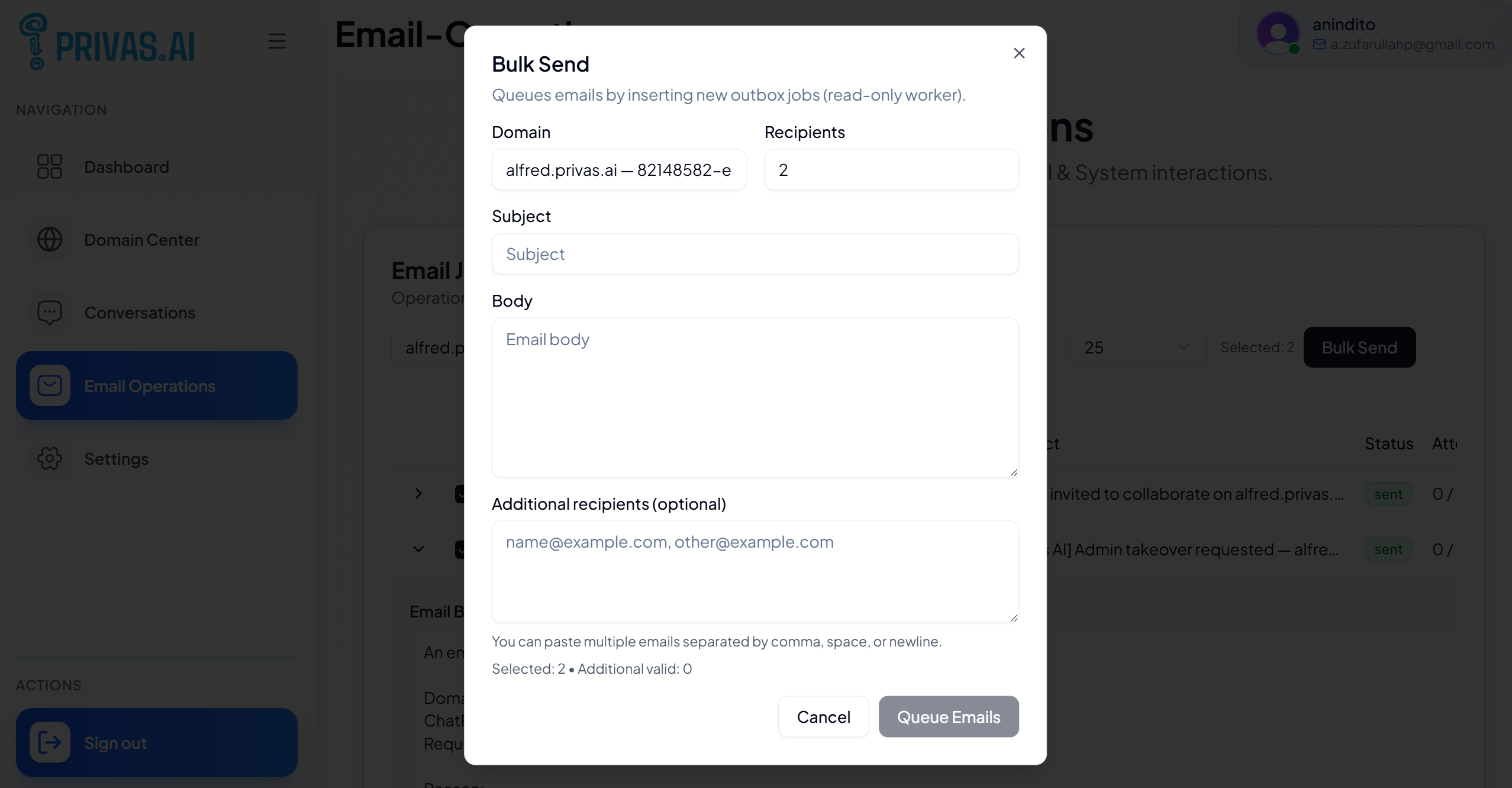
Click Bulk Send to open the bulk email dialog.
4. Write the email
In the dialog window:
• Confirm the Domain
• Review the number of Recipients
• Enter the Subject
• Write the Email Body
You can also add additional recipients manually if needed.
Multiple emails can be separated using:
• commas
• spaces
• line breaks
5. Queue the email
Click Queue Emails.
The system will create email jobs and place them in the sending queue.
The worker service will then process and send the emails automatically.
Why this matters
Email Operations provides transparency and control over email communication generated by the platform.
It allows administrators to:
• monitor AI follow-up emails
• review escalation notifications
• track collaborator invitations
• manually send bulk messages
• troubleshoot delivery issues
This ensures that important communications triggered by the AI representative are visible and manageable.
What’s next
You can now manage conversations, follow-ups, and email communications triggered by your AI representative.
Continue to:
Learn more about Privas AI System