E. Conversation Management
Monitoring Live Conversations & Email Alert
Learn how to monitor live AI website interactions without staring at a dashboard. Discover how to set up critical email notifications for new conversations.
By aninditoUpdated 1 Jun 2026
One of the greatest operational shifts in adopting an AI-first, human-backup architecture is changing how your team monitors website traffic.
In a traditional live chat setup, human operators must constantly monitor a dashboard, waiting for a ping. In the Privas ecosystem, your AI representative is always online, instantly handling the initial greeting and triage. This means your team does not need to watch the dashboard 24/7.
Instead, effective monitoring relies on smart, asynchronous alerts. The most critical tool for this is the New Conversation Email Notification.
Why Email Notifications Change the Workflow
Because the AI is handling the top-of-funnel cognitive load explaining features, answering FAQs, and guiding the visitor, your human team can step away from the live chat interface and focus on their actual work.
By setting up email notifications, you achieve a "passive monitoring" state:
- You are instantly alerted the moment a visitor initiates a conversation.
- You have the peace of mind knowing the AI is actively engaging them while you check the alert.
- You can review the email, click a direct link to the chat, and decide if a realtime human takeover is necessary based on our takeover framework.

Setting Up Email Notifications for New Conversations
To ensure your team never misses a potential high-value interaction, you must configure email routing for your domains.
1. Accessing Notification Settings
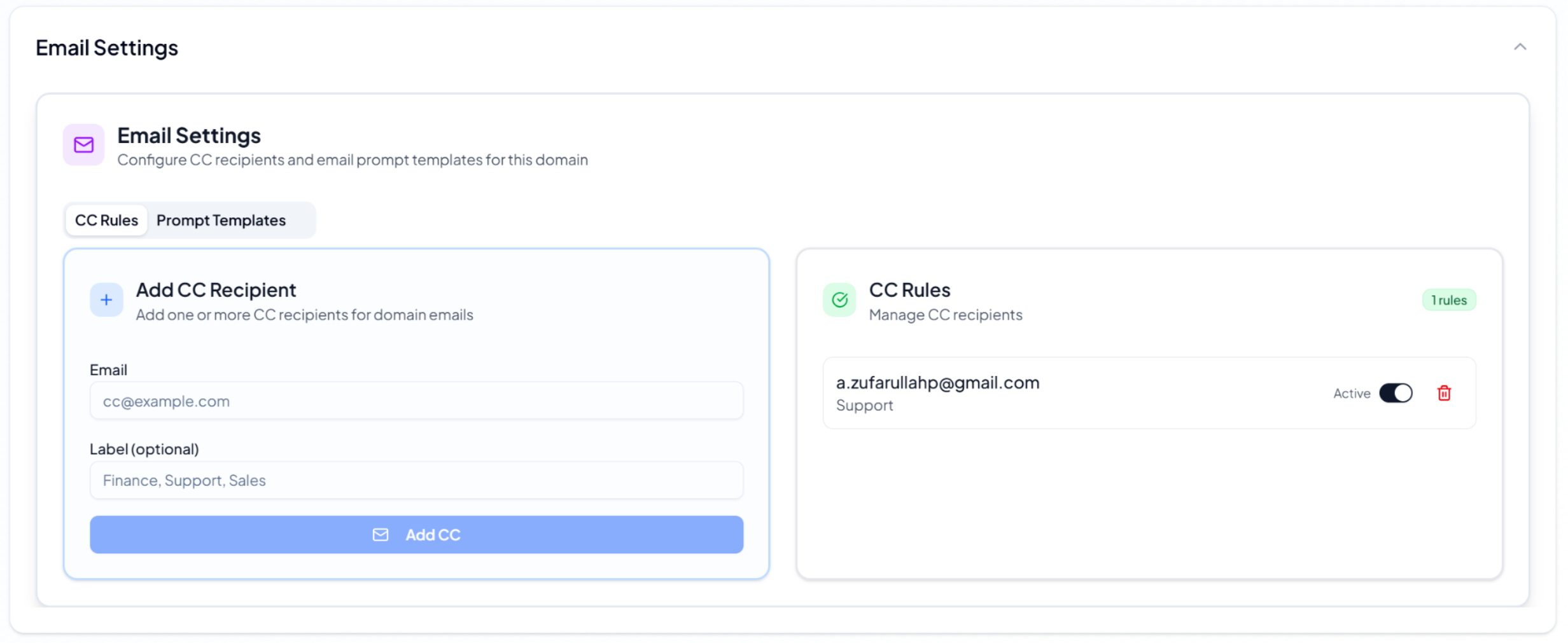
Navigate to your Domain Workspace Settings and scroll down to the Email Settings tab. Here, you can define how and when the system alerts your operational team.

2. Enabling "New Conversation" Alerts
Switch the toggle to the Active position. You can specify exactly which email addresses and roles (e.g., [email protected] as Sales or specific operator emails) should receive these notifications.
Note: If you manage multiple domains within your Privas dashboard, you can route notifications for specific domains to specific teams. For example, technical support domains route to the engineering team, while marketing domains route to sales.
Advanced: Custom Email (SMTP) Configuration
By default, alert emails are sent via Privas.ai's internal mailing system. However, for organizations that require strict brand consistency or have specific internal IT routing policies, you can configure the system to send notification emails directly from your own mail server.

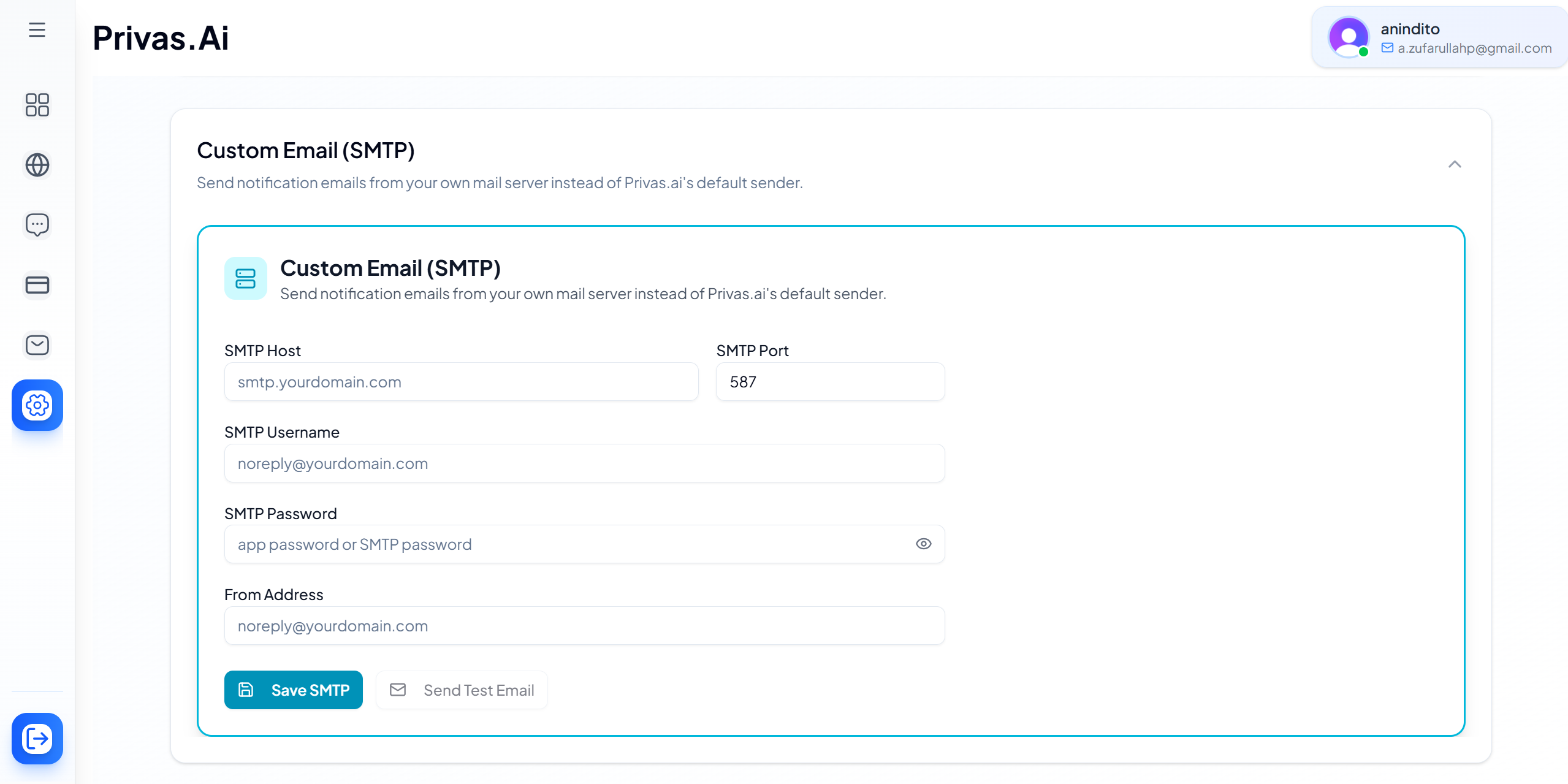
navigating to the Custom Email (SMTP) panel allows you to override the default sender.
To configure this, you will need to input the following credentials from your email provider:
- SMTP Host: The server address provided by your email host (e.g.,
smtp.yourdomain.com). - SMTP Port: The port used for the secure connection (commonly
587or465). - SMTP Username: The authentication email address (e.g.,
[email protected]). - SMTP Password: Your secure app password or standard SMTP password.
- From Address: The exact email address that will appear as the sender when your team receives the alert.
Once your details are entered, click Save SMTP. We highly recommend using the adjacent Send Test Email button to verify that your mail server is successfully authenticating and dispatching alerts to your inbox.
3. Anatomy of the Alert Email
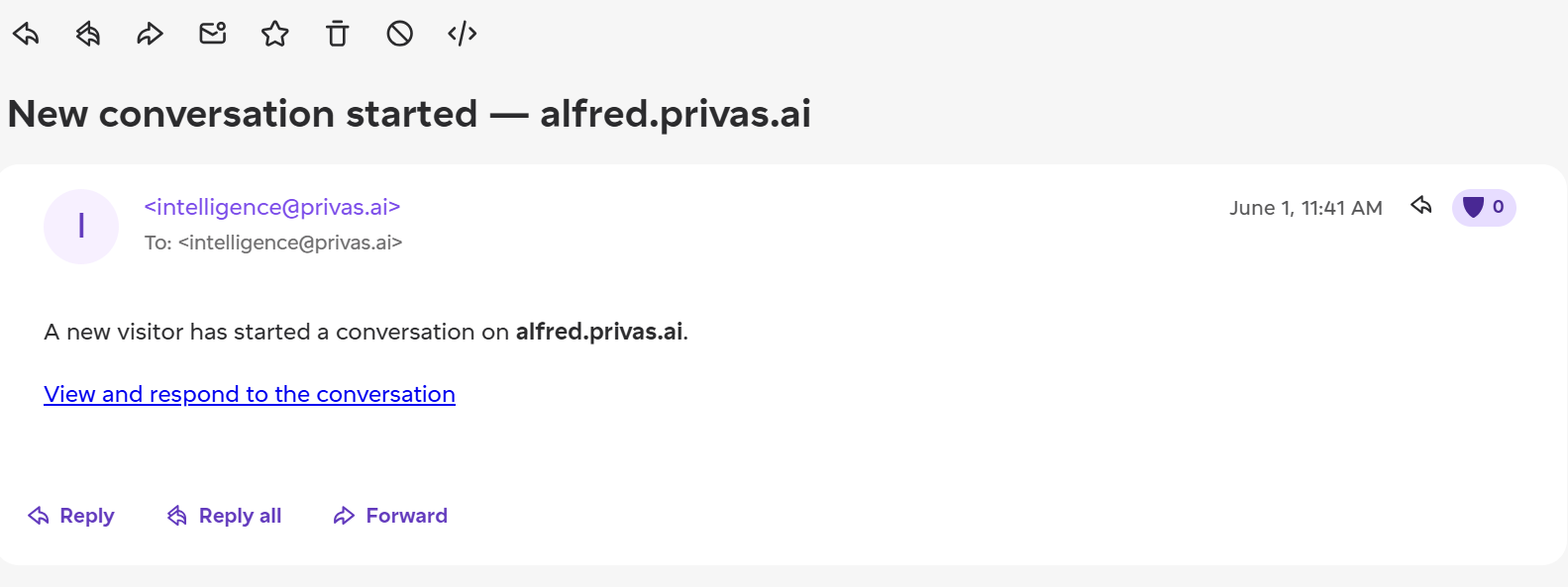
When a visitor sends their first message, the system instantly dispatches an email to your configured addresses. This email is designed for rapid context gathering and includes:
- The Domain: Which of your websites the visitor is currently on.
- The Initial Query: A preview of what the visitor is asking.
- Direct Access Link: A secure button that drops you directly into the active conversation thread within your Privas admin dashboard.
Best Practices for Alert Triage
Once an email notification arrives, your team should follow a standardized team response workflow:
- Don't Panic, The AI is Active: Remember that the moment you receive the email, the AI has already replied to the visitor. There is no immediate ticking clock demanding a 5-second human response time.
- Read the Thread Silently: Click the link in the email to open the conversation view. Watch the dialogue between the AI and the visitor unfold in real time.
- Wait for the Right Moment: Do not immediately hit the LIVE AGENT button just because a chat started. Let the AI handle the basic explanations. Only execute the takeover when the conversation reaches a commercial milestone, a complex edge case, or requires human empathy.
By mastering email notifications, your team transforms website monitoring from a stressful, constant obligation into a precise, high-value intervention system.