E. Conversation Management
Usage Dashboard
Monitor activity across your representatives: total messages, usage, last activity, daily trends, and a conversion funnel for each surface.
By aninditoUpdated 6 Sep 2026
The Dashboard shows how many conversations are happening, how much usage your assistants consume, and when the most recent activity occurred.
Summary cards
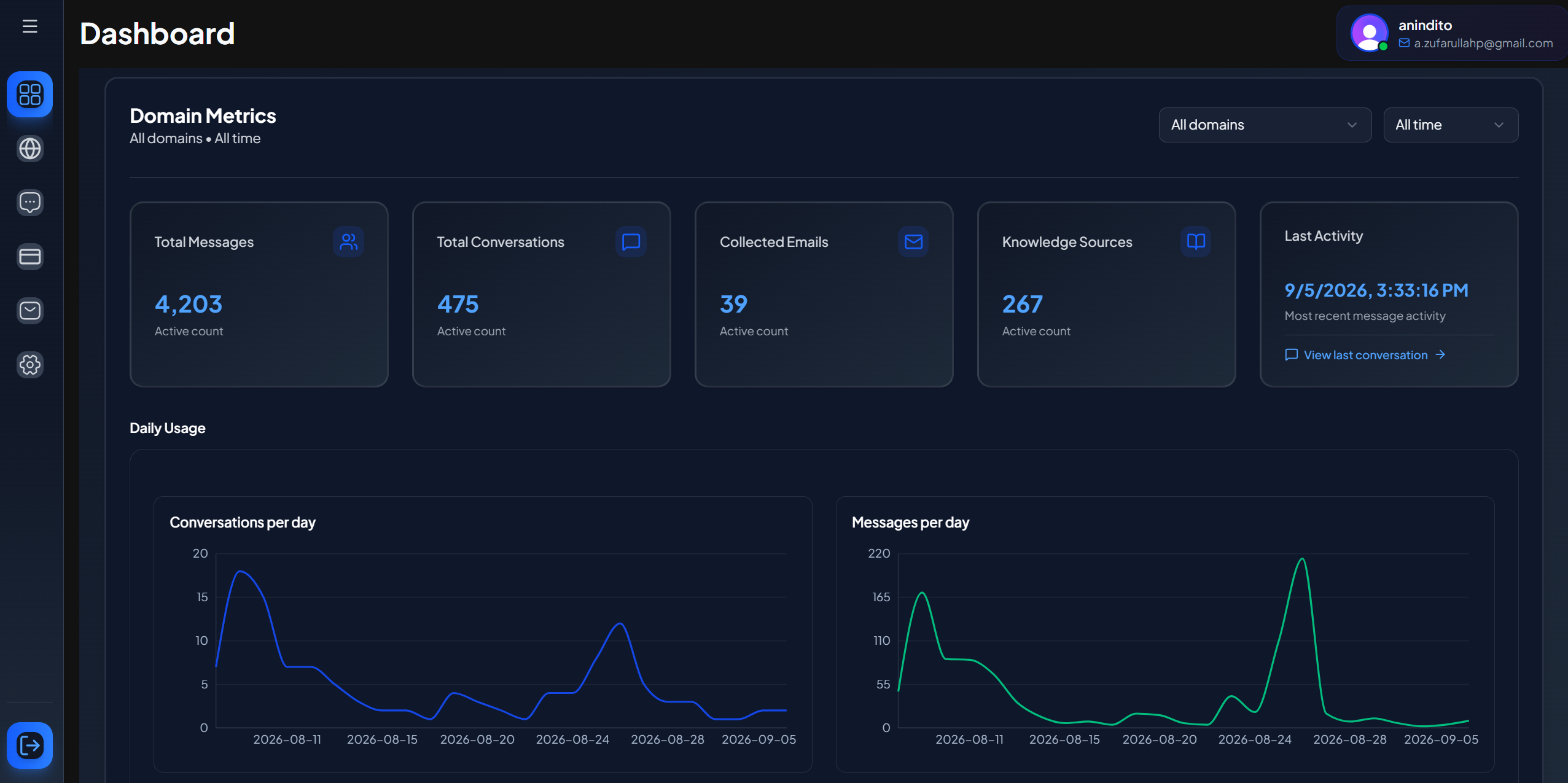
- Total Messages. All chat messages across the selected domains and date range.
- Total Tokens. Total AI usage across the selection. Higher tokens usually means longer conversations or heavier knowledge retrieval.
- Last Activity. The timestamp of the most recent message.
Daily usage charts
- Tokens per day shows usage spikes.
- Messages per day shows engagement trends.
Together they help you compare engagement against usage.
Conversion funnel
Below the usage cards, the dashboard shows a conversion funnel: widget opens, conversations, leads captured, and CTA clicks, with a daily trend. Each metric is split between your Embed Widget and Share Link surfaces. For how to read it, see Funnel Analytics.
Using the dashboard
- Filter by domain. Choose All domains, or one domain to focus on a single representative.
- Filter by time range. Use a shorter range to investigate recent changes, or a longer one to evaluate growth.
- Read activity quickly. Recent Last Activity means the assistant is in use. Rising Total Messages means the widget is being engaged. A token spike without a matching message spike suggests longer conversations.
Why this matters
Usage metrics help you manage the representative like a real website feature: confirm visitors are using it, track adoption after launch, and spot unusual spikes or drops so you know when to improve knowledge or add follow-ups.
Next step
To keep conversations going after a visitor leaves, set up Email Follow Ups.