
E. Conversation Management
Conversation Context on Takeover
What your team sees when opening a live conversation: full history, the visitor's presence status, and how to send a clean first human reply.
By aninditoUpdated 6 Sep 2026
When a conversation needs a person, an operator can step in from the dashboard. This page walks through the admin view, how to read the context indicators, and how to send a strong first reply.
The admin view
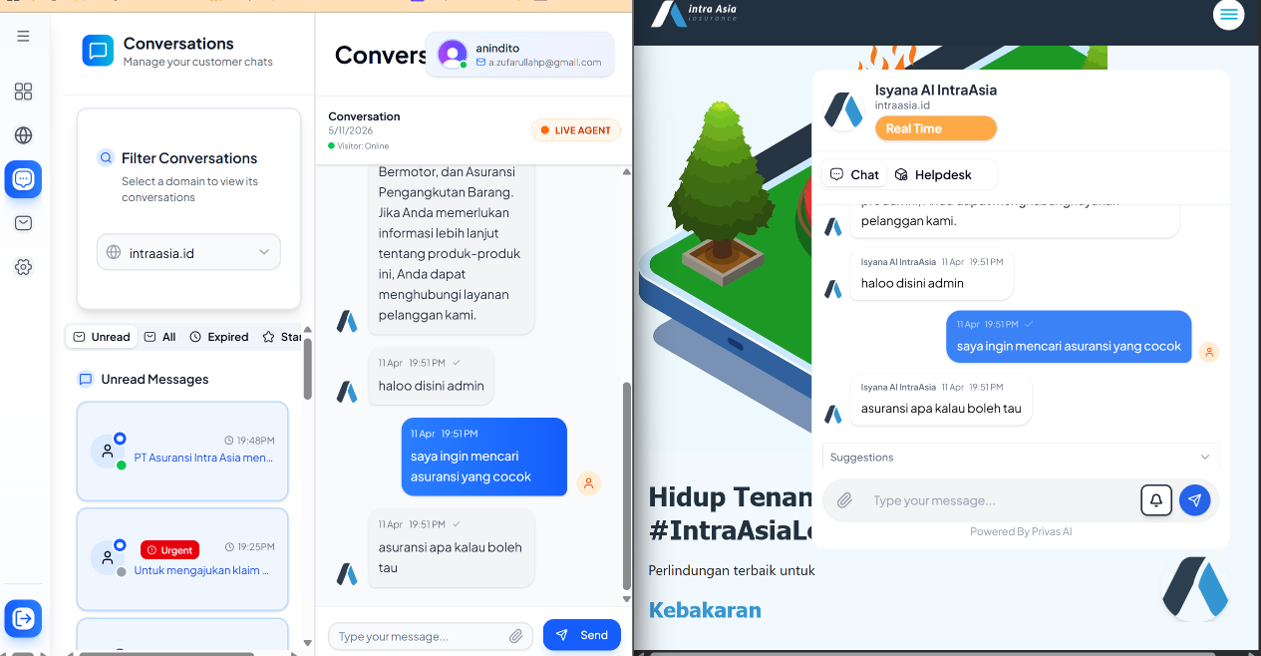
The workspace gives you an overview before you open a single thread.
- Domain filter. Choose a domain. If you manage several, filtering isolates that domain's conversations.
- Conversation list. A live list of active conversations. Your team can browse them, watch dialogues between visitors and the AI, and select any thread that needs attention.
Inside a conversation
When you open a thread, the workspace keeps full context:
- Message history. The complete thread from the moment the visitor arrived, including every question and every AI answer.
- Current state. The last AI response is shown, so you can see where the AI left off.
- Visitor status. A live badge tracks presence:
- Green (online): the visitor is viewing the chat now.
- Yellow (away): the visitor has stepped away, but the tab is open.
- Gray (offline): the visitor has closed the tab or left.
Taking over: the first reply
Activate Live Agent
In the toolbar, the AI Active button becomes Live Agent when you click it. The AI pauses its automatic replies for this conversation, and you can send messages directly.
Communication guidance
- Keep the tone consistent with the assistant's persona: warm, clear, and free of internal jargon.
- Use the existing context. Read the history first and do not ask the visitor to repeat what they already told the AI.
- Introduce yourself so the visitor knows a person has joined, for example: "Hi, I'm [Name], and I'm here to help you with [topic]."
- Do not apologize for the AI or give long explanations about why a human took over.
Hand back to the AI
If the visitor's issue is resolved and they return to general or FAQ questions, switch from Live Agent back to AI Assistant. The AI resumes within its scope.
What the visitor experiences
When you activate Live Agent, a marker appears in the visitor's chat showing that a team member has joined, and a divider line marks the switch. Handing back to the AI adds another divider. The visitor sees your display name only; your email and account are never shown. The chat history is never cleared or split, so the interaction stays one continuous thread.
Next step
For how a team decides when to watch and when to step in, see Team Response Workflow.