B. Getting Started
Add Knowledge Sources
Give your representative the information it answers from. Add pages, documents, and other sources, then verify with a private share link.
By aninditoUpdated 6 Sep 2026
This guide provides the information your representative needs to assist visitors. By now it has an identity and a communication style, but it does not understand your business yet.
Why this matters
Your representative answers using the information you provide. It does not guess or answer outside its knowledge. If it cannot answer a question, the relevant information usually has not been added yet.
What counts as knowledge
Anything a visitor might reasonably ask about: product or service descriptions, feature explanations, pricing, onboarding steps, company policies, FAQ content. A simple rule: if a staff member would read it before replying to a customer, add it.
The representative works best with clear, descriptive sentences. Narrative paragraphs work better than short fragments, isolated bullets, or tables without context.
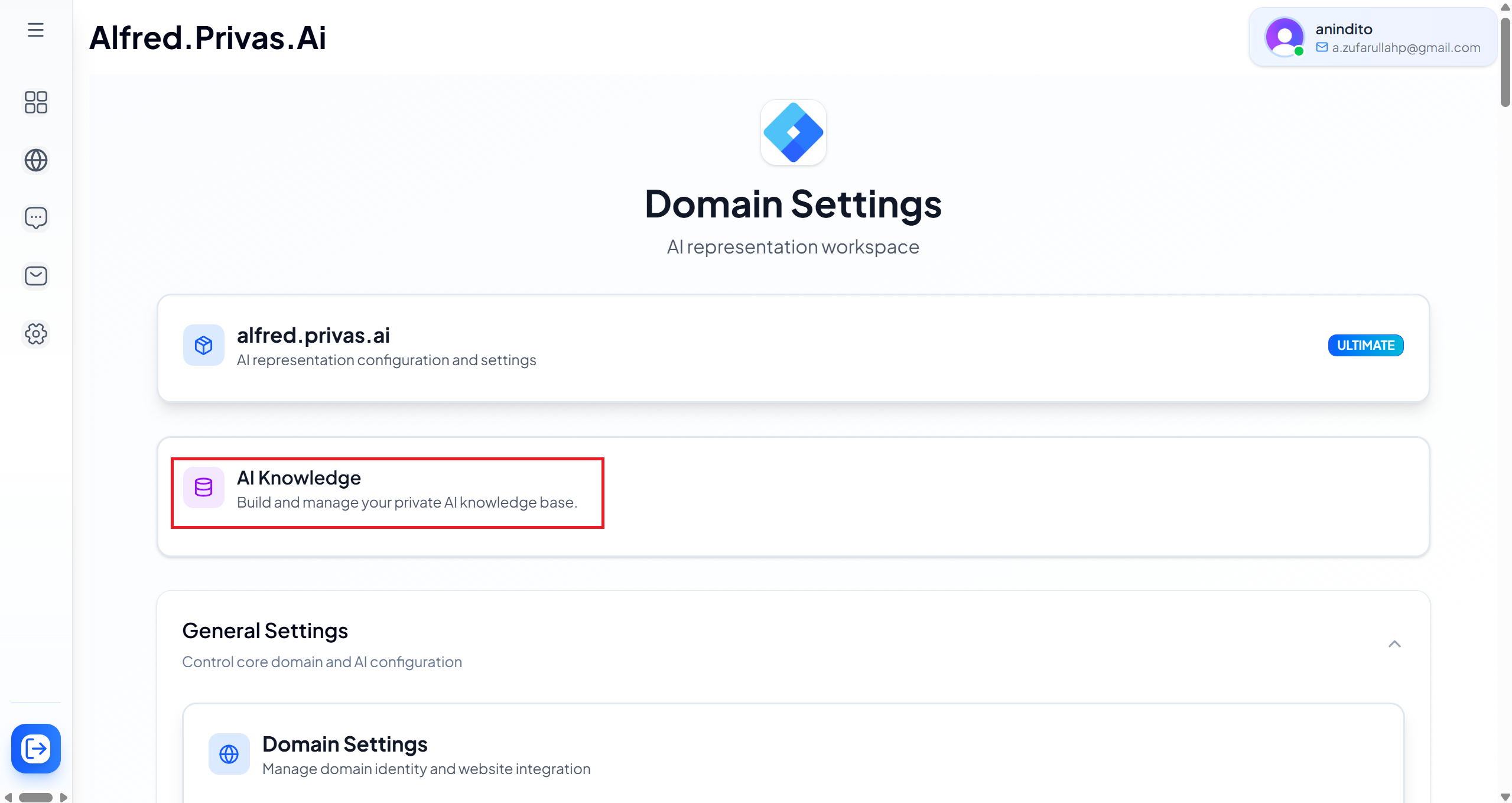
Open AI Knowledge
- Open your domain in Domain Center, then open Settings > Setup.
- Open the AI Knowledge card.
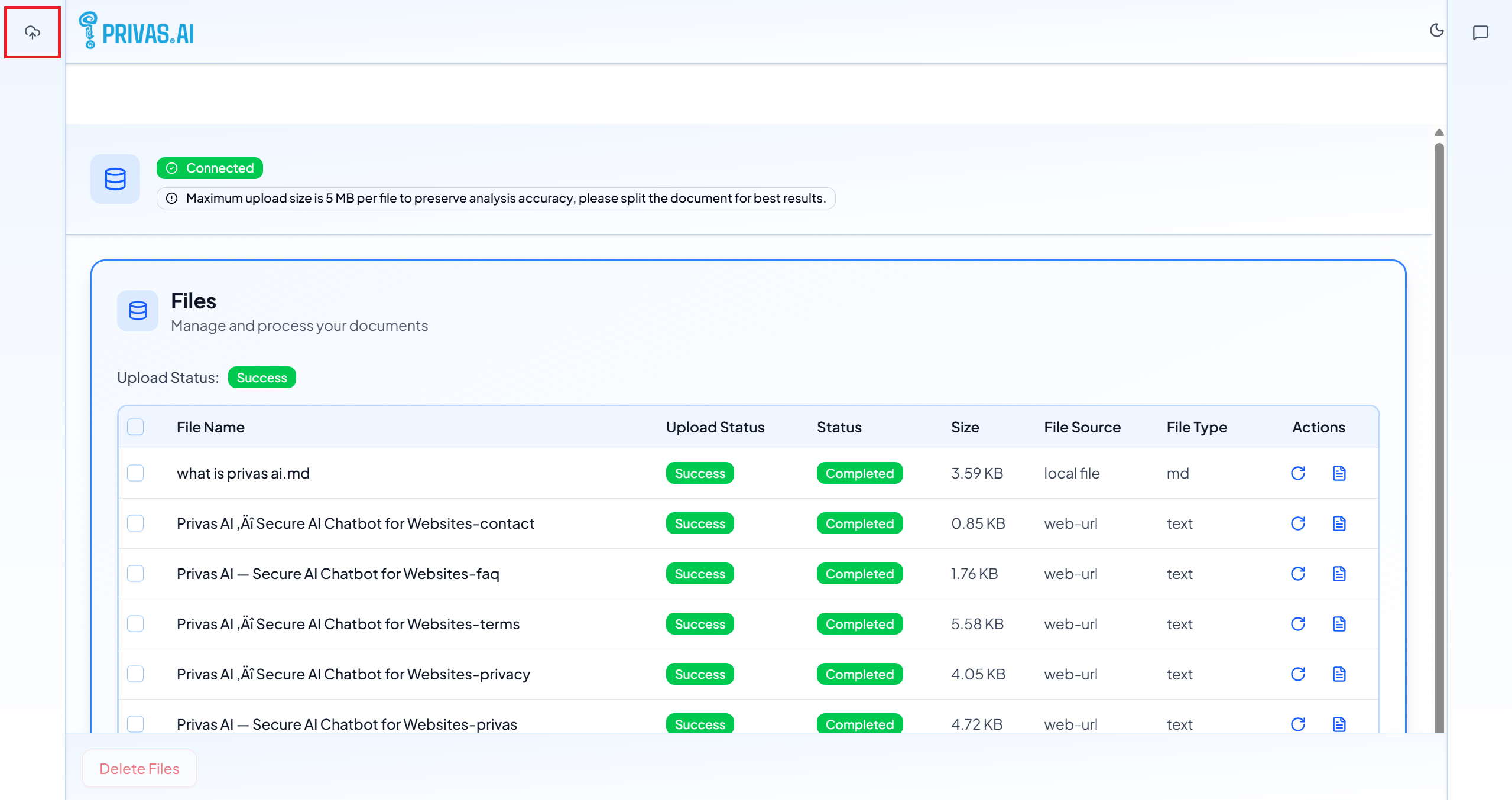
Use the Sources icon in the top-left to add or upload content.
Step 1: Add your first source
You can provide knowledge in several ways.
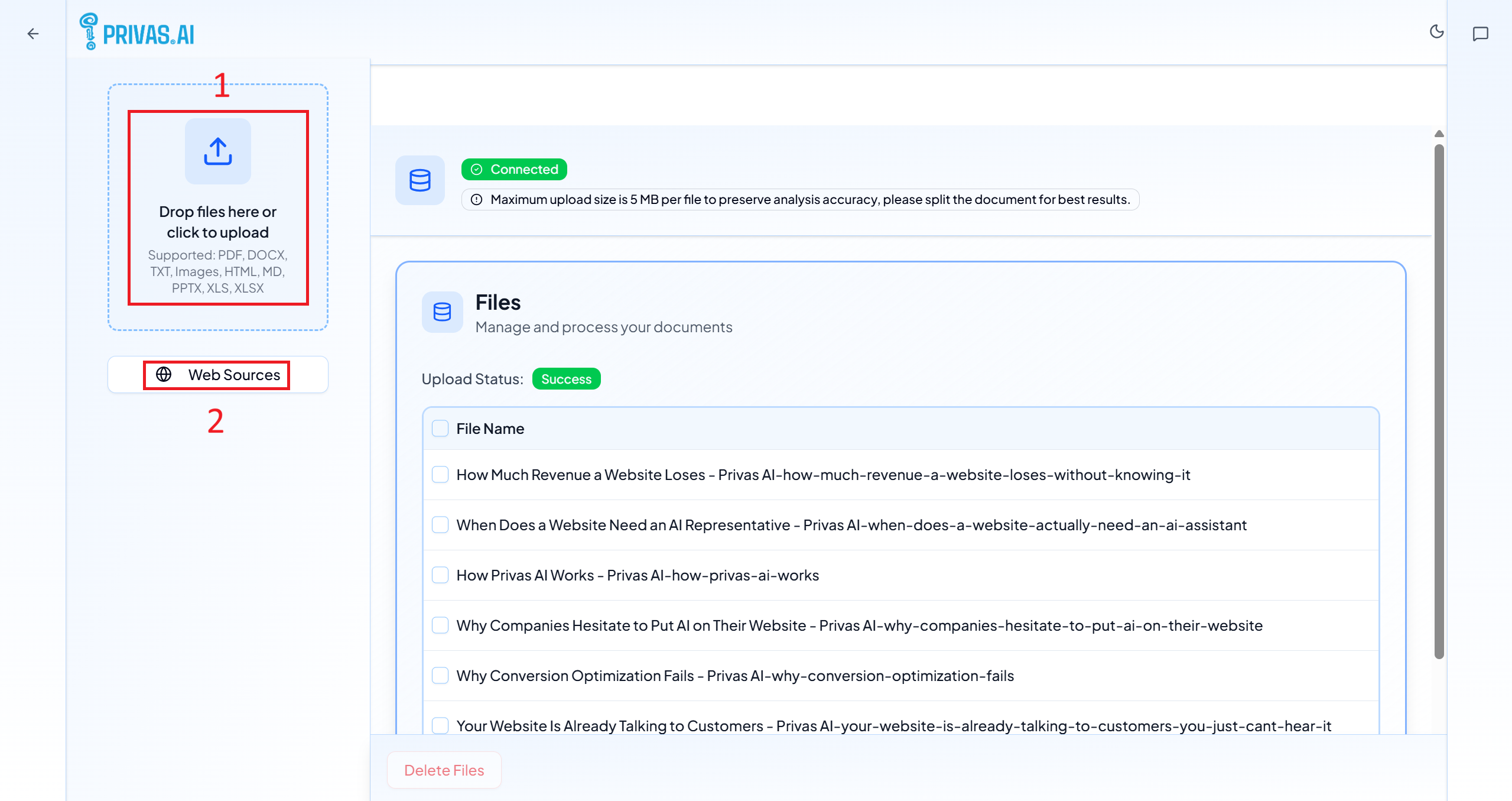
- File Upload. Guides, manuals, or written FAQs.
- Web Sources. Content from online pages, Wikipedia articles, and YouTube videos.
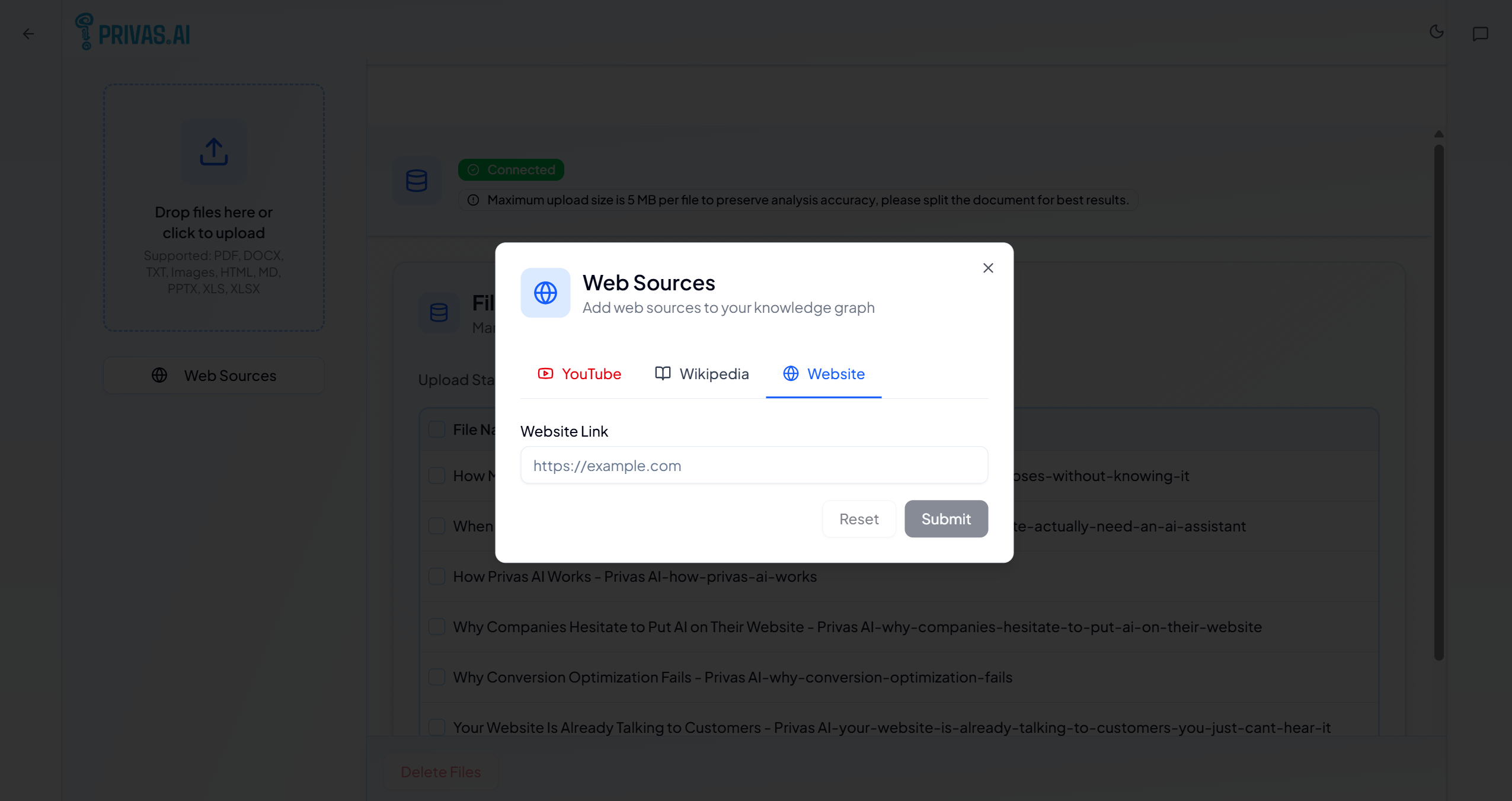
How website pages are imported
When you add a single website URL, Privas AI imports that one page. It does not read your entire
website from one link. Pages like /pricing, /about, and /faq are added individually.
If you want the whole site at once, use the sitemap option. See Import a Whole Website.
Recommended order
Start with your homepage, pricing page, and product or service overview, so the assistant can handle common questions right away. Add more pages as you learn what visitors ask.
Step 2: Wait for processing
After you add a source, Privas AI processes the content and prepares it for conversations. Large pages or videos take longer. During processing the assistant may not answer correctly yet, which is normal. Processing runs on the server, so you can close the tab and it continues in the background.
If a file upload fails on a network issue, remove the failed file and upload it again.
Verify with a share link
The best way to check your knowledge is the same experience your visitors get. Create a private share link and open it in a normal browser tab. Ask questions that your content already answers, such as "What does this product do?", "Who is this for?", and "How do I get started?" If the answers are clear and match your website, the knowledge is active.
See Share the Assistant.
Common mistakes
- Too little content. One short page rarely answers varied questions.
- Unrelated material. Include only information relevant to this domain.
- Testing too early. Wait until processing finishes.
- Expecting pages you did not add. If
/pricingis not added, the assistant cannot answer about it.
Pages that are only slogans or taglines usually do not carry enough detail to answer real questions.
Next step
Continue to Share the Assistant to let others review it before you publish.