
E. Conversation Management
Inspecting a Conversation
Understand any conversation from the dashboard: what the assistant remembers, which knowledge shaped each answer, and who took over and when.
Updated 6 Sep 2026
When you open a conversation in the dashboard, you can look past the messages to understand how the assistant handled it: what it remembered about the visitor, which knowledge shaped each answer, and what your team did. These tools are read-only, so nothing you open changes the conversation.
Where to find them
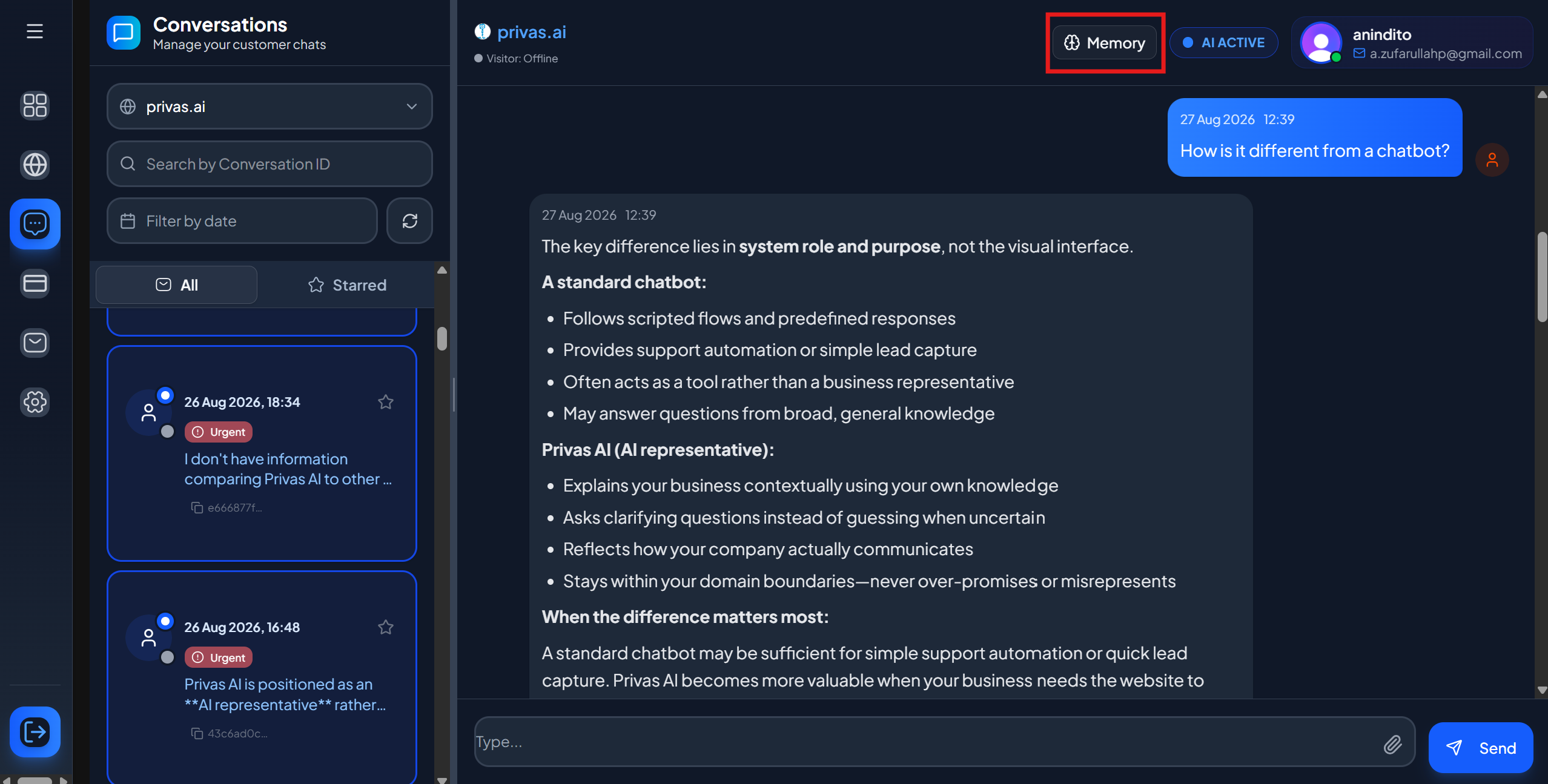
Open a conversation from the Conversations view. The inspection tools live around that conversation: a Memory button in the header, a details view on each AI answer, and a takeover history.
Why the assistant answered that
Open the details on any AI answer to see which of your knowledge sources informed it. Sources are grouped by document, so you can see at a glance which pages carried the answer.
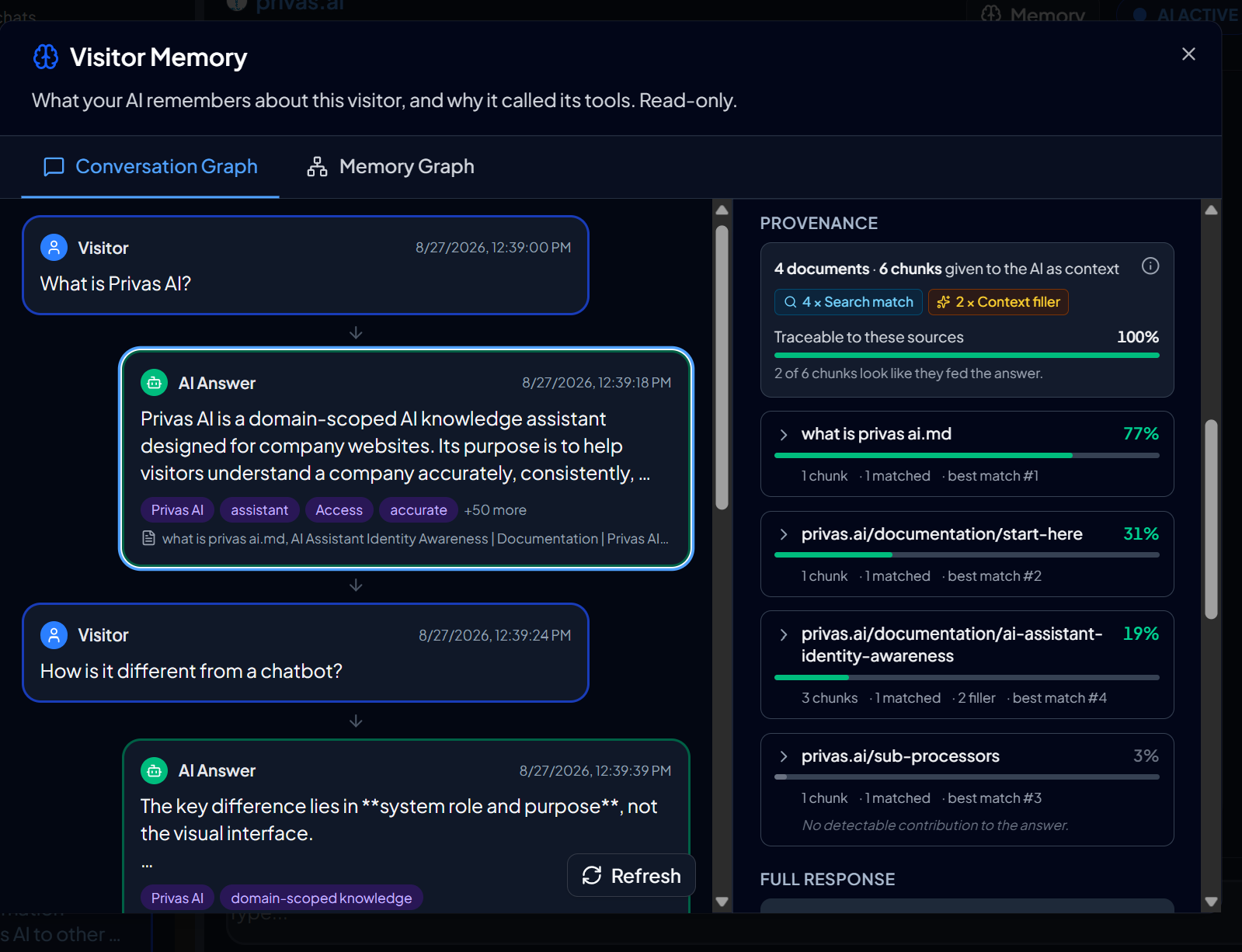
Two things are worth knowing when you read this:
- It shows what the assistant was given, not a citation. The details list the knowledge the assistant had in front of it for that answer, which is not always the same as what it quoted.
- A weakly related page can still appear. Some entries are a direct match to the question; others are pulled in only to complete a nearby passage. A built-in explainer on the panel covers this, so a loosely related source in the list is expected, not a mistake.
If an answer looks wrong or thin, this is where you find out why: usually a topic that needs a clearer or additional knowledge source. See Add Knowledge Sources.
The conversation as a map
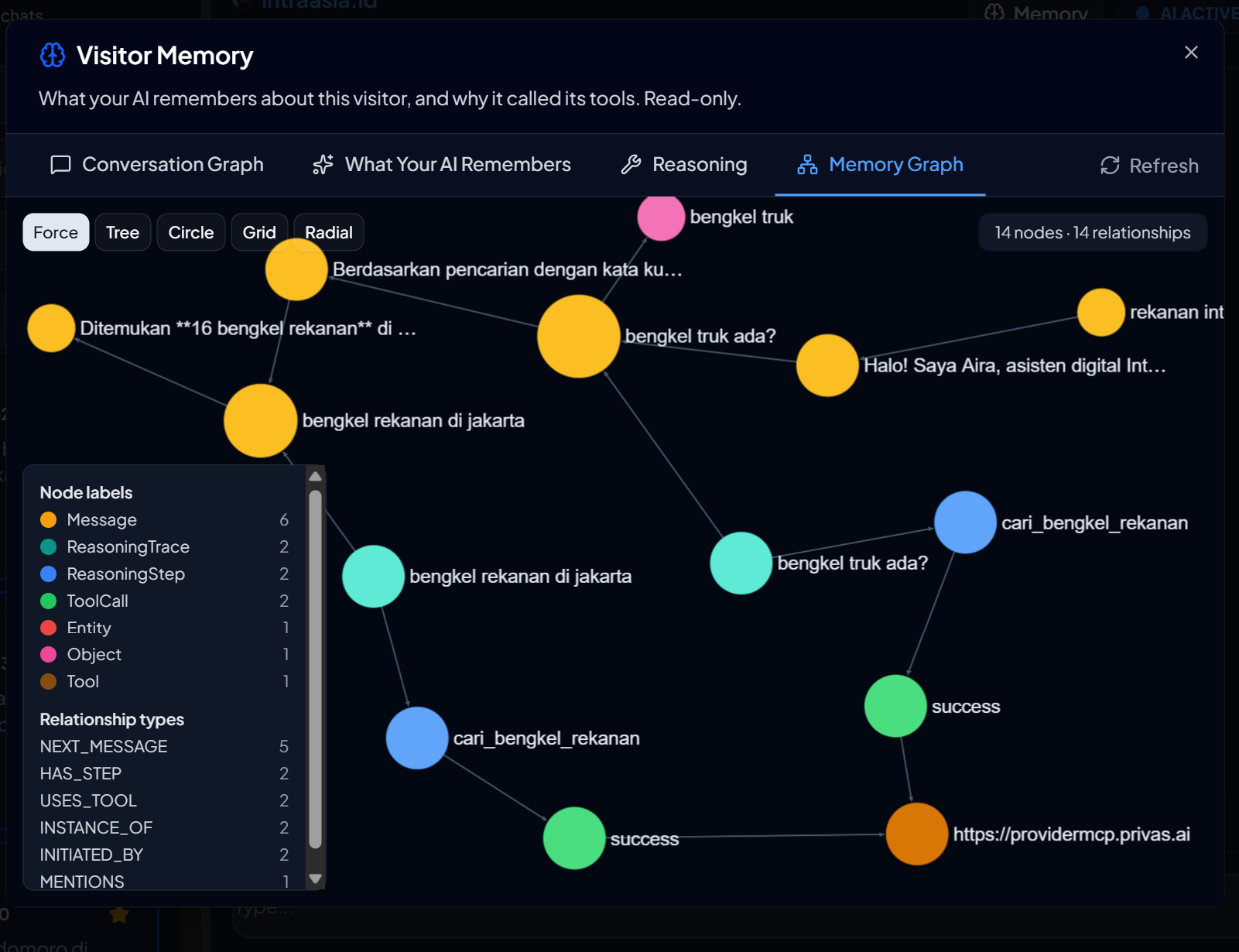
You can also explore a conversation as a visual map of the topics it touched, moving between newer and older turns. It is the same kind of interactive view as the AI Knowledge Model, focused on a single conversation. Use it to see how the assistant connected topics across a discussion.
Who took over, and when
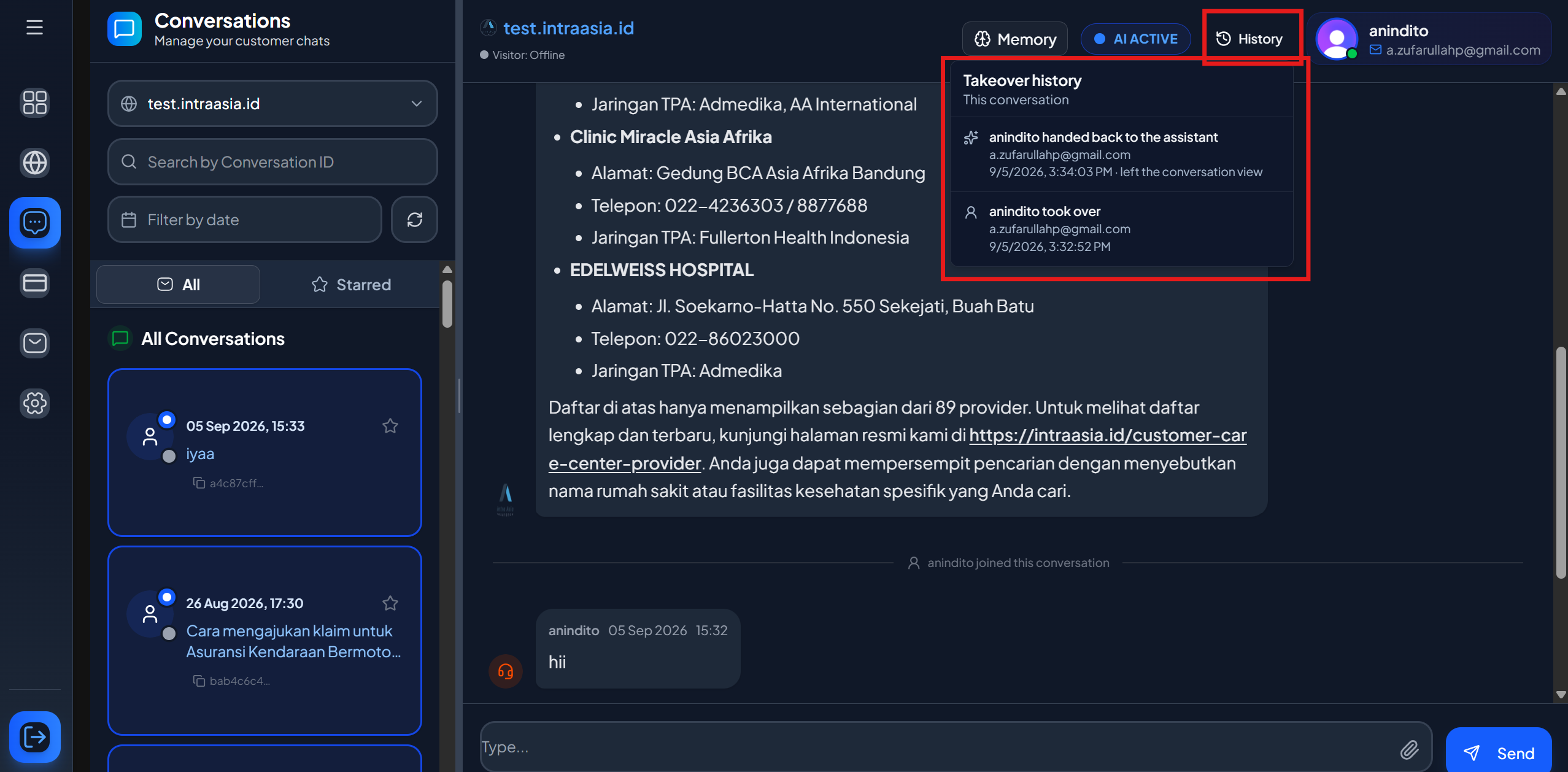
The Takeover history shows each time a team member stepped into this conversation and handed it back, with the display name the visitor saw. It gives you a clear record of human involvement alongside the automated replies. See Admin Take Over.
What the assistant remembers
The Memory button shows what your assistant remembers about this visitor, within your domain's privacy scope. This is the continuity that lets a returning visitor pick up without repeating themselves.
It is read-only. You are seeing what the assistant knows, not editing it. Memory stays inside your domain and is never shared across domains. See Domain Isolation.
What this is for
Inspecting a conversation turns "the assistant said something odd" into a specific, fixable cause. Reviewing real conversations this way is the fastest way to find gaps in your knowledge, confirm the assistant stayed on scope, and see where a human was needed.
Next step
Once you spot a pattern, improve the assistant with Add Knowledge Sources, Scope Guardrail, or Proactive Rules.