F. AI System
AI Knowledge Model
Learn how the AI Knowledge Model works at Privas AI. Visualize your documents and website data to ensure your AI representative's responses are always accurate.
By aninditoUpdated 6 Sep 2026
When you upload documents or link website URLs into the Privas AI system, your information is not just passively stored. It is immediately processed and transformed into an interconnected AI Knowledge Model. This model serves as the core intelligence behind every response your digital representative provides to visitors.
To ensure your AI delivers accurate information, you can directly see how your data is mapped and understood by the system through an interactive visualization map.
How to Access Your AI Knowledge Model
Once you have finished uploading your data in the file management section, you can view this visual map by following these steps:
- Navigate to AI Knowledge dashboard.
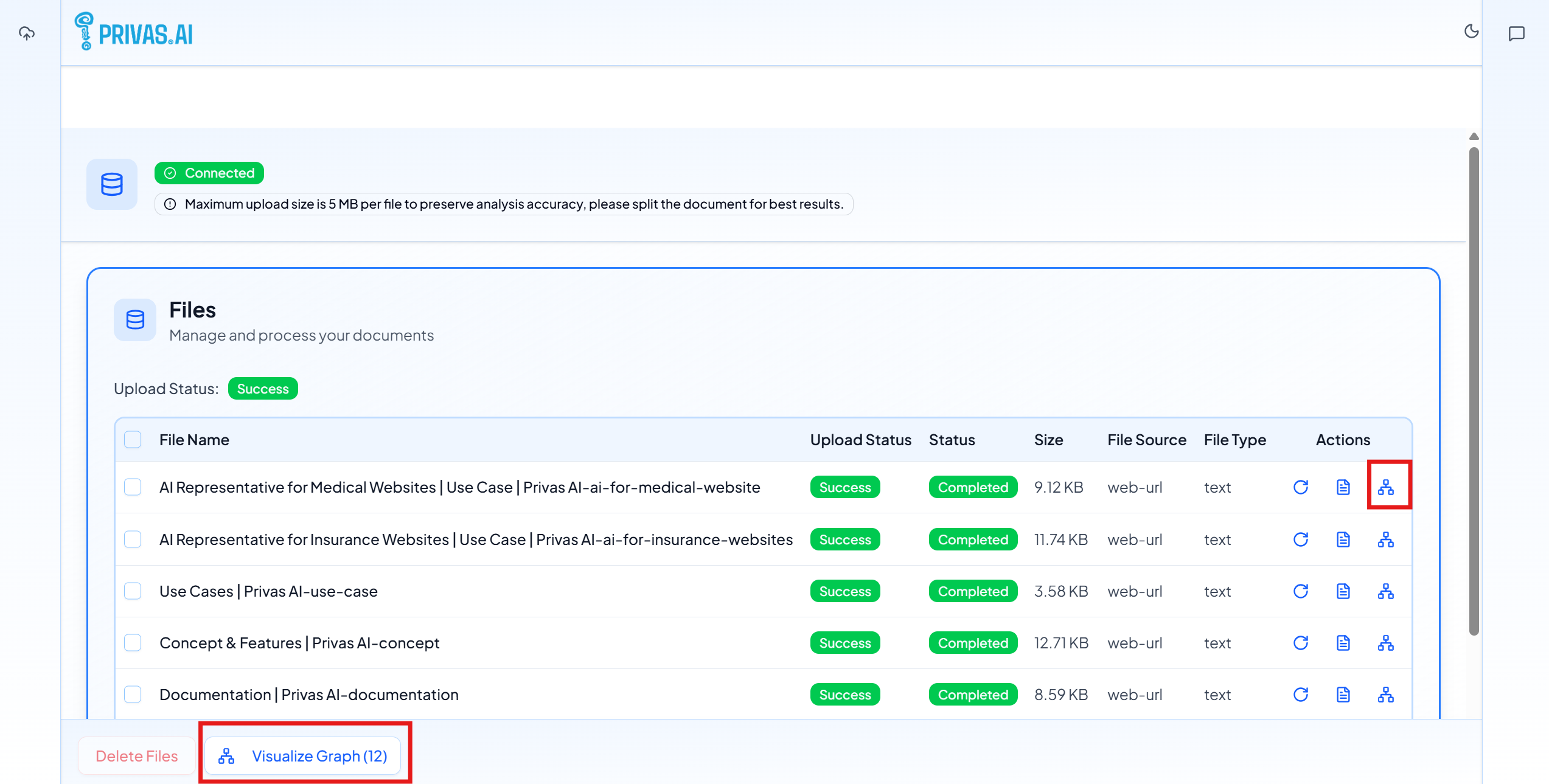
- Look for the document or web source that shows a Completed status.
- Click the network/graph icon located in the Actions column on that file's row (as highlighted on the right area of the table).
- Alternatively, you can view the entire network of all connected documents by clicking the "Visualize Graph" button at the bottom of the dashboard.
Reading Your AI Information Map
When you open this visualization, you will see a collection of interconnected circles (bubbles). This is a trivial representation of how the AI understands the key elements of your business:
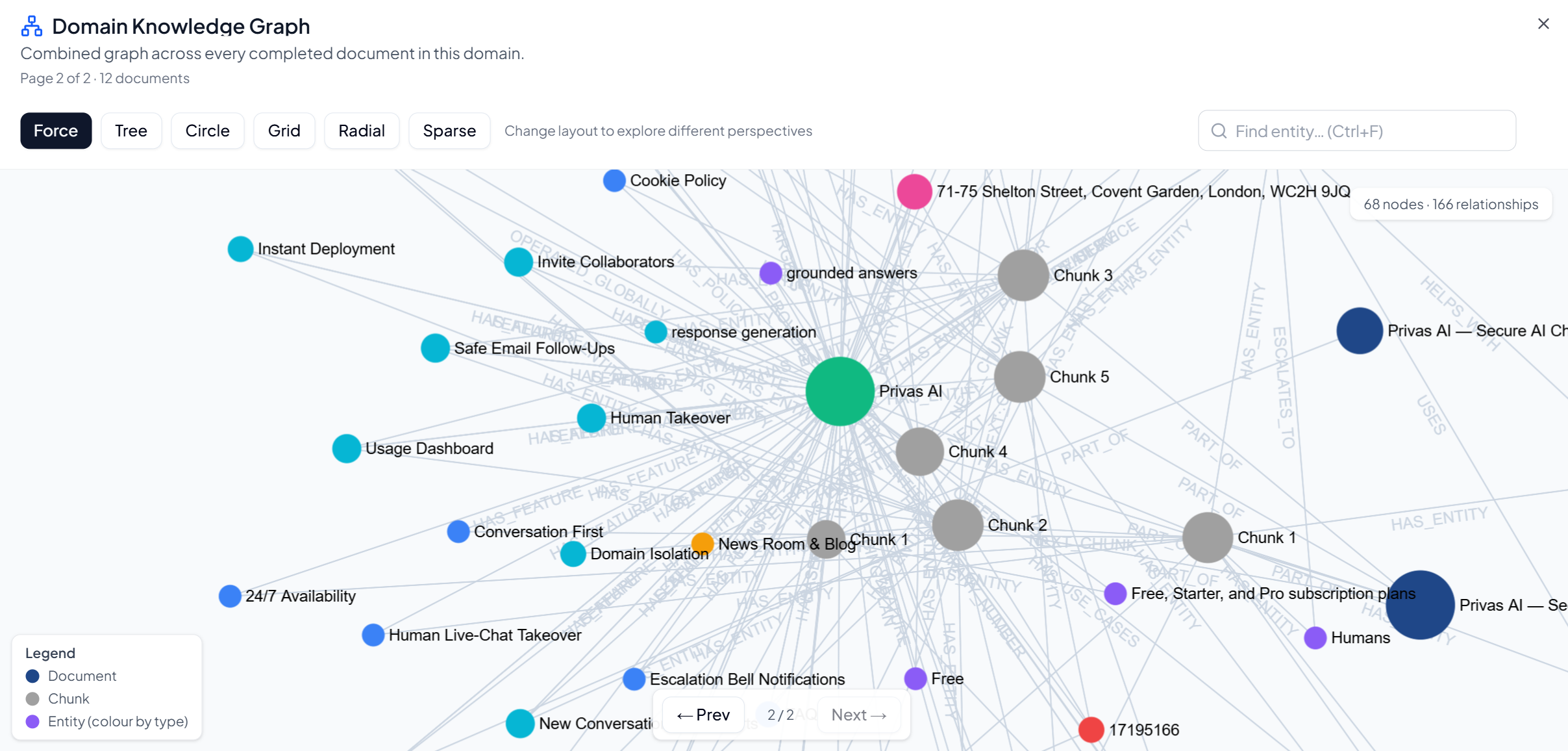
- Circle Size (Priority & Context Strength):
- Large Circles: Indicate that this specific information has strong context and many connections within your documents. The larger the circle, the higher the probability that this information will be mentioned and used by the AI when answering user questions.
- Small Circles: Point to more specific or isolated pieces of information. If a circle is small, the probability of it being mentioned by the AI is lower, unless a visitor asks a highly specific question that targets that exact topic.
- Connections Between Circles: The lines connecting one circle to another show how your AI representative links different topics together to build a complete, coherent understanding of your business.
Aligning AI Responses with Your Expectations
Every response generated by your AI representative is completely based on what appears and is successfully mapped within this Knowledge Model.
If you find that the AI's response does not meet your expectations, you can easily troubleshoot using the visual map:
- Check the Knowledge Map: Open the visualization for that document and check whether the information or keywords you expected have been successfully modeled (verify if the circle has appeared and is connected).
- Re-upload or Expand Information:
- If the critical information is missing or the circle appears too small and isolated, you can try to re-upload the document using a clearer, more structured layout.
- You can also upload more supporting information or related articles to reinforce the context of that specific topic, helping the AI understand it more deeply.
Through this visual approach, you maintain absolute control over training your digital representative, ensuring it always aligns perfectly with your brand profile and operational guidelines.
Learn More
To maximize the performance of your digital assistant, explore these essential guides in our Documentation Center:
- Learn the foundational steps of data management in Add Knowledge.
- Understand how we organize information in Knowledge Sources Explained.
- Fine-tune your assistant's behavior via Configure AI.
- Explore the conceptual framework behind our AI Representative technology.
- Discover the importance of establishing a dedicated Conversation Layer for modern websites.
- Learn how to transform your digital presence into a Website That Explains Itself.