
G. Answer Control
Proactive Rules
Show a component automatically when a condition matches, such as a promo card when a visitor asks about pricing, with a live preview as you build it.
Updated 16 Sep 2026
Proactive Rules let you show a component automatically when a condition is met. For example, when a visitor asks about pricing, the assistant can show a promo card alongside the answer.
Where to configure it
Open your domain, then go to Domain Settings > Conversation > Proactive Rules.
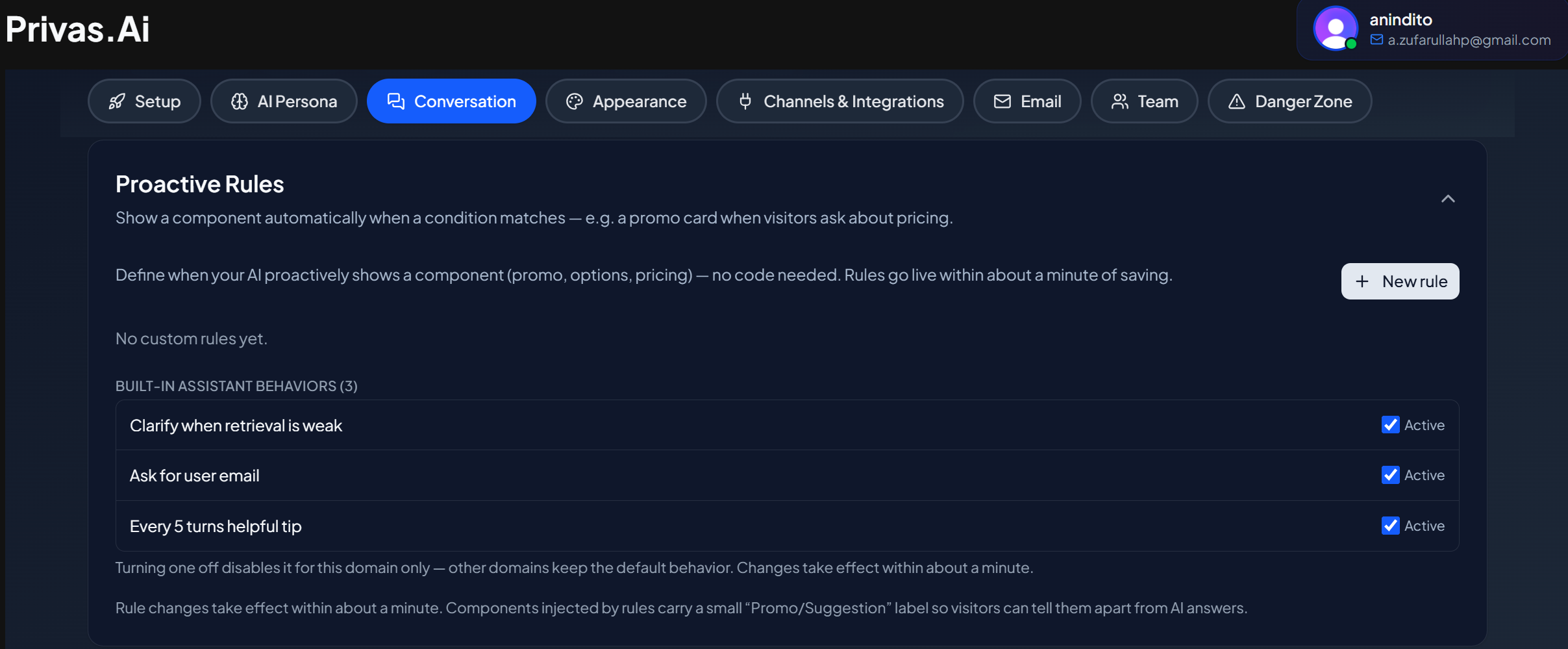
How a rule works
Each rule pairs a condition with a component:
- Condition. What triggers the rule, such as a visitor asking about a topic.
- Component. What to show when it matches, such as a promo card or a call-to-action button.
When the condition matches during a conversation, the component appears with the answer.
Offering a booking
To offer meeting times at the right moment, choose Appointment picker as the component. You can add one optional line of context above it. You do not enter dates or times: the picker always loads your real availability from Settings > Appointments. See Booking in Chat.
Live preview
The builder shows a live preview using the same renderer visitors see, so you can check how the component looks before you publish the rule.
Marked as a suggestion
Components shown by a proactive rule are marked so they read as a suggestion or promotion, keeping the conversation transparent for the visitor.
Requires components to be enabled
A rule can only show a component type that is enabled in Chat Components. Enable the component first, then build the rule that uses it.
Next step
That completes Answer Control. Continue to Appearance & Branding to shape how your chat surfaces look.