
L. Appointments
Booking in Chat
Let the assistant show your real open times inside the conversation, so visitors can book a meeting on your share link or widget without leaving the chat.
Updated 17 Sep 2026
When a visitor wants to meet, the assistant can show an appointment picker directly in the conversation. The visitor picks a time and books without leaving the chat. It is the same calendar as your booking link, so the times offered are always real.
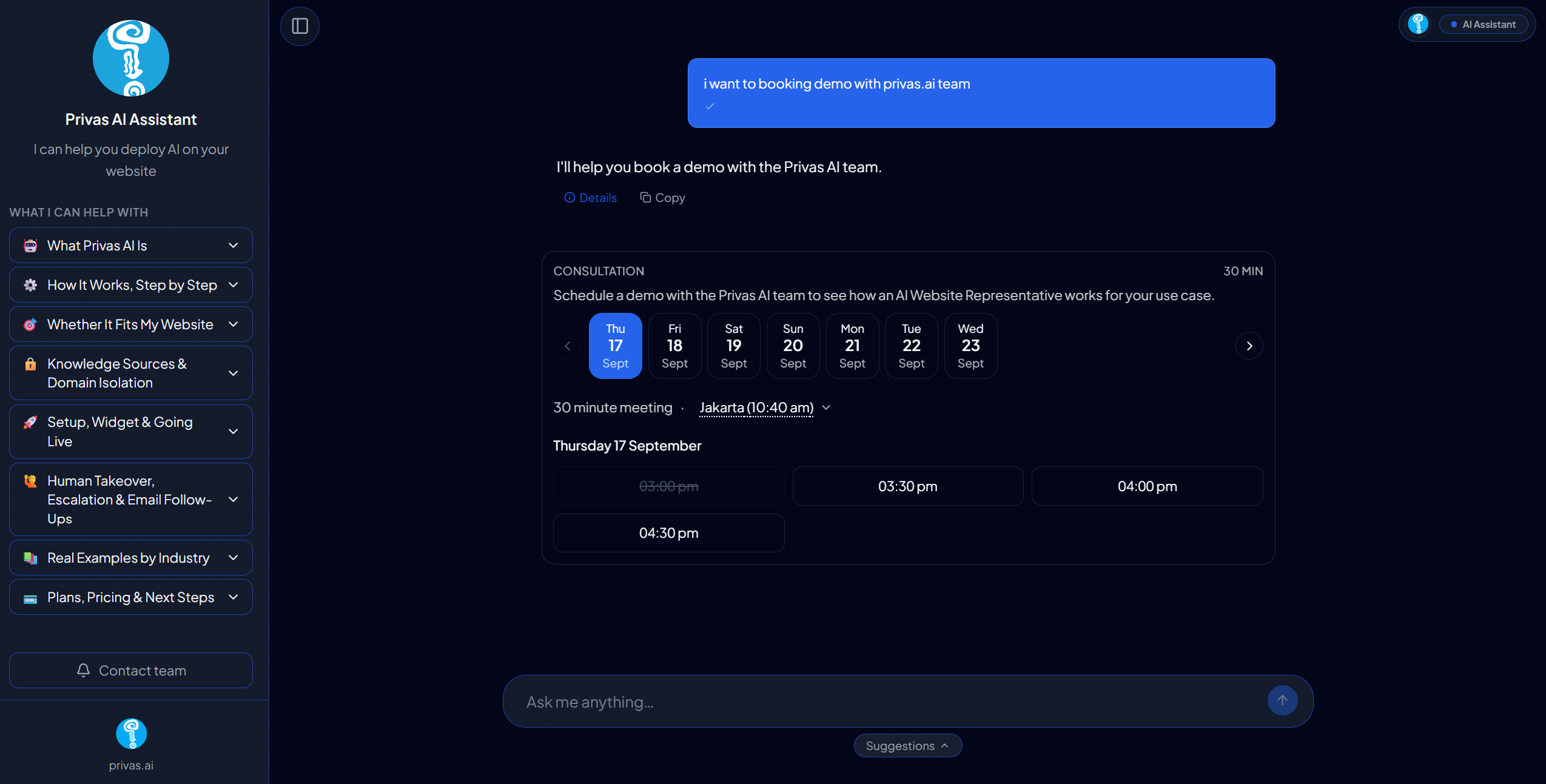
When the picker appears
The assistant shows the picker when a visitor wants to meet, book a consultation, schedule a call, or asks when someone is available. It is not shown for ordinary questions.
The assistant never names a date or time in its own words. The picker loads your availability directly, so a visitor cannot be offered a time you do not have.
Turn it on
The picker appears only when all of these are true:
- Appointments are ready. A booking link is saved and Accept appointments is on. See Booking Link & Availability.
- The picker is enabled. Go to Settings > Conversation > Chat Components and turn on the Appointment picker.
Changes to Chat Components take effect within about a minute.
Show it automatically with a rule
To offer times at a specific moment, for example when a visitor mentions a consultation, create a proactive rule and choose Appointment picker as the component. You can add one optional line of context above the picker.
You do not enter dates or times in the rule. The picker always loads your live availability. See Proactive Rules.
What the visitor does
- Picks a day and a time in the picker.
- Enters their name and email.
- Clicks Confirm booking.
The picker then confirms the booking and offers a link to view, change, or cancel it. The guest receives the same confirmation email as a booking made through your link.
Which meeting is offered
The picker always offers your default meeting, with the title and length set in the Appointments card. Meeting types are reached through their own links.
Where it works
- Share link. Yes.
- Website widget. Yes.
- Admin conversation view. The picker is not shown there. You see the assistant's answer, and the booking itself appears in the Bookings list.
Bookings made in a conversation are labelled Chat in the Bookings list, or Chat (rule) when a proactive rule showed the picker.
A separate limit per conversation
The appointment picker has its own limit per session, separate from the limit on other chat components. A conversation that already showed several quick replies or cards can still offer a booking.
If you stop accepting appointments
When Accept appointments is off, the picker does not appear, but the assistant's text answer still does. If you stop taking bookings for a while, also turn off the appointment picker in Chat Components, so the assistant does not invite visitors to book.
Next step
Continue to Google Calendar & Meet to keep your calendar in sync.