
L. Appointments
Appointments
Let visitors book a meeting with you from a public booking link or right inside a conversation, using the hours and calendar you control.
Updated 17 Sep 2026
Appointments let visitors book time with you without an email back and forth. You set the hours you accept meetings once, and visitors pick a free time that suits them. Every booking is confirmed by email, lands in your calendar, and can be moved or cancelled by the guest.
Two ways to book
- A booking link. A public page at
privas.ai/book/your-linkthat anyone can open without signing in. Paste it into an email signature, your website, or a CRM. It works on its own, with no conversation needed. - Inside a conversation. When a visitor wants to meet, the assistant shows an appointment picker in the chat, on your share link and on your website widget. You can also show it automatically with a proactive rule.
Both draw from the same hours, closed days, and bookings. A time taken through the link disappears from the chat, and the other way around.
What guests receive
After booking, the guest receives a confirmation email with a calendar file and a personal link to reschedule or cancel. A reminder follows about a day before the meeting. Your team is notified of every new booking.
Where to configure it
Open your domain, then go to Settings > Appointments. The tab has four cards:
- Bookings. Who booked, when, and from where.
- Appointments. Your booking link, the meeting details, your weekly hours, and closed days.
- Meeting types. Extra booking links with their own title and length.
- Google Calendar. Block your busy times and add bookings to your calendar.
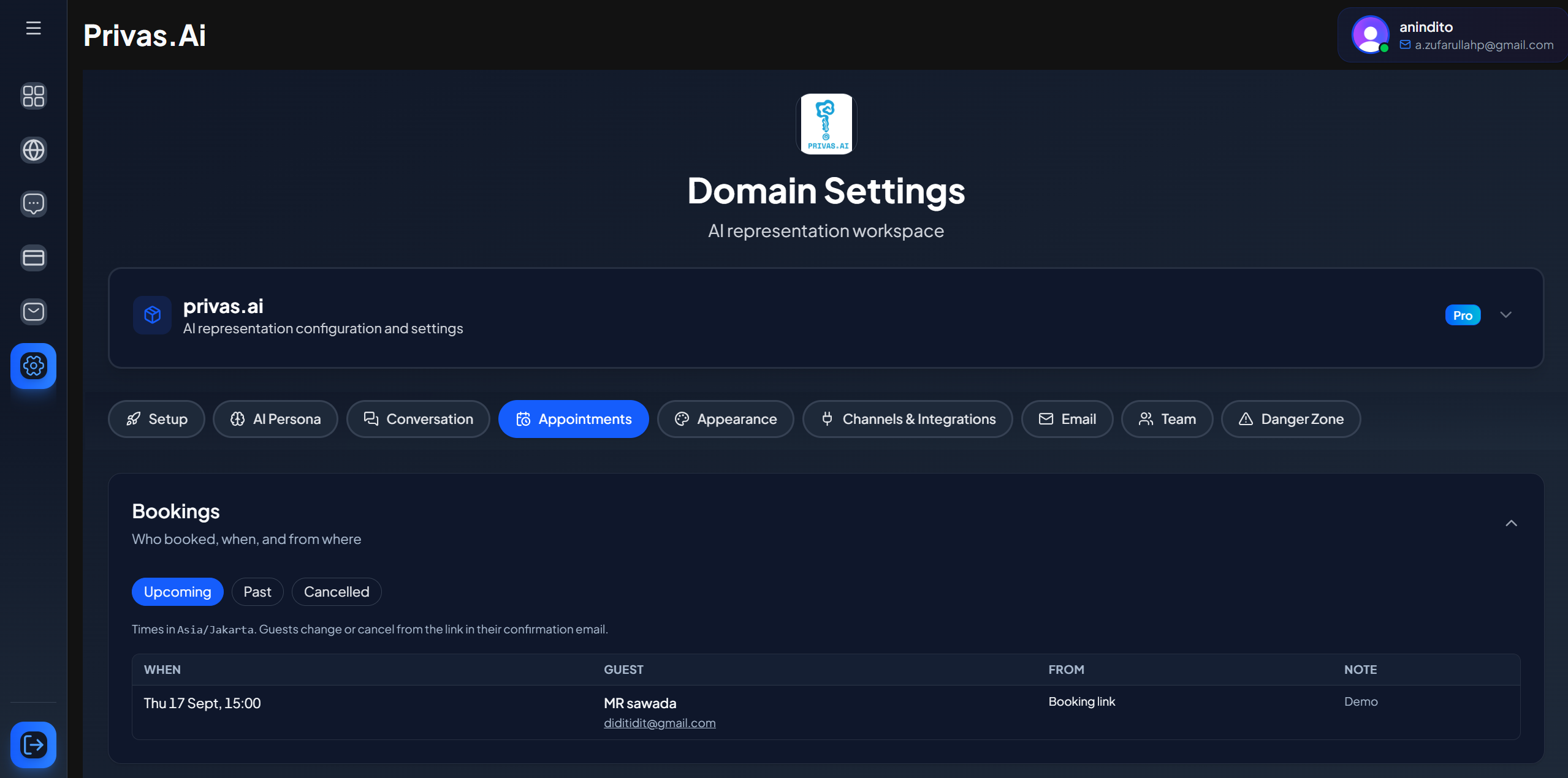
Only a domain admin can change these settings. Other team members can view them and see the bookings.
Set up in five steps
- Choose and save your booking link.
- Set your time zone and weekly hours, then click Save hours.
- Turn on Accept appointments. It is off until you do.
- Optional: connect Google Calendar, so your busy times are never offered and each online meeting gets its own Google Meet link.
- Optional: enable the appointment picker in Chat Components, so the assistant can offer times in the conversation.
Good to know
- The assistant never names a date or time on its own. Every time a visitor sees is loaded from your real availability.
- No double bookings. If two visitors pick the same time at the same moment, only one booking goes through. The other visitor is asked to choose another time.
- No plan quota on bookings. To keep your load manageable, use Most per day in the meeting settings.
Next step
Continue to Booking Link & Availability to publish your link and set your hours.