
L. Appointments
Booking Link & Availability
Publish your booking link, describe the meeting, and set the weekly hours, time zone, and closed days that decide which times visitors can book.
Updated 17 Sep 2026
Your booking link is a public page where visitors pick a time to meet you. What they can pick is decided by the settings on this page: how long the meeting is, the hours you accept meetings, and the days you are closed.
Where to configure it
Open your domain, then go to Settings > Appointments and open the Appointments card.
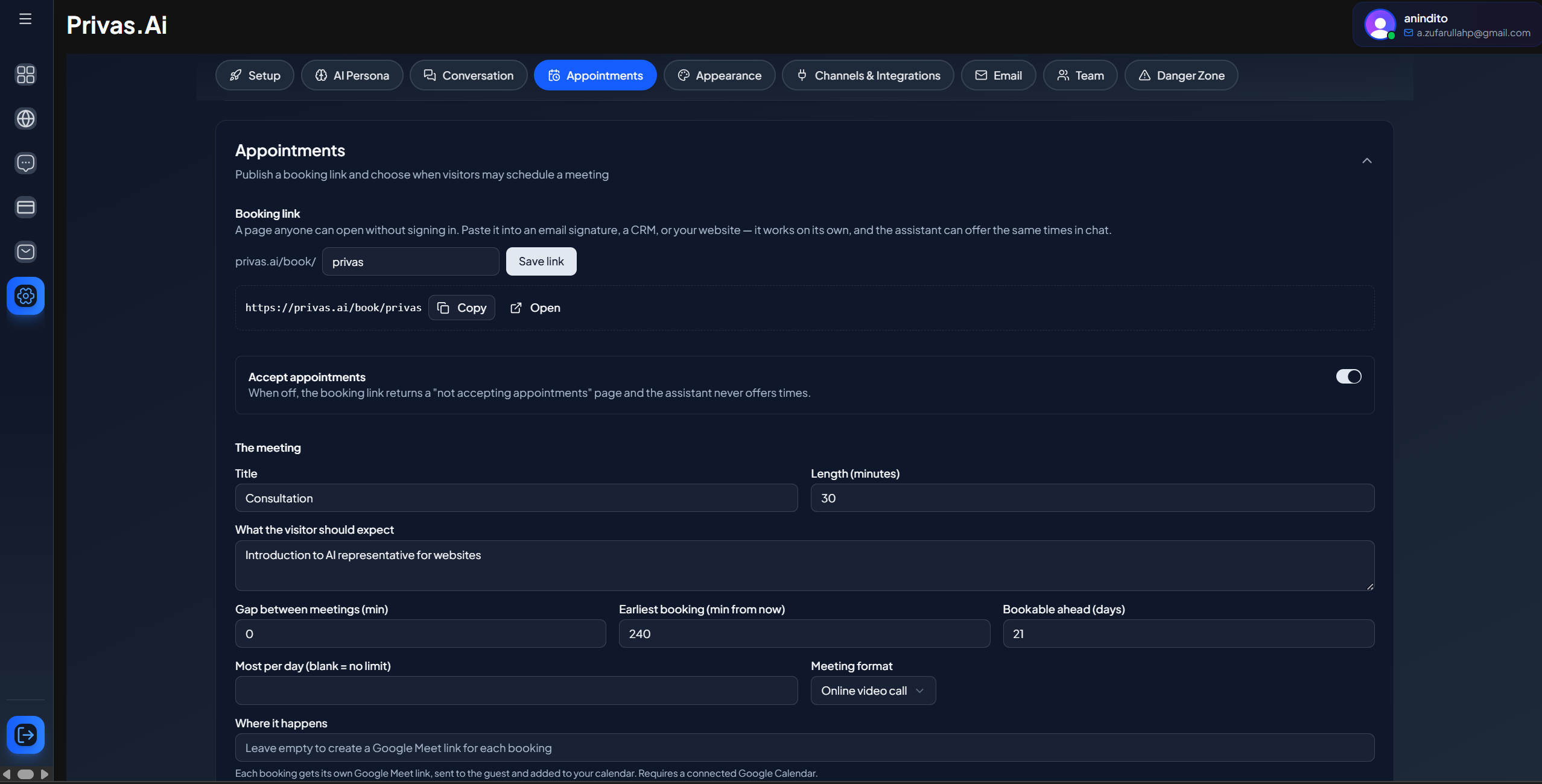
Booking link
Type the last part of your link after privas.ai/book/ and click Save link. As you type,
Privas checks whether the link is free.
A link:
- is 3 to 64 characters long
- uses lowercase letters, numbers, and hyphens, and does not start or end with a hyphen
- is unique across all of Privas AI, so a common name may already be taken
Once saved, use Copy to share the link or Open to see the page as a visitor does.
If you change the link later, the old address stops working. Update it wherever you have shared it. Guests who already booked are not affected: their personal links keep working.
Accept appointments
This switch turns bookings on and off, and it starts off. You must save a booking link before you can turn it on.
When it is off:
- the booking link shows a page saying you are not accepting appointments
- the appointment picker does not appear in conversations
- existing bookings stay in place, and guests can still cancel them, but not reschedule
The meeting
These fields save when you leave each one.
| Field | What it does |
|---|---|
| Title | The name of the meeting shown to visitors, such as "Consultation". |
| Length (minutes) | How long each meeting lasts, from 5 to 480 minutes. |
| What the visitor should expect | A short description shown on the booking page. |
| Gap between meetings (min) | Free time kept after each booking before the next one can start. |
| Earliest booking (min from now) | How much notice you need. A value of 240 means no one can book a time starting within the next 4 hours. |
| Bookable ahead (days) | How far into the future visitors can book, from 1 to 365 days. |
| Most per day | The maximum number of bookings in a day. Leave it empty for no limit. |
| Meeting format | Online video call, Phone call, In person, or Something else. |
| Where it happens | The joining details guests receive. See below. |
Where it happens
What to write here depends on the format:
- Online video call. Leave it empty to create a separate Google Meet link for each booking. This needs a connected Google Calendar. Or paste your own Zoom, Teams, or Meet link to use that one link for every booking. See Google Calendar & Meet.
- Phone call. The number you will call, or leave it empty to arrange it later.
- In person. The address guests should come to.
Only the online format ever gets a video link.
Hours you accept appointments
First choose your time zone. Your hours are read in this zone.
Then, for each day of the week:
- Turn the day on. It starts with 09:00 to 17:00.
- Adjust the start and end times.
- Use Add a break to split the day into two blocks, for example around lunch.
Click Save hours when you are done. Unlike the meeting fields, hours are not saved until you click it.
Visitors always see your hours converted to their own time zone, and they can change the zone on the booking page. If you change your time zone later, existing bookings keep their exact time.
Days you are closed
For public holidays and time off, pick a date on the calendar and click Mark as closed. A closed date overrides your weekly hours. Remove it with the trash icon to reopen that day.
What visitors see
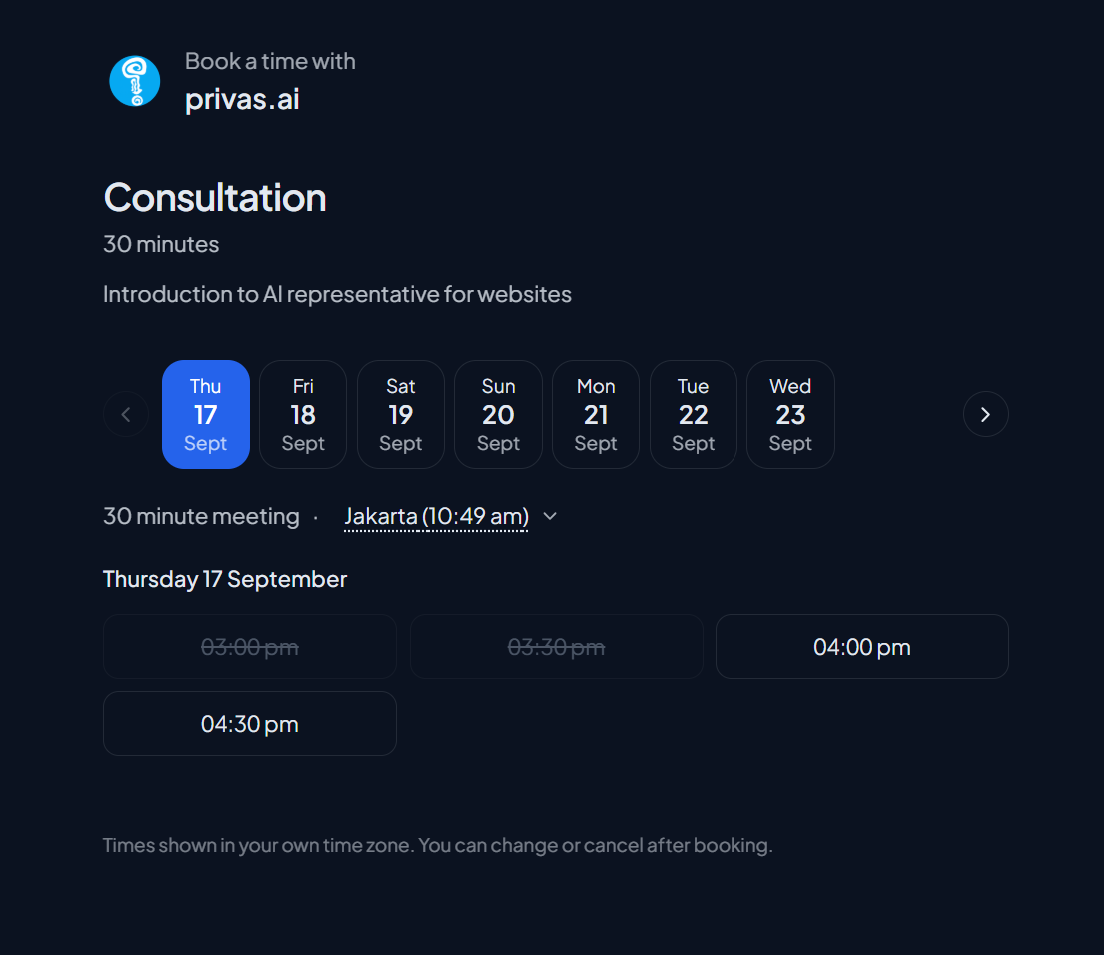
The booking page uses your domain's theme and icon, so it looks like part of your brand. A visitor:
- picks a day, then a time
- enters their name and email, plus an optional note on what they want to talk about
- clicks Confirm booking
The email is required, because the confirmation and the link to change or cancel are sent there.
If someone else takes the same time while the visitor is filling in the form, the visitor is asked to pick another time. Nothing is double booked.
Next step
To offer more than one kind of meeting, continue to Meeting Types.