
L. Appointments
Meeting Types
Offer several kinds of meetings, such as a short intro and a longer consultation, each with its own link, title, and length on one shared calendar.
Updated 17 Sep 2026
Meeting types let you offer different meetings, such as a 15-minute intro and a 60-minute consultation, each at its own booking link. Visitors open the link for the meeting they want.
Where to configure it
Open your domain, then go to Settings > Appointments and open the Meeting types card.
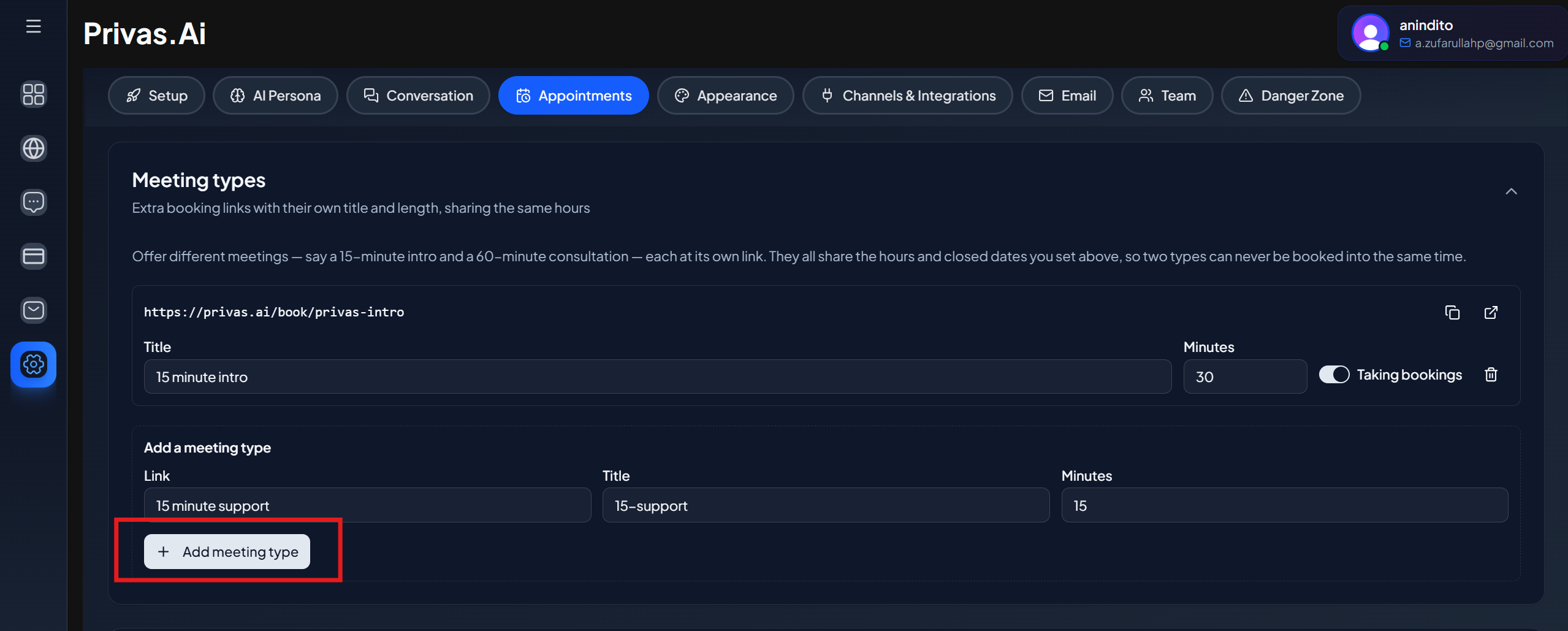
Add a meeting type
- In Link, enter the last part of the new address, for example
acme-intro. It follows the same rules as your main booking link. - In Title, name the meeting, for example "15-minute intro".
- In Minutes, set its length.
- Click Add meeting type.
The new type appears with its own privas.ai/book/... address, ready to copy or open.
Your main meeting, the one set in the Appointments card, is always the default type. It is edited there and cannot be paused or deleted here.
Edit a meeting type
- Title and Minutes save when you leave the field. Leave Minutes empty to use the length of your main meeting.
- The switch next to each type shows Taking bookings or Paused.
- The trash icon deletes the type.
One shared calendar
All meeting types use the same weekly hours and closed days from the Appointments card. They also share one set of bookings, so two types can never be booked into the same time. A 60-minute consultation blocks any 15-minute intro that would overlap it.
Everything else, including the meeting format, where it happens, and your notice and gap settings, also comes from the Appointments card.
Pausing a type
Pausing stops new bookings for that type. When a type has upcoming bookings, the card shows how many. Guests who already booked can still open their booking, and change or cancel it.
Which type appears in chat
The appointment picker in conversations always offers your default meeting. Extra meeting types are reached through their own links.
Next step
Continue to Booking in Chat to let the assistant offer times in the conversation.