L. Appointments
Google Calendar & Meet
Connect Google Calendar so your busy times are never offered, bookings land in your calendar, and each online meeting gets its own Google Meet link.
Updated 17 Sep 2026
Connecting Google Calendar does three things. Times you are already busy are not offered to visitors. Every booking is added to your calendar. And online meetings can get their own Google Meet link automatically.
Appointments work without it. Without a connection, visitors are offered your weekly hours only, and no Meet links are created.
Where to configure it
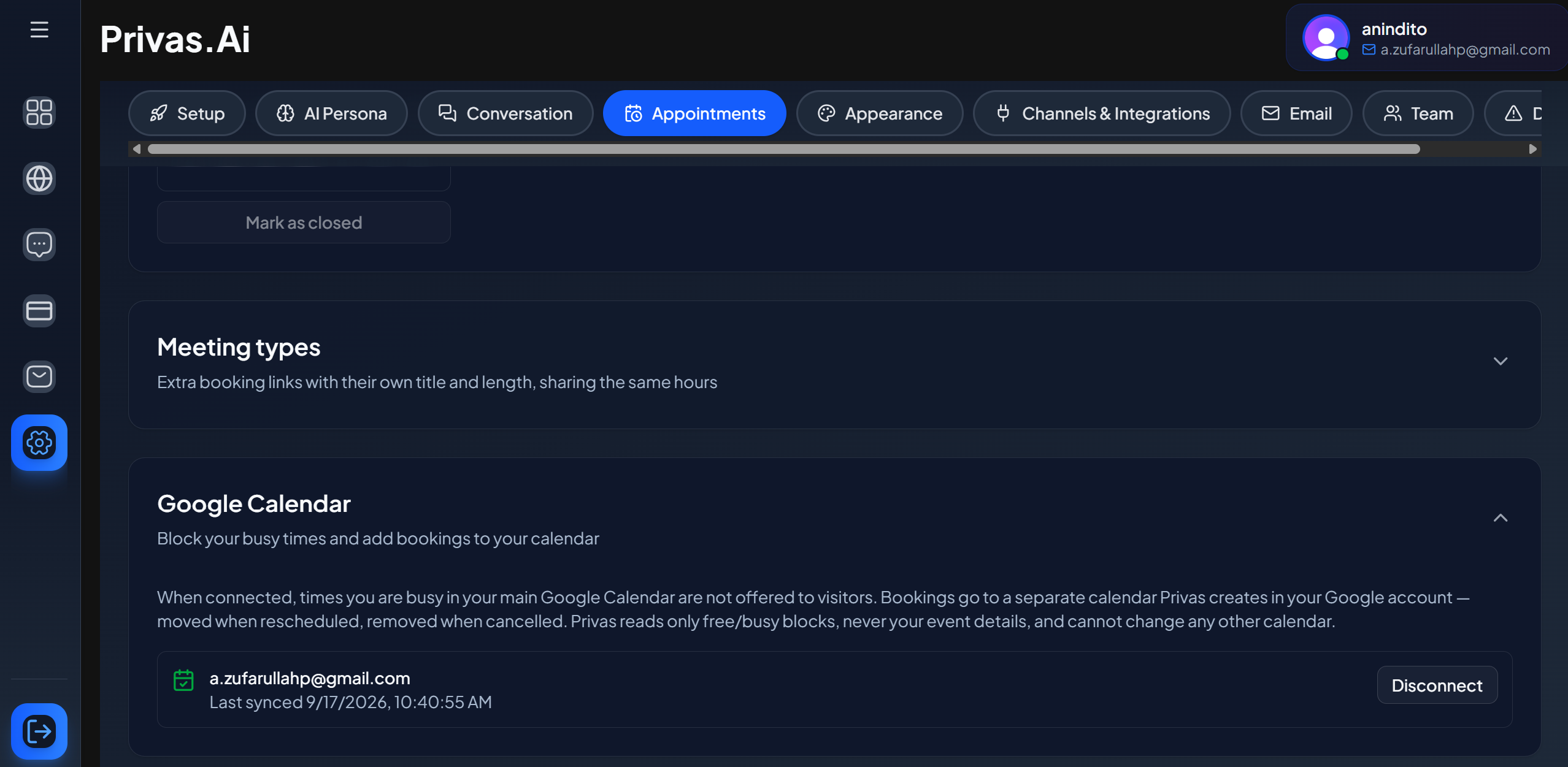
Open your domain, then go to Settings > Appointments and open the Google Calendar card.
Connect
- Click Connect Google Calendar. Only a domain admin can do this.
- Sign in to Google and choose the account.
- Keep both permissions ticked: seeing your availability, and managing the bookings calendar. If one is unticked, nothing is connected and you are asked to connect again.
When you return, the card shows the connected account and when it last synced.
One Google account is connected per domain.
What Privas can and cannot see
- Your main calendar: Privas reads only when you are busy, never the titles or details of your events.
- Your bookings: Privas creates a separate calendar in your Google account named after your domain, and adds bookings there. They are moved when a guest reschedules and removed when a guest cancels.
- Everything else: Privas cannot change any other calendar.
The guest is not added to the Google event, so Google does not send a second invitation on top of the Privas confirmation email.
Busy times
Times you are busy in your main Google calendar are removed from what visitors can book, on the booking link and in the chat.
Busy events from Google do not count toward Most per day. That limit counts bookings only.
If Google is slow or unavailable when a visitor opens the booking page, the page still shows your weekly hours instead of showing no times at all. Bookings made through Privas can never overlap each other, but in that moment a time you blocked in Google could be offered.
A Google Meet link for each booking
Each booking gets its own Google Meet link when all three are true:
- Google Calendar is connected.
- Meeting format is Online video call.
- Where it happens is empty.
The empty field is what asks for the link. The Meet link is included in the confirmation email, the calendar file, the reminder, the guest's booking page, and your Google Calendar event. When a guest reschedules, the same link is kept.
If Google cannot create a link at that moment, the booking still stands. The guest receives the confirmation without a video link.
Using Zoom, Teams, or your own room
Paste your own meeting link into Where it happens. Privas then stops creating Meet links and uses yours everywhere instead.
Note the difference: a Meet link is unique to each booking, while a link you paste is one room shared by every booking. If two guests are booked close together, they could join the same room. Turn on a waiting room in Zoom or Teams to control who comes in.
Connection status
- Last synced means the connection is working.
- A warning message means the last sync had a problem. Bookings still work.
- Access was removed in Google means the permission was revoked from your Google account. Click Reconnect to resume.
Click Disconnect to stop syncing. Privas stops reading your busy times and stops adding bookings to your calendar.
Next step
Continue to Managing Bookings to see who booked and what guests receive.