
L. Appointments
Managing Bookings
See who booked and when, know which emails guests and your team receive, and how guests reschedule or cancel a booking from their own personal link.
Updated 17 Sep 2026
Once bookings arrive, you track them in the dashboard, and email keeps everyone informed. Guests manage their own bookings from a personal link, so a change of plans does not need a message to your team.
Where to see bookings
Open your domain, then go to Settings > Appointments and open the Bookings card.
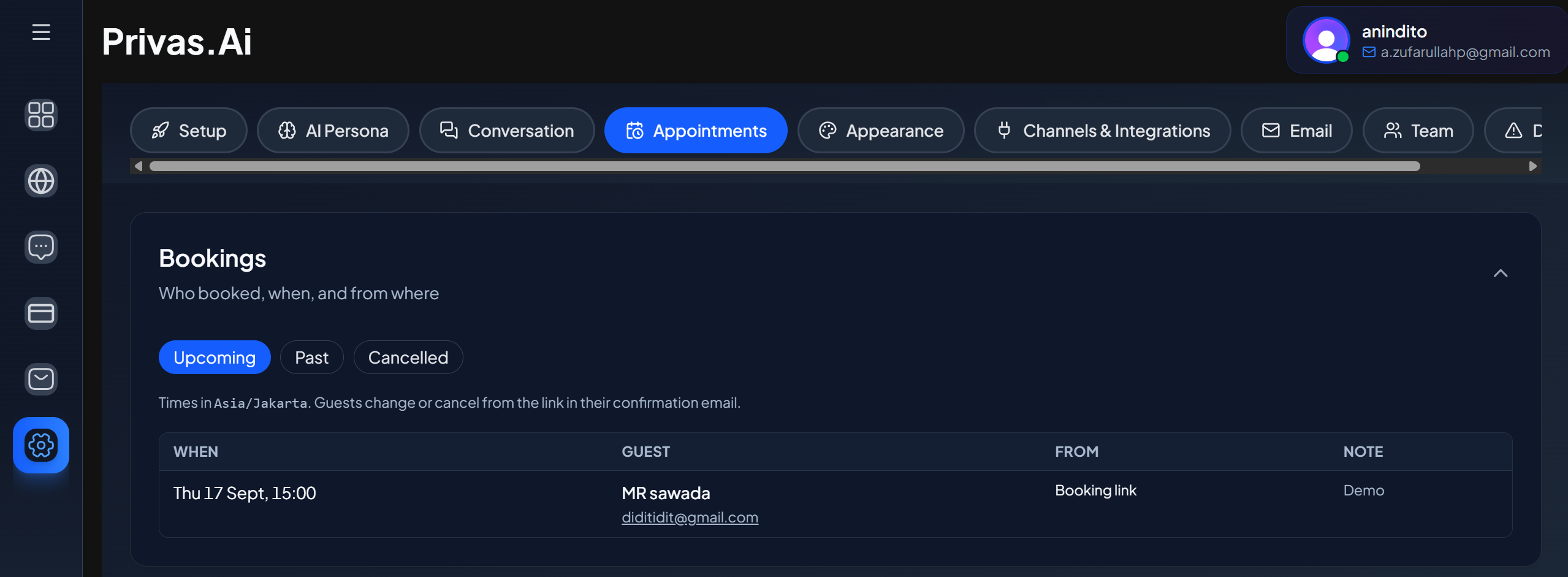
Switch between Upcoming, Past, and Cancelled. Each booking shows:
- When. The date and time in your domain's time zone. A booking that was rescheduled shows how many times it moved.
- Guest. Name and email. If the guest is in a different time zone, their local time is shown too.
- From. Where the booking was made: Booking link, Chat, or Chat (rule) when a proactive rule showed the picker.
- Note. What the guest wrote when booking, if anything.
Every team member with access to the domain can see this list.
Rescheduling and cancelling
The Bookings list is read-only. Only the guest can move or cancel a booking, from the personal link in their confirmation email. That link acts as the guest's key to their booking, so it is never shown in the dashboard.
If you need to change a booking, contact the guest by email and ask them to use their link, or to book a new time.
What the guest can do
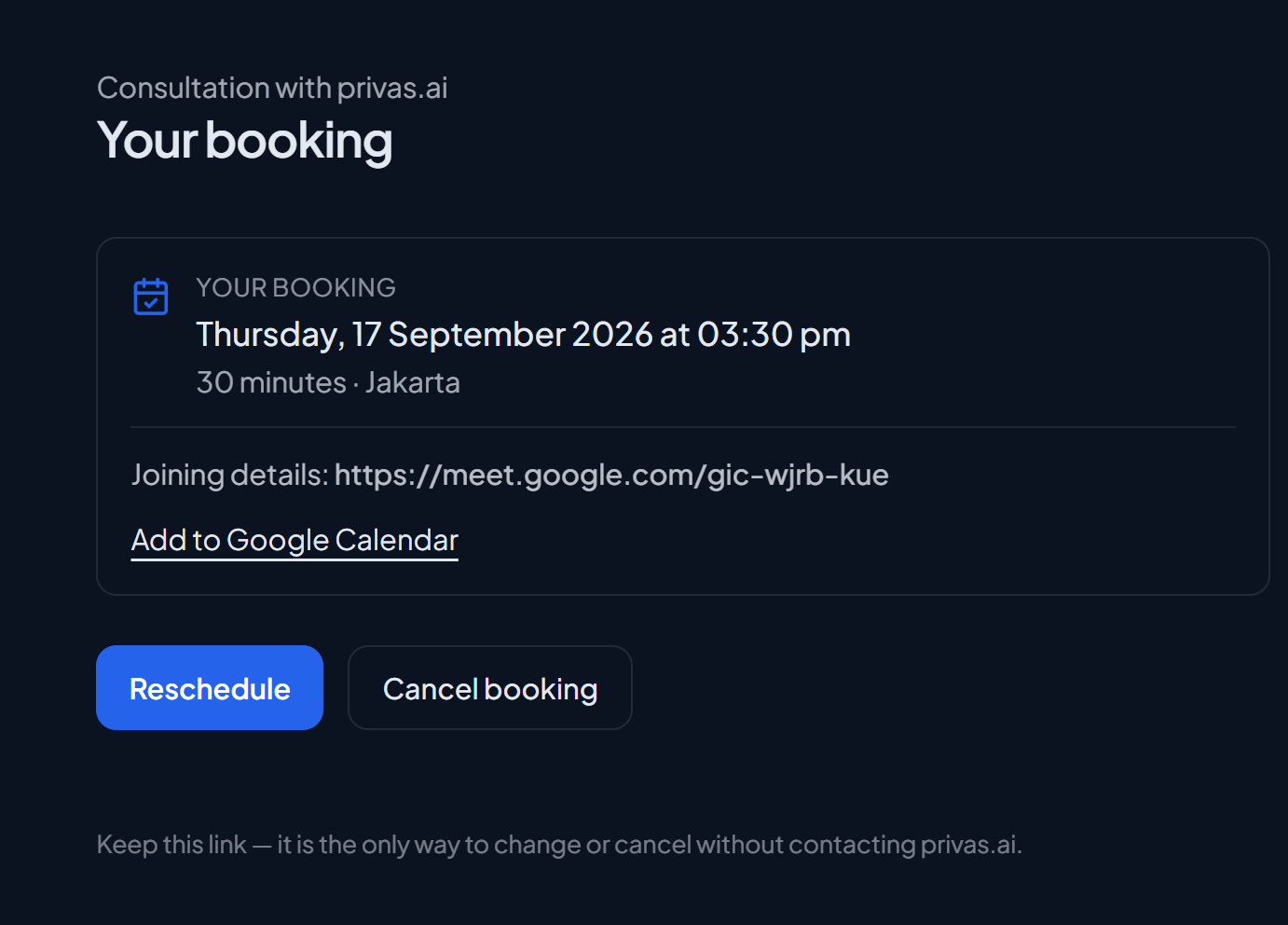
On their booking page, the guest can:
- see the date, time, and joining details
- add the meeting to Google Calendar
- Reschedule to another free time
- Cancel booking
Two limits apply:
- Changes are possible until 2 hours before the meeting starts.
- A booking can be rescheduled at most twice.
After that, the page asks the guest to contact you directly. While Accept appointments is off, guests can still cancel but cannot reschedule.
Emails
Booking emails are sent automatically. The guest receives them at the address they entered, with times shown in their own time zone.
| Sent to | When | |
|---|---|---|
| Confirmed | Guest | Right after booking. Includes a calendar file and the personal link. |
| New booking | Your team | Right after booking. |
| Moved | Guest, with your team copied | When the guest reschedules. Includes an updated calendar file. |
| Cancelled | Guest, with your team copied | When the guest cancels. |
| Reminder | Guest | About 24 hours before the meeting. |
A reminder is not sent for a booking made less than 6 hours earlier, because the guest has just received the confirmation.
Who "your team" is
Team notifications go to the addresses in CC Rules, under Settings > Email. If no CC Rule is active, your team is not emailed about bookings. The bookings still appear in the Bookings list.
See Email Follow Ups for how to add CC Rules.
Calendar events
- Guests add the meeting to their calendar with the calendar file attached to their email, or the Add to Google Calendar link on their booking page.
- Your team gets bookings in Google Calendar automatically after you connect it. See Google Calendar & Meet.
Next step
To have the assistant offer times during conversations, see Booking in Chat.