E. Conversation Management
Manage Team Collaboration
Invite teammates to a domain and assign roles. Owner, Domain Admin, and Viewer control who can change settings, manage conversations, and view data.
By aninditoUpdated 6 Sep 2026
Privas AI lets you manage a domain together with your team. You can invite collaborators, assign roles, and remove access, so control stays structured and appropriate for your organization.
Grant access based on responsibility. Clear roles protect sensitive information, keep operational control, prevent accidental changes, and support accountability.
Roles
Each collaborator has one role that determines what they can see and change.
Owner
Full control of the domain. Can invite and remove collaborators, change roles, and modify all settings. The Owner cannot be removed by other admins. Assign this carefully.
Domain Admin
Manages most operational work: configure domain settings, view and manage conversations, and adjust widget settings. A Domain Admin cannot remove the Owner. Suitable for team members who actively manage communication.
Viewer
Read-only. Can view domain data and review conversations, but cannot change settings, modify roles, or configure the widget. Suitable for oversight or reporting.
Invite a collaborator
- Open your domain, then go to Settings > Team.
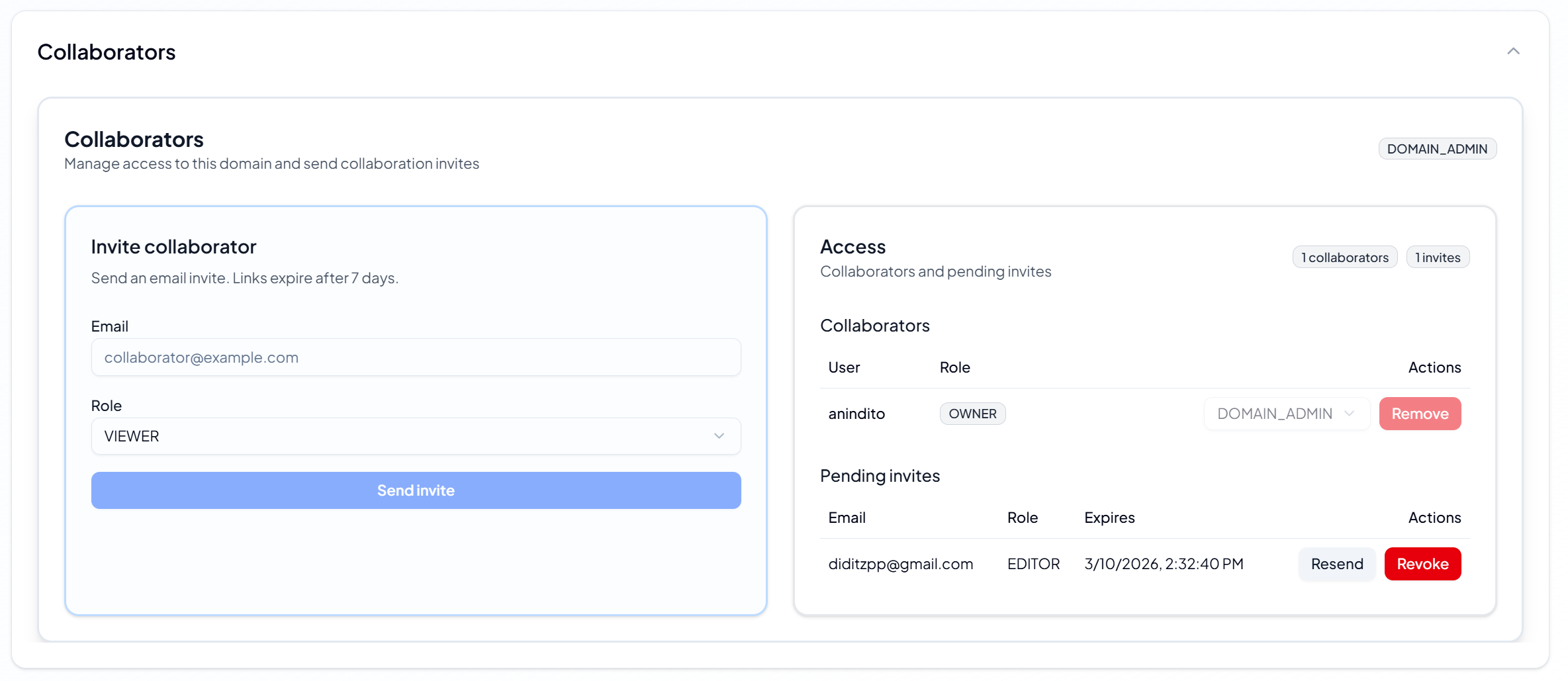
- Enter the collaborator's email address.
- Select the role.
- Click Send Invite.
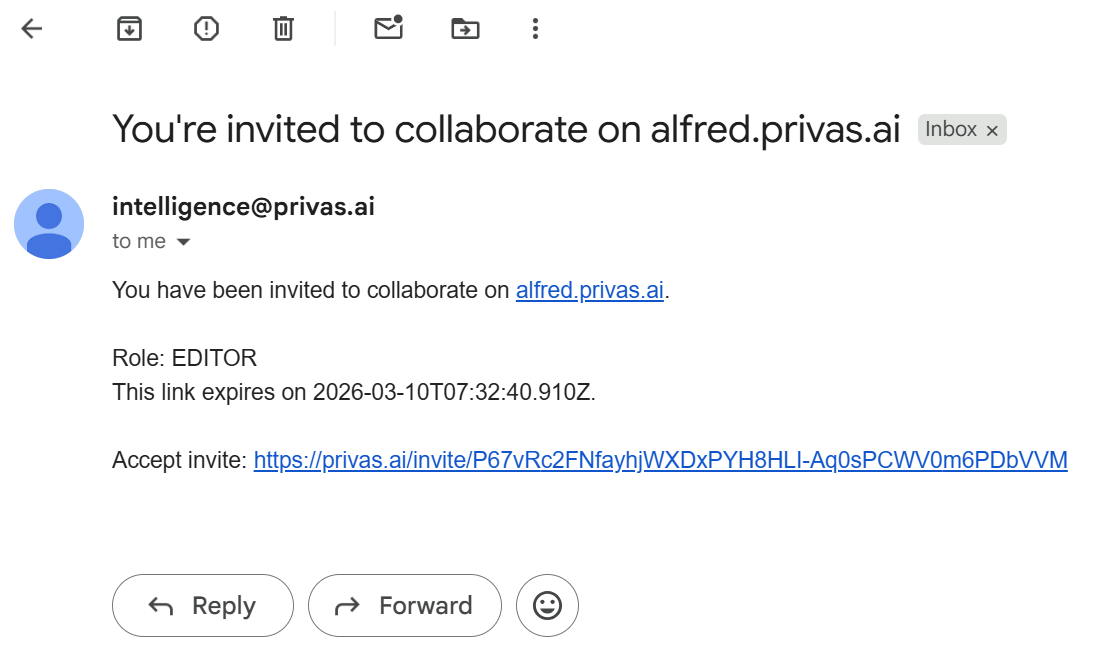
An invitation email is sent and stays valid for 7 days. If it is not accepted in time, send a new one.
Manage access
In the Team section you can view active collaborators and pending invitations, change roles, and remove access. Review access regularly so only the right people can reach your domain.
What this affects, and what it does not
Managing collaborators controls who can access the domain, manage conversations, and configure AI and widget settings. It does not change AI responses, modify knowledge sources, or interrupt live conversations. Access control is administrative, not conversational.
Next step
With your team set up, continue to Bell Escalation to let visitors request human assistance.