
M. AI Call
AI Call
Let visitors talk to your assistant by voice on your share link and in your website widget, with the same knowledge and rules as your chat.
Updated 20 Nov 2026
AI Call lets a visitor talk to your assistant instead of typing. The visitor presses the call button and speaks; the assistant answers aloud, from the same knowledge and with the same rules as in chat. Everything said also appears as text in the conversation.
AI Call is in early release. Calls are held in English, or in Bahasa Indonesia when that is your assistant's primary language. See AI Identity.
Before you start
- Voice minutes. Each plan includes voice minutes per domain per billing period; the figures are on the pricing page. The time a call is connected is what counts, by the second.
- A secure page. A browser only offers the microphone on an https page.
- Emails. To hear about calls, add someone under Settings > Email & reports > Who gets emails.
Where visitors can talk
A new domain starts with AI Call on for its share link and off for the website widget, so you can try a call as soon as setup finishes. A domain added before this default keeps the setting it had.
To change where visitors may talk:
- Open your domain, then go to Settings > AI Call.
- Switch each place on or off:
- Share link. Visitors who open your share link see a call button.
- Website widget. Visitors can talk to the assistant in the chat widget on your website.
- The first time you switch a place on, you accept a short notice about how visitors' speech is processed. You do this once per domain.
Keeping AI Call on, or switching it on, is your instruction to process your visitors' speech. See section 12 of the Terms of Service.
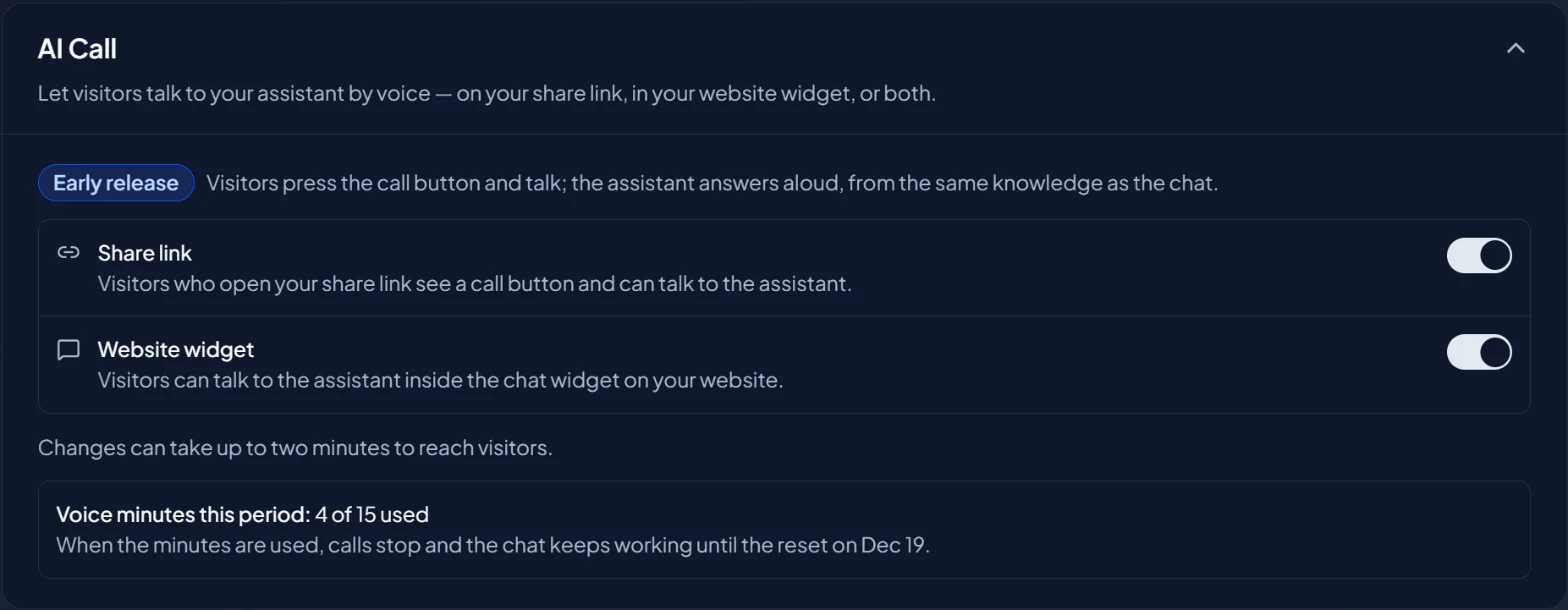
Only the domain owner or an Admin can switch AI Call on or off. A change reaches visitors within about two minutes. Switching a place off never cuts off a call that is already running.
If you do not see AI Call in your Settings menu, it is not available for your domain yet.
Voice minutes
Settings > AI Call shows the voice minutes used this period. When they are used up, the call button is no longer offered to visitors until the next billing period, and the chat keeps working. On a paid plan you can add minutes for the current period from the same place. A daily safety limit also applies to every account.
Make it yours
- Voice Identity: the voice, the first and last words of a call, and the names it should recognise.
- Call Experience: how long a spoken answer is, and what visitors hear while they wait.
- Try a Call: call your assistant yourself before visitors can.
- What Visitors Experience: a call, from the visitor's side.
- Calls in Your Dashboard: conversations, emails and minutes.
Proactive rules can behave differently on a call. See Proactive Rules.