
M. AI Call
Call Experience
Set how much your assistant says in one spoken answer, the soft sound while it thinks, and an optional background sound for the whole call.
Updated 19 Nov 2026
Call experience shapes how a call sounds around the answers. Open your domain, go to Settings > AI Call and open Call experience.
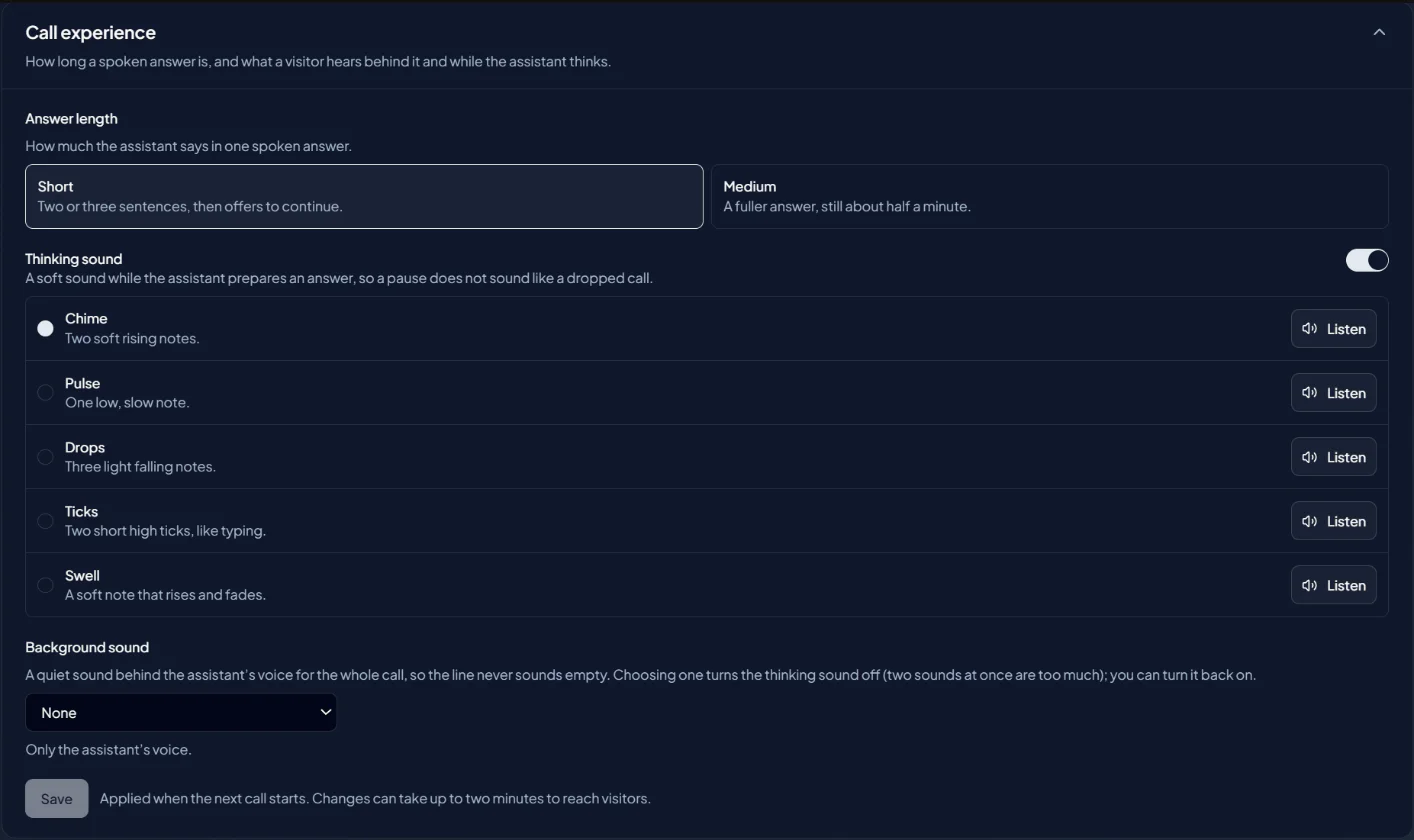
Answer length
How much the assistant says in one spoken answer:
- Short. Two or three sentences, then it offers to continue.
- Medium. A fuller answer, still about half a minute.
Thinking sound
A soft sound while the assistant prepares an answer, so a pause does not sound like a dropped call. Switch it on or off and choose a pattern: Chime, Pulse, Drops, Ticks or Swell. Each pattern has a Listen button that plays it in your browser for a few seconds.
Background sound
A quiet sound behind the voice for the whole call: None, Office, Busy office, Café, City street, Typing, or one of four kinds of soft music.
When you choose a background sound, the thinking sound is switched off for you. Switch it back on if you want both.
Save
Click Save. Changes apply when the next call starts. Editors can change the call experience.