
B. Getting Started
Keep Your Website in Sync
Let Privas AI check a saved sitemap every week or month and queue only the new and changed pages, so your assistant keeps up with your website.
Updated 6 Nov 2026
Your website keeps changing: new pages, updated prices, a revised policy. Automatic sync checks a saved sitemap on a schedule and queues only the pages that are new or changed, so your assistant keeps up without you importing by hand.
Before you start
Automatic sync works on a sitemap you have imported at least once, which puts it under Your sitemaps. See Import a Whole Website.
Turn it on
- Open the sitemap import: Settings > Setup > AI Knowledge, then Sources > Web Sources > Website > Whole site (sitemap).
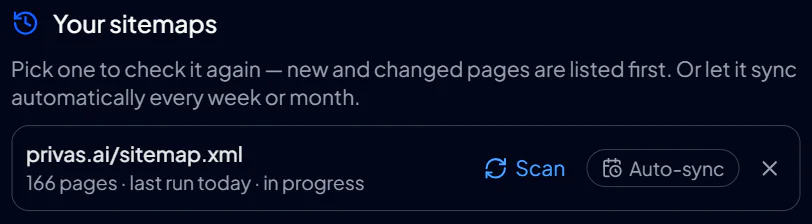
- Under Your sitemaps, click the Auto-sync pill next to the sitemap.
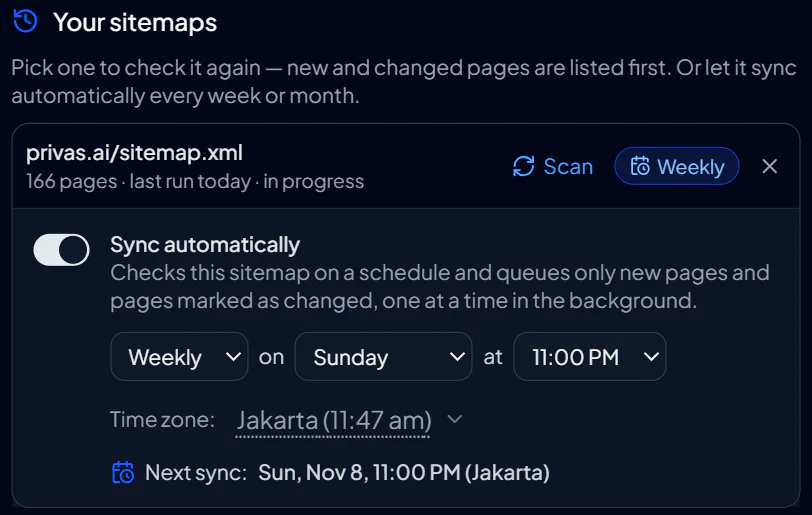
- Turn on Sync automatically.
- Choose Weekly or Monthly, the day, the hour, and the Time zone.
A weekly sync runs on a day of the week; a monthly sync runs on a day of the month, from the 1st to the 28th. The first time you turn it on, the schedule starts at Weekly, Sunday at 11:00 PM in your domain's time zone. Pick the quiet hours of your own site.
Every change saves at once; there is no save button. The pill then reads Weekly or Monthly, and Next sync shows when the next run is due.
What a run does
At the scheduled time, Privas AI reads the sitemap, compares it with your knowledge, and queues the pages that are new or marked as changed. They are processed one at a time in the background, like a batch you start yourself. Unchanged pages are not touched.
A page counts as changed when your sitemap gives it a later date than your last import. If your sitemap carries no dates, a run picks up new pages only.
In the progress strip on the AI Knowledge page, a scheduled run is labelled Automatic sitemap sync. You can pause or cancel it like any batch.
After a run
The panel shows how the last run went: how many new or changed pages it queued, or that there were none.
- If a sitemap import was already running on the domain, the sync waits and tries again shortly.
- If a run fails, the panel shows the reason. It retries within the hour, up to three times, then waits for the next scheduled run.
Limits
A scheduled run counts like a manual one. Each page it processes uses one page processing from the domain's monthly allowance, and each new page takes a knowledge source slot. On plans with limits, a run queues up to 200 pages; the rest wait for the next run. See Plan Limits.
Change or stop it
Change the frequency, day, hour or time zone from the same panel at any time. Turn off Sync automatically to stop the schedule; your choices are kept for next time.
Removing a scheduled sitemap from Your sitemaps asks you first, because its automatic sync stops too.
Next step
Once your key pages are in, continue to Share the Assistant to review the results.