
B. Getting Started
Customize Widget Appearance
Match the chat widget to your website: set the launcher icon, avatar, name, and colors, and preview changes live before you publish.
By aninditoUpdated 6 Sep 2026
This guide makes the chat widget feel like part of your website. Visitors should feel they are talking to your business, not to an external tool.
If the widget looks unrelated to your site, visitors hesitate to click it. When it matches your brand, it reads as a natural help or contact point.
Open Appearance settings
Open your domain, then go to Settings > Appearance.
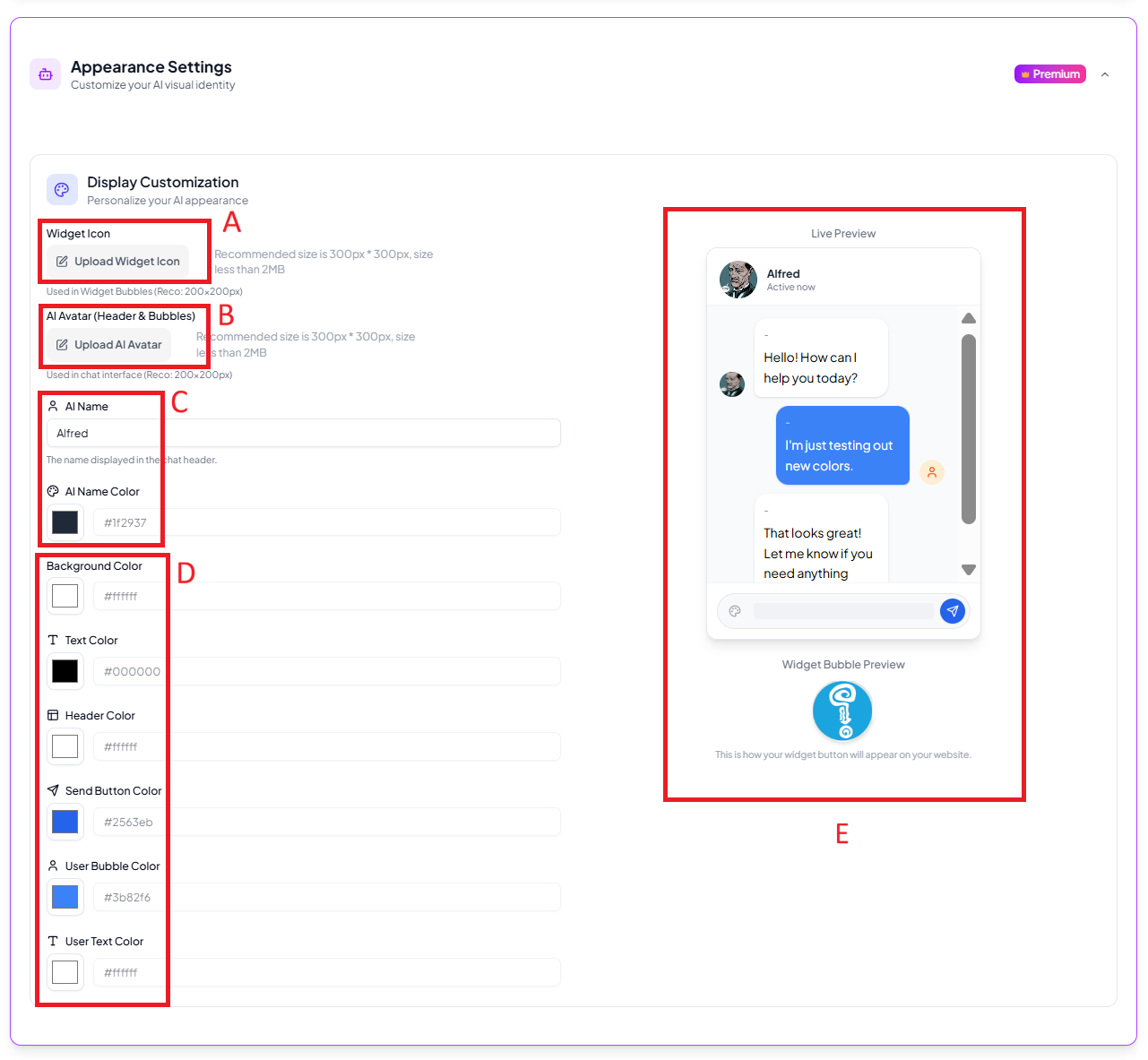
You will see a live preview as you make changes.
Widget icon
The floating button visitors click to open the chat. Use a square image, around 300 by 300 pixels, with a simple symbol and a transparent background. Avoid long text or fine detail; the icon is small, especially on mobile.
Representative avatar
Shown inside the conversation window and message bubbles. A mascot, brand symbol, or simple character works well. Avoid banners, screenshots, or busy photos.
Representative name
Shown at the top of the chat window. Choose a name that communicates purpose, such as Support, Customer Care, or Product Assistant.
Colors
You can adjust the header color, background color, send button color, visitor bubble color, and text color. Use one main brand color, keep backgrounds neutral, and keep strong contrast so messages are easy to read. If reading takes effort, visitors stop.
Use the live preview
While editing, watch the preview panel. Check readability, contrast, mobile visibility, and icon clarity, and adjust until the chat feels like a natural part of your interface.
Related appearance settings
This page covers the embed widget bubble. Two more areas live under Appearance:
- Theme and templates for colors, typography, and one-click Light or Dark presets. See Theme & Templates.
- Whitelabel options such as removing the "powered by" mark, on eligible plans. See Whitelabel.
Changes apply to the widget after saving. You may need to refresh your website page to see them.
Next step
Your representative now matches your website. Continue to Go Live and then Install the Website Widget.