I. Integrations & Agent Access
Agent Access
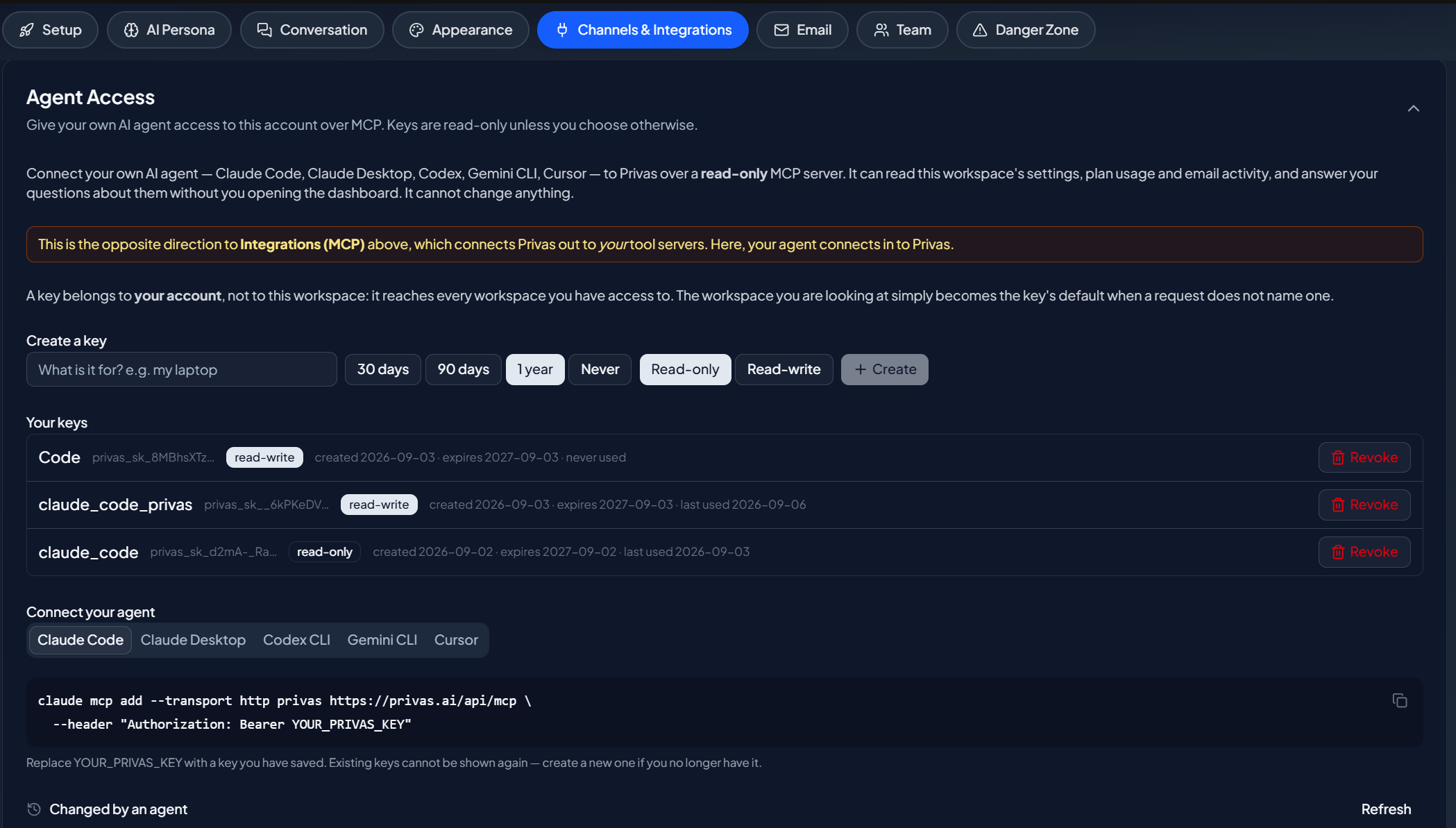
Create an API key so your own AI agent can read your Privas AI workspace configuration over MCP. Read-only by default, and the key is shown once.
Updated 6 Sep 2026
Agent Access lets your own AI agent (such as Claude Code, Cursor, or another MCP client) read your Privas AI workspace, so it can answer your own questions about your setup. Privas AI acts as the server here; your agent connects to it.
Where to configure it
Open your domain, then go to Settings > Channels & Integrations > Agent Access.
Create a key
- Create a new API key.
- Copy it when it is shown.
The key is shown once, at creation. Store it somewhere safe, because it cannot be shown again. If you lose it or it is exposed, revoke it and create a new one. Revoking takes effect immediately.
Connect your agent
Point your MCP client at the Privas AI endpoint:
https://privas.ai/api/mcp
Authenticate with your key. Your agent can then read your workspace configuration.
Read-only by default
By default, keys are read-only: your agent can read your settings, not change them. This is the safe default for connecting an external tool.
If writing is enabled
Where write access is available and enabled, a change is never applied blindly. The agent first requests a preview of the exact change, and the write only proceeds against that preview, so it cannot skip the review step. Every change is recorded in a change log you can see on this page, and a change can be undone.
Next step
For operational control of the widget itself, see Widget Kill Switch.