D. Widget Integration
Install Privas AI on GoDaddy Website Builder
Embed the AI representative on a GoDaddy Website Builder
By aninditoUpdated 6 Sep 2026
GoDaddy Website Builder allows you to embed external content using the **Embed ** feature. You can use this capability to add the Privas AI representative to your website without editing any code.
This guide explains how to embed the Privas AI widget inside a GoDaddy Website Builder page so visitors can interact with your assistant directly from your site.
Why this matters
Embedding the assistant in GoDaddy:
- Makes your AI representative available to visitors
- Keeps communication consistent
- Does not require editing source files
This affects only the page where you place the HTML section.
It does not modify your domain settings, store configuration, SEO tools, or design theme.
Before You Start
Make sure you have:
- Access to your GoDaddy account
- Your Privas AI Website Widget Embed Code
You can copy the embed code from your Privas AI Domain Dashboard.
Step 1 — Open Your GoDaddy Products
- Log in to your GoDaddy Account.
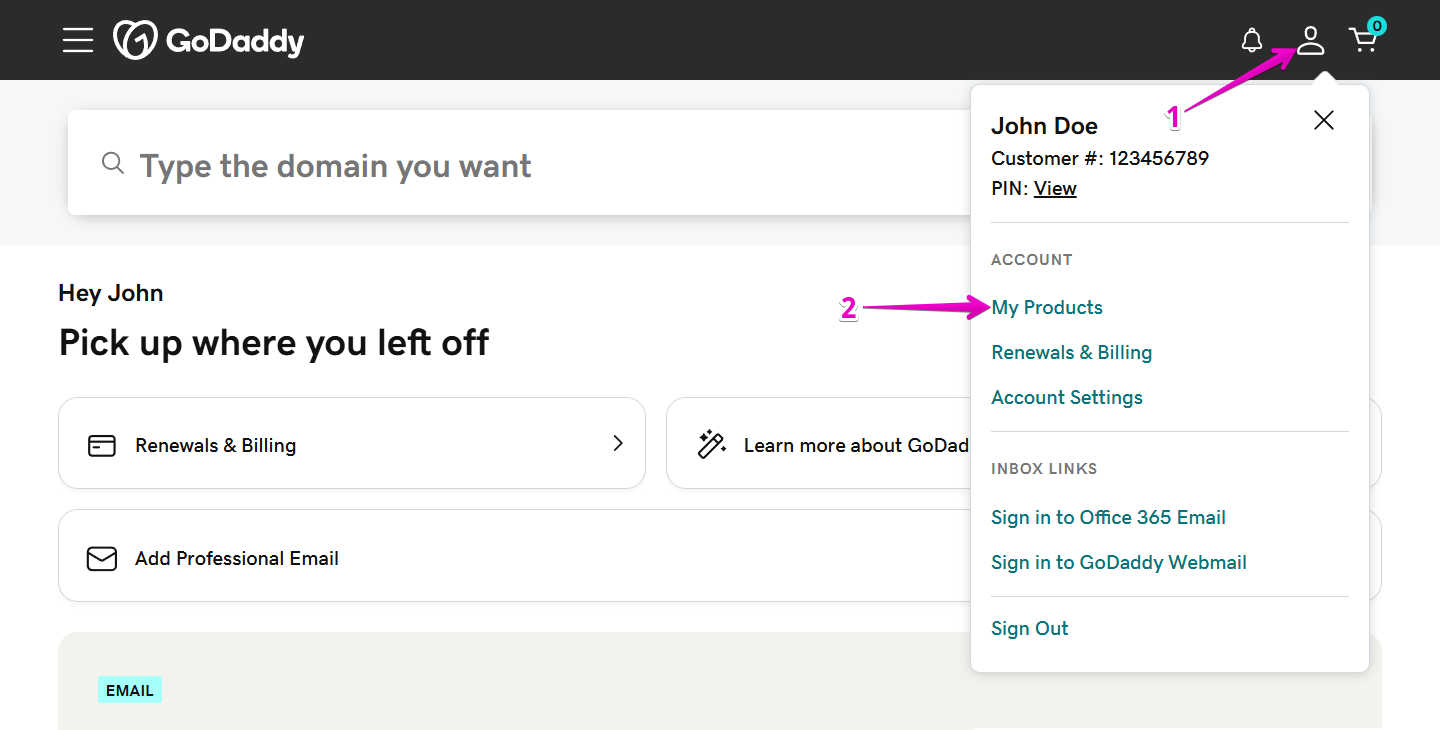
- On the Home page, click your Avatar/Profile picture in the top-right corner.
- From the dropdown menu, click My Products.
Step 2 — Open Your Website
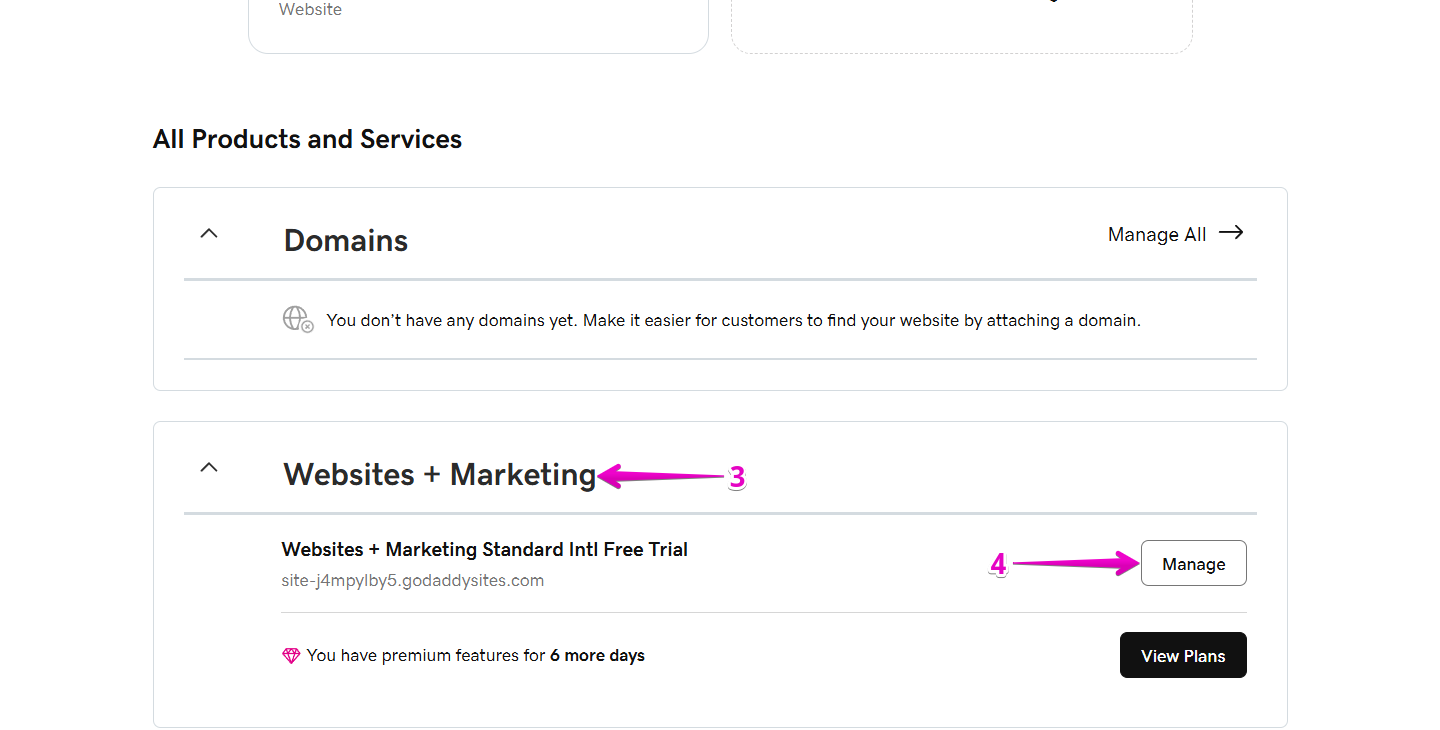
- On the All Products and Services page, locate Website + Marketing.
- Select the website where you want to install the assistant.
- Click Manage.
Step 3 — Enter the Website Builder
- On your Website Dashboard, click Edit Website.
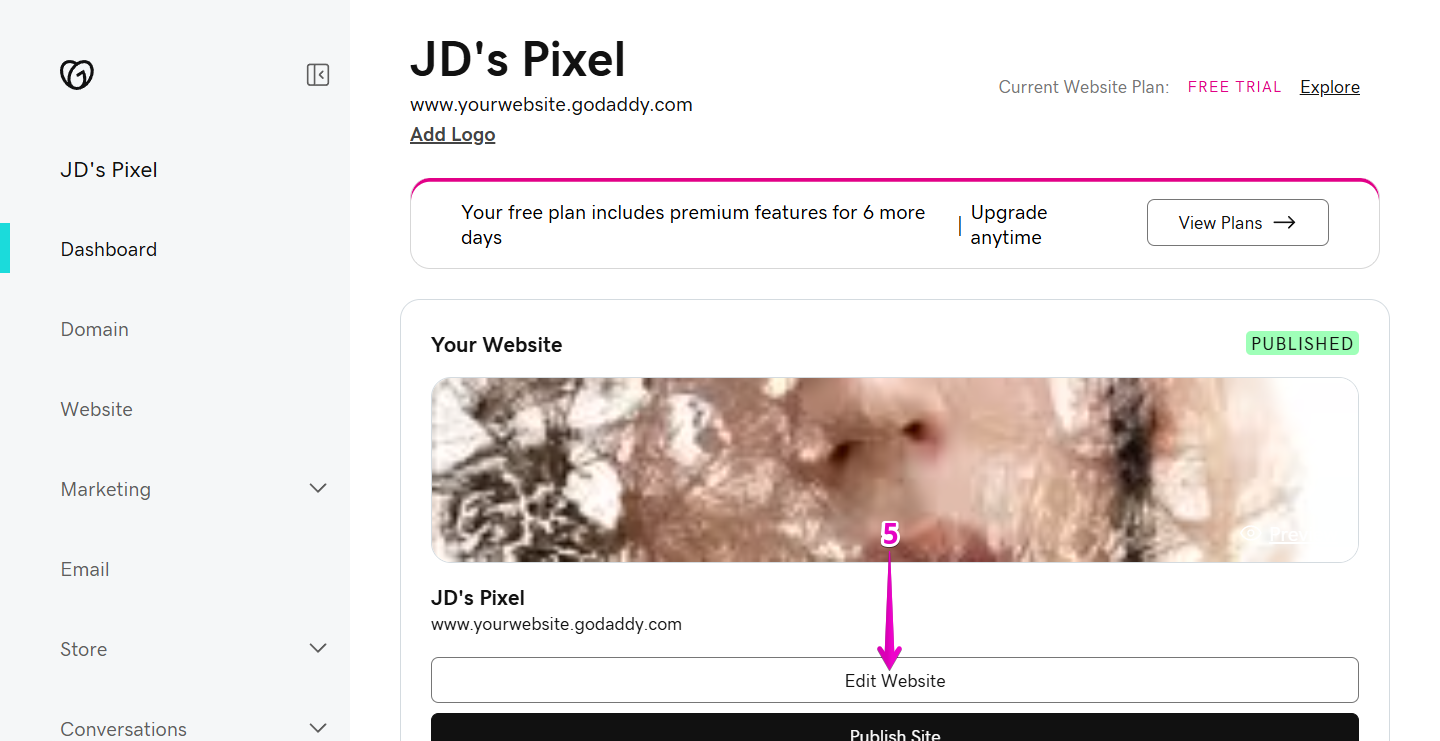
This opens the GoDaddy Website Builder.
Step 4 — Add an HTML Section
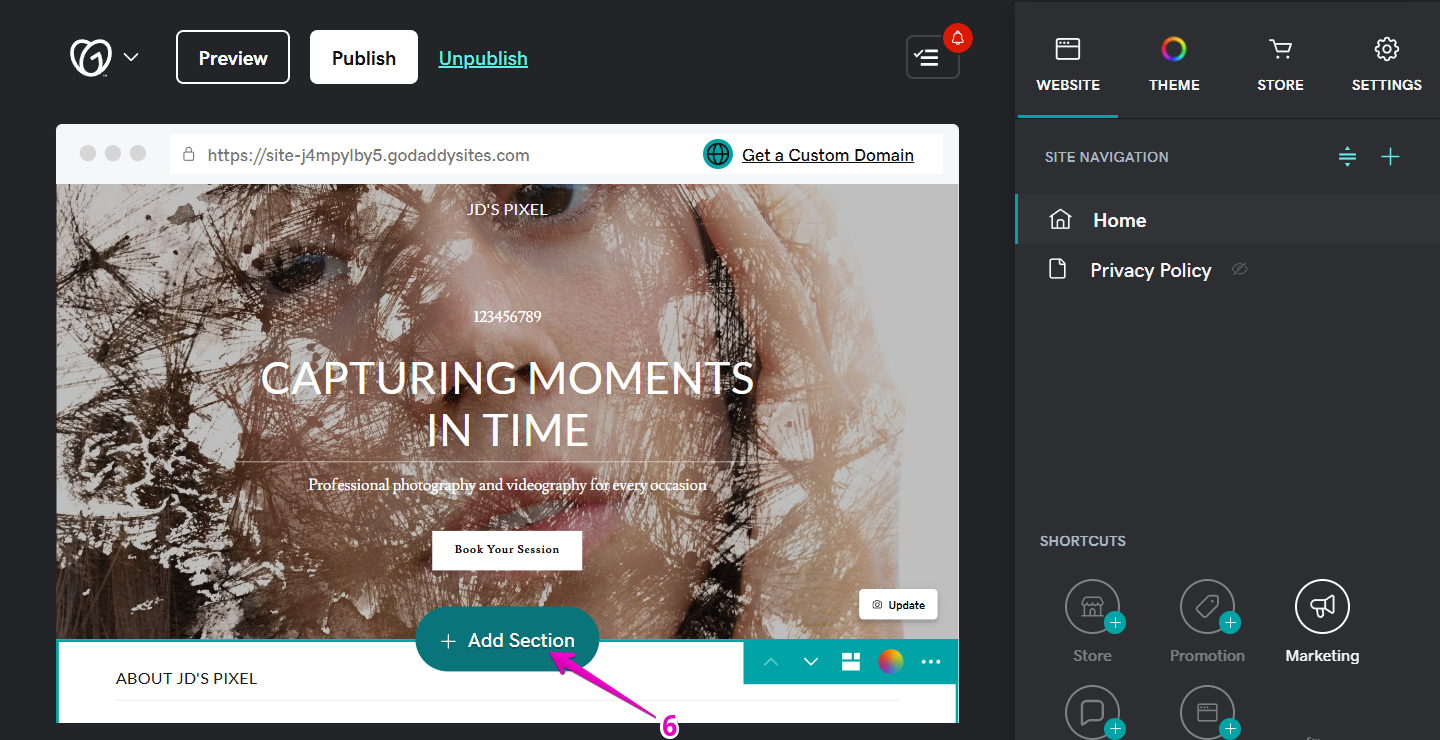
- Hover over the page where you want the assistant to appear.
- Click Add Section.
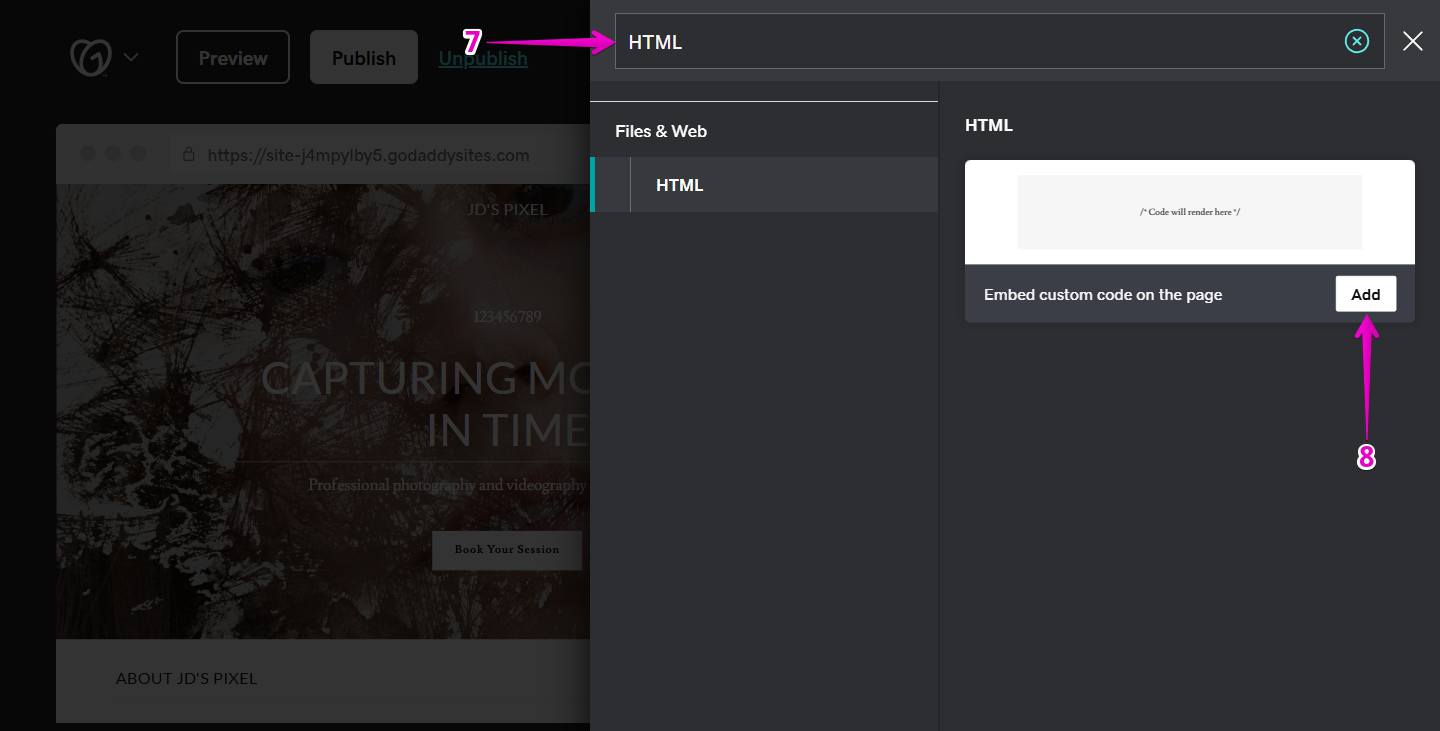
- In the panel that opens on the right, type HTML into the search bar.
- Click Add to insert the HTML section.
Step 5 — Paste the Privas AI Embed Code
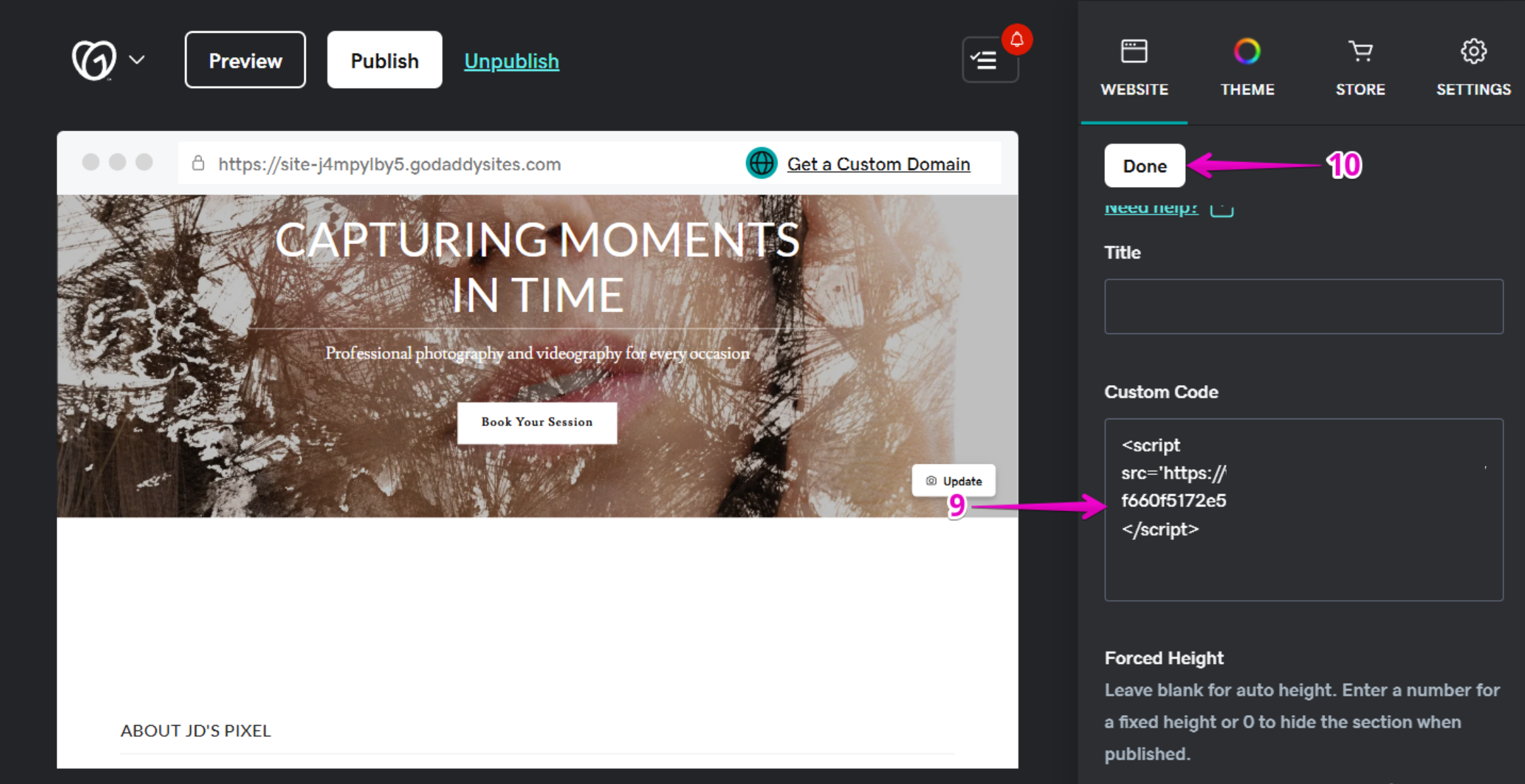
- In the newly added section, go to the Website tab.
- Scroll down to the Custom Code field.
- Paste your Privas AI Embed Code.
- Click Done.
Step 6 — Publish Your Website
- Click Publish in the top-right corner.
- Visit your website and refresh the page.
You should now see the chat icon appear.
What This Installation Does — and Does Not Do
This installation:
✔ Displays your assistant on the selected page
✔ Loads automatically for visitors
✔ Works independently from GoDaddy tools
It does NOT:
✘ Modify your layout or theme
✘ Change navigation or content
✘ Affect your store, bookings, or forms
✘ Access external data
The widget simply connects your GoDaddy website to your configured Privas AI domain.
Optional — Show the Assistant on Multiple Pages
If you want the assistant available on more pages:
Repeat the same HTML section process on each page.
GoDaddy does not automatically apply custom HTML site-wide unless using advanced custom code features.
If the Widget Does Not Appear
- Make sure you clicked Done
- Confirm you clicked Publish
- Refresh your browser
- Verify the full embed code was pasted correctly
Next Step
Continue to Test the Representative.
Before announcing it publicly, confirm that your assistant represents your business clearly and accurately.