
D. Widget Integration
Install the Website Widget
Add the Privas AI chat widget to your website with a single script tag. One embed code per domain, placed once, loads on every page you add it to.
By aninditoUpdated 6 Sep 2026
This guide shows the assistant on your website. After this step, visitors can chat with your representative directly from your site.
Before you begin
Confirm you have already created your domain, configured the AI identity, defined behaviour, added knowledge sources, and tested with a private share link. Installing before setup is complete can show the assistant while it answers incorrectly.
Step 1: Copy your widget script
- Open your domain in Domain Center, then go to Settings > Setup > General Settings.
- Copy the generated script.
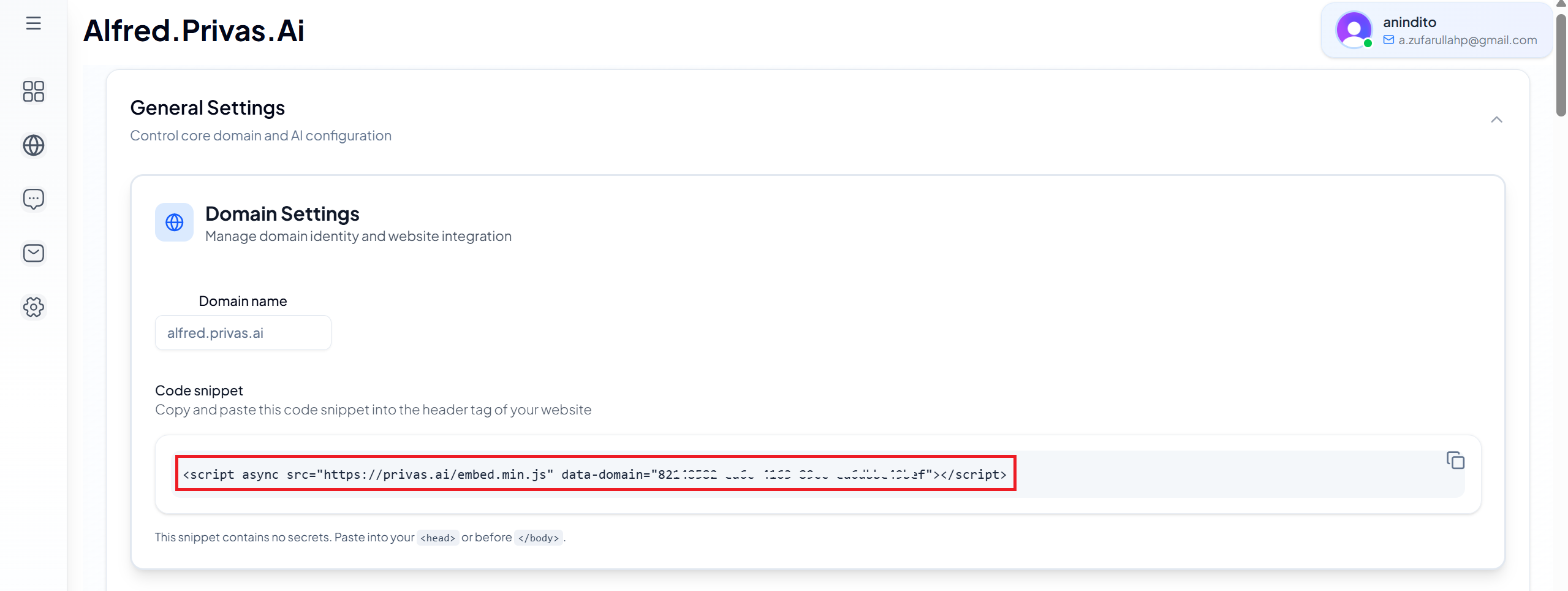
The script connects your website to your specific domain. Each domain has its own embed code.
Step 2: Add the script to your website
Paste the script into your site's HTML, ideally before the closing </body> tag:
<script async src="https://privas.ai/embed.min.js" data-domain="your-domain-xxx"></script>
- Place it on every page where you want the assistant available.
- Do not modify the
data-domainvalue. - Install one script per domain.
The script loads asynchronously, so it does not block your page while it loads.
Step 3: Save and refresh
Save your website changes, clear the cache if needed, and refresh the page. Within a few seconds the chat icon appears in the corner.
If the widget does not appear
- Confirm the script is on the page.
- Confirm the
data-domainvalue is correct. - Clear your website cache.
- Disable ad blockers during testing.
- Check the browser console for JavaScript errors.
First interaction
Open the chat and ask a simple question. If the representative responds clearly and consistently with your website content, the installation is working.
Platform guides
Using a website builder or CMS? Follow the specific guide for your platform in this section (WordPress, Wix, Shopify, Squarespace, and others).
Changes to knowledge, behaviour, and appearance update automatically. You do not reinstall the script.