
G. Answer Control
Capability Guide
Show visitors what the assistant can do, with example prompts they can tap to fill the message box. It replaces the old static FAQ list.
Updated 6 Sep 2026
The Capability Guide tells visitors what your assistant can help with and gives them example prompts to start from. It appears in the share-link sidebar and in the widget's guide tab.
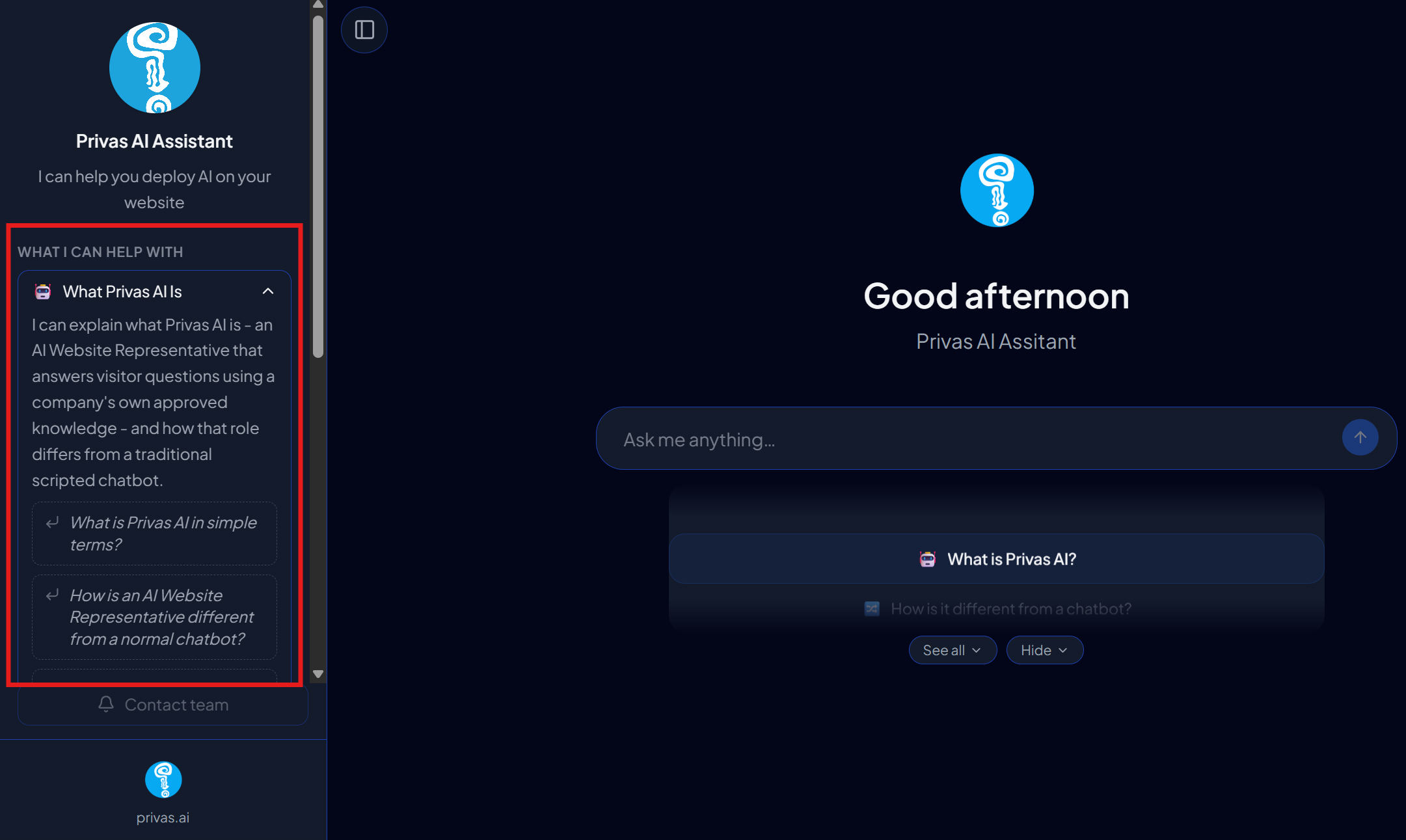
It replaces the older static FAQ list. Instead of answering questions in a fixed list, the guide introduces what the assistant does and lets the assistant answer the actual question. Sample Prompt Guide as quick message recommendation.
Where to configure it
Open your domain, then go to Settings > Conversation > Capability Guide.
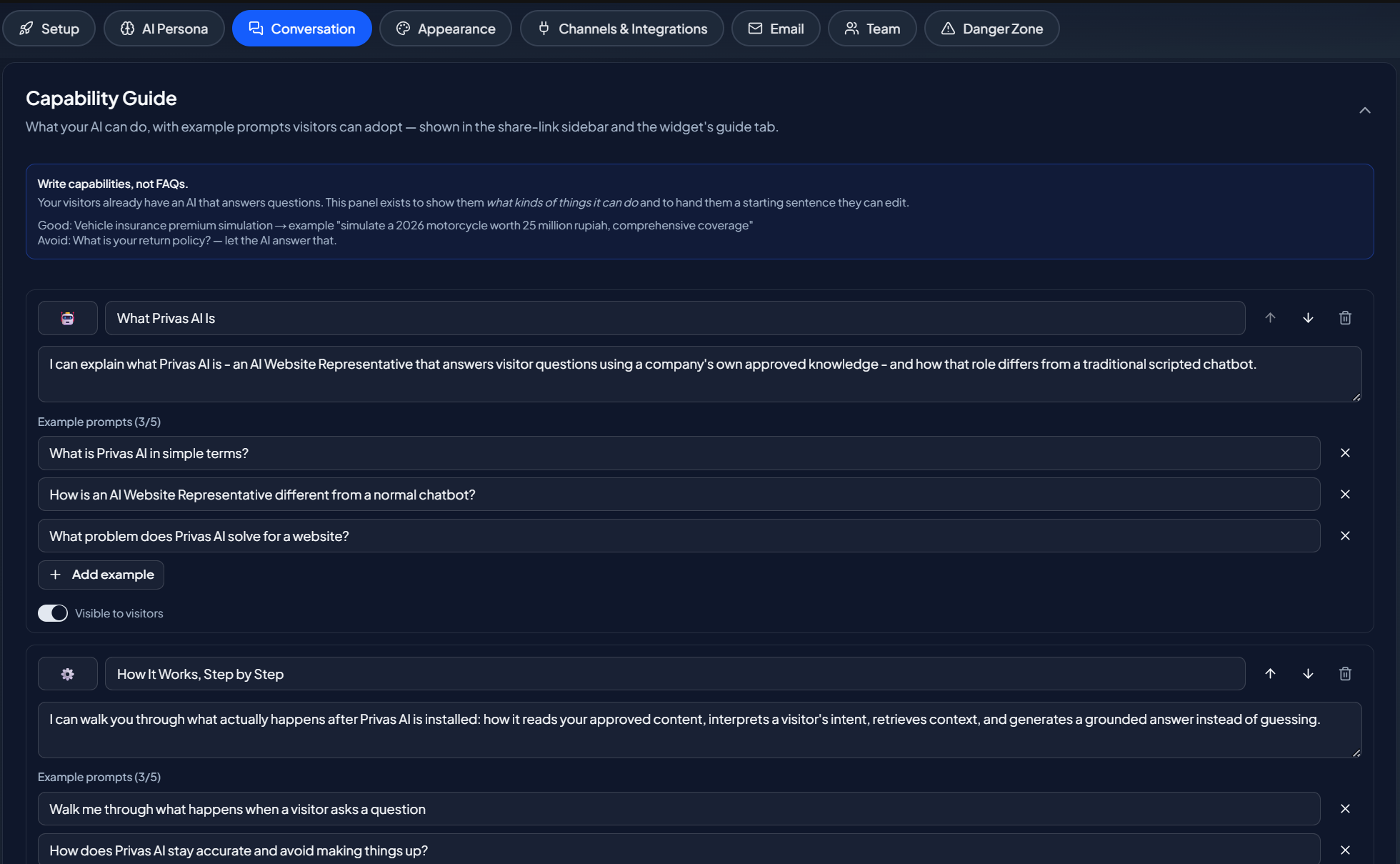
How to set it up
Add each capability with a short title and one or more example prompts. Write capabilities the way a visitor thinks about them, for example "Check product availability" or "Get a price estimate", and give each a natural example prompt.
Fill, not send
When a visitor taps an example prompt, it fills the message box. It does not send automatically. The visitor can edit the prompt and send when ready, so they stay in control of the conversation.
Why this is better than a static FAQ
A fixed FAQ answers a set list and nothing else. The Capability Guide points visitors at what the assistant does well, then lets the assistant answer their real question using your knowledge, which covers far more than a short list can.
Next step
Continue to Chat Components to control the interactive elements the assistant can show in a reply.