
H. Appearance & Whitelabel
Theme & Templates
Set colors, typography, and corner style for your chat surfaces, and use one-click Light or Dark templates as a starting point you can then adjust.
Updated 6 Sep 2026
The theme controls the colors and typography of your chat surfaces. Templates give you a complete palette in one click, which you can then adjust.
Where to configure it
Open your domain, then go to Domain Settings > Appearance.
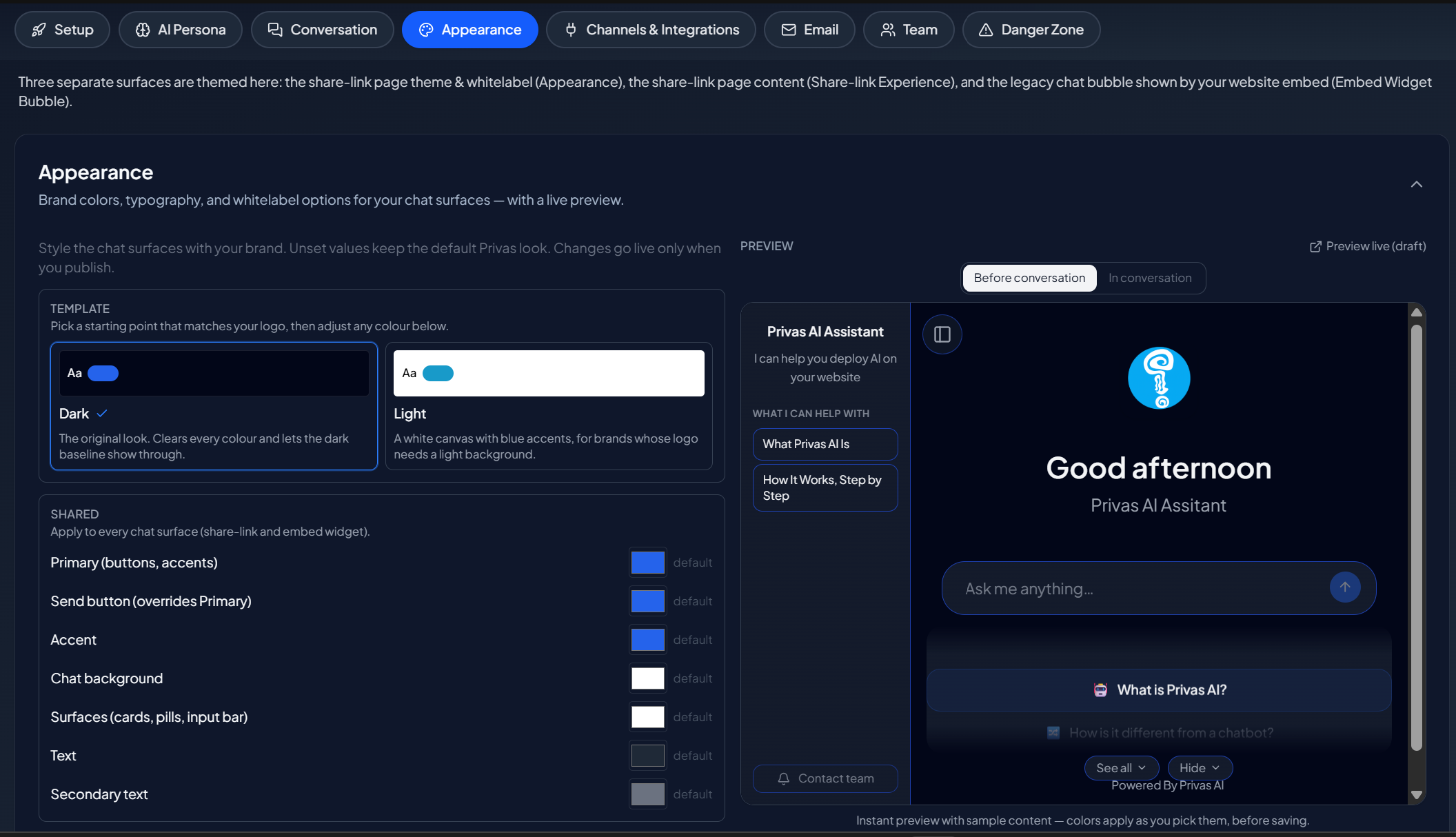
What you can set
- Colors. The palette used across your chat surfaces.
- Typography. The font family for the chat.
- Corner style. How rounded the surfaces look.
A live preview updates as you edit.
Templates are a starting point
The Light and Dark templates fill the color pickers in one click. They are a starting point, not a locked mode. After you apply one, nothing is fixed: change any color and the selection simply reads as "custom", because an edited palette is no longer the template you started from.
A template changes colors only. Your font and corner style stay as you set them, so switching templates does not undo those choices.
Where the theme applies
Theme settings apply to your chat surfaces, including the widget on your website. Set it once and it carries across.
Next step
Continue to Share-link Experience to shape the standalone conversation page.